The mobile tab bar
On a phone, the whole product collapses into a five-slot bar at the bottom of the screen. Four of those slots are yours — each person pins the pages they actually open, and the fifth slot is the door to everything else.
#Why this exists
The desktop app has room for a full sidebar. A phone doesn't. And the people on phones — mechanics in a truck, operators on a jobsite — aren't browsing the product. They open it to do one of two or three things, fast, with a thumb. A static menu buried behind a hamburger would put their most-used screen two taps away every time.
So the mobile layout puts a fixed bar across the bottom and lets each user decide what lives in it. A field tech who works tickets all day pins Tickets. A buyer who lives in equipment requests pins Equipment. The bar becomes a per-person shortcut row, and the things you rarely touch stay one tap away under More instead of cluttering the screen.
#What you're looking at
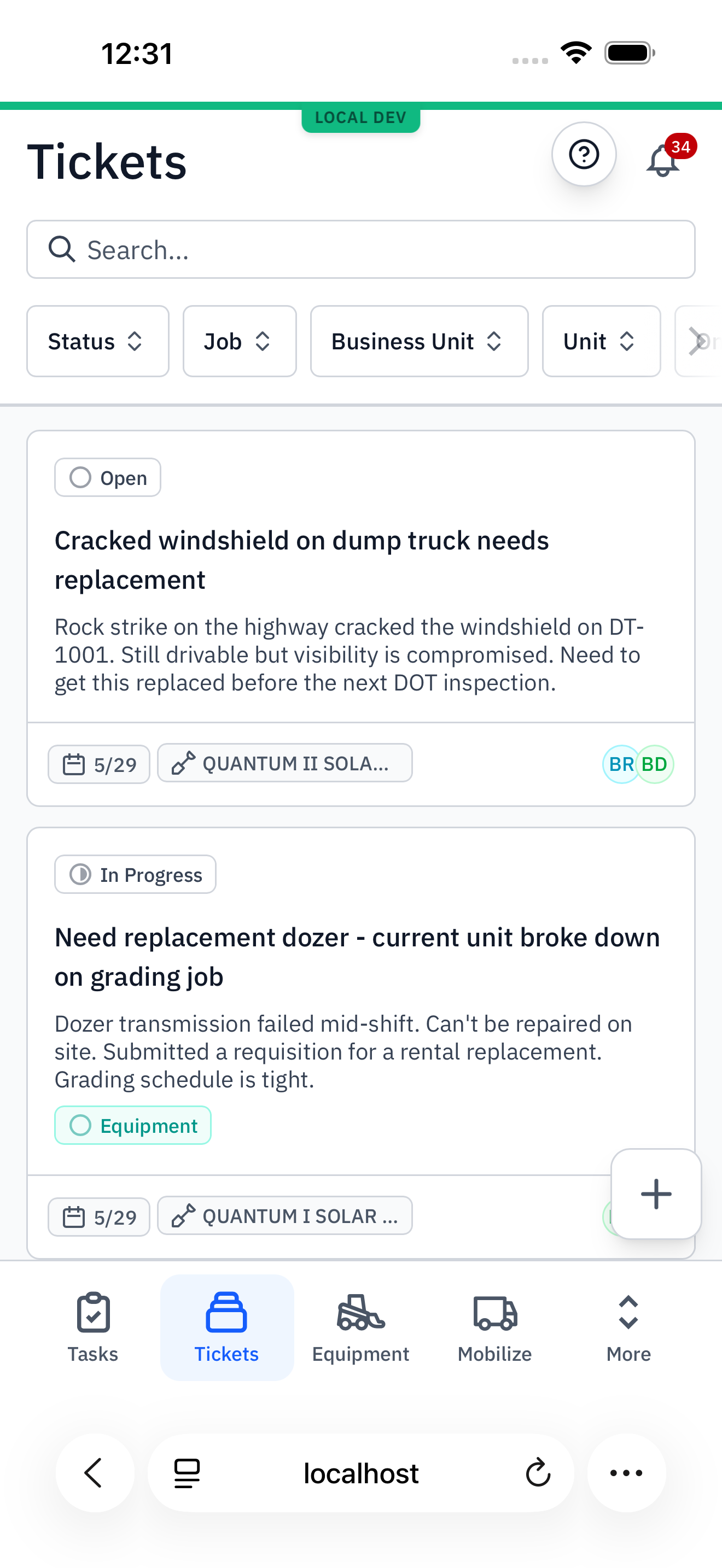
Every slot is the same shape: an icon stacked over a short label. The page you're currently on is tinted blue so you always know where you are. The labels in the bar are deliberately short — Mobilize, Maintain, Docs — because they have to fit four-up across a phone. The fuller names (Mobilizations, Maintenance, Documents) show up in the menu, where there's room.
#How the bar is built
Two kinds of slots, always in this order:
- Up to four favorites. These are the pages the user has pinned. They fill the bar from the left.
- The More button. Always the last slot. It opens a menu listing every page the user can reach, and it's where favorites get added and removed.
Four is a hard cap — the bar never grows past four favorites plus More, so it always fits a phone and never wraps. It ships full: Tasks, Tickets, Equipment, and Mobilize are pinned by default. Which four stay is entirely up to the user — to add a fifth interest, they swap one out.
#Walkthrough
#Step 1: Open the menu with More
Tap More and a sheet slides up titled Go to. It's the full directory of everywhere this user can navigate, split into two groups.
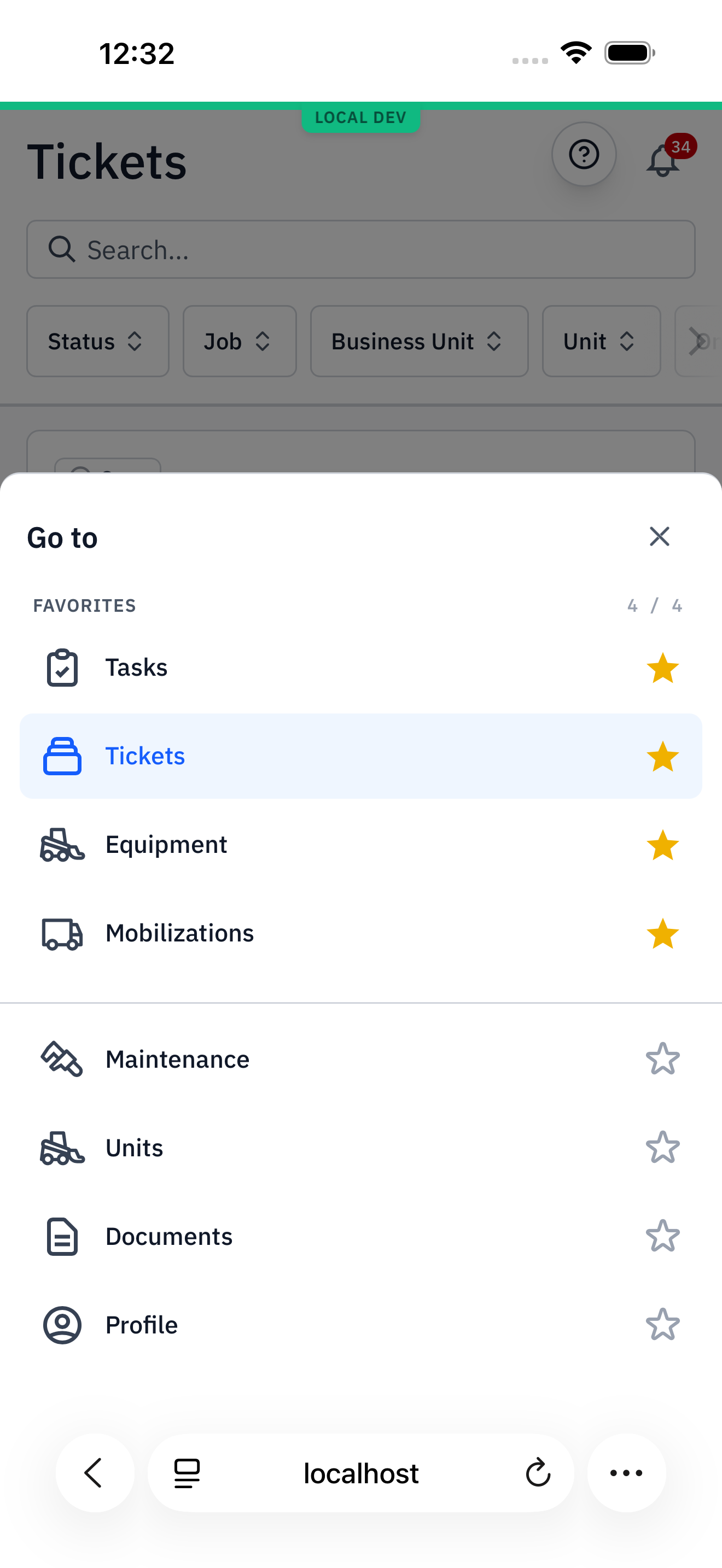
4 / 4 counter — the bar ships full, so all four slots are taken by Tasks, Tickets, Equipment, and Mobilizations. Everything below the divider is a page that could be a favorite but isn't yet. Tapping any row navigates there; tapping the star on the right pins or unpins it.The star on each row is the control. A filled gold star means the page is in your bar; a hollow star means it isn't. The list of pages itself depends on the user — administrators see Settings and admin pages other team members never will, and the Parts shortcut only appears for users whose account is linked to Parts Hub Pro.
#Step 2: The four-favorite limit
Because the bar holds exactly four and it starts full, trying to pin a fifth doesn't quietly bump one out. The app stops you with a short message and leaves your bar untouched.
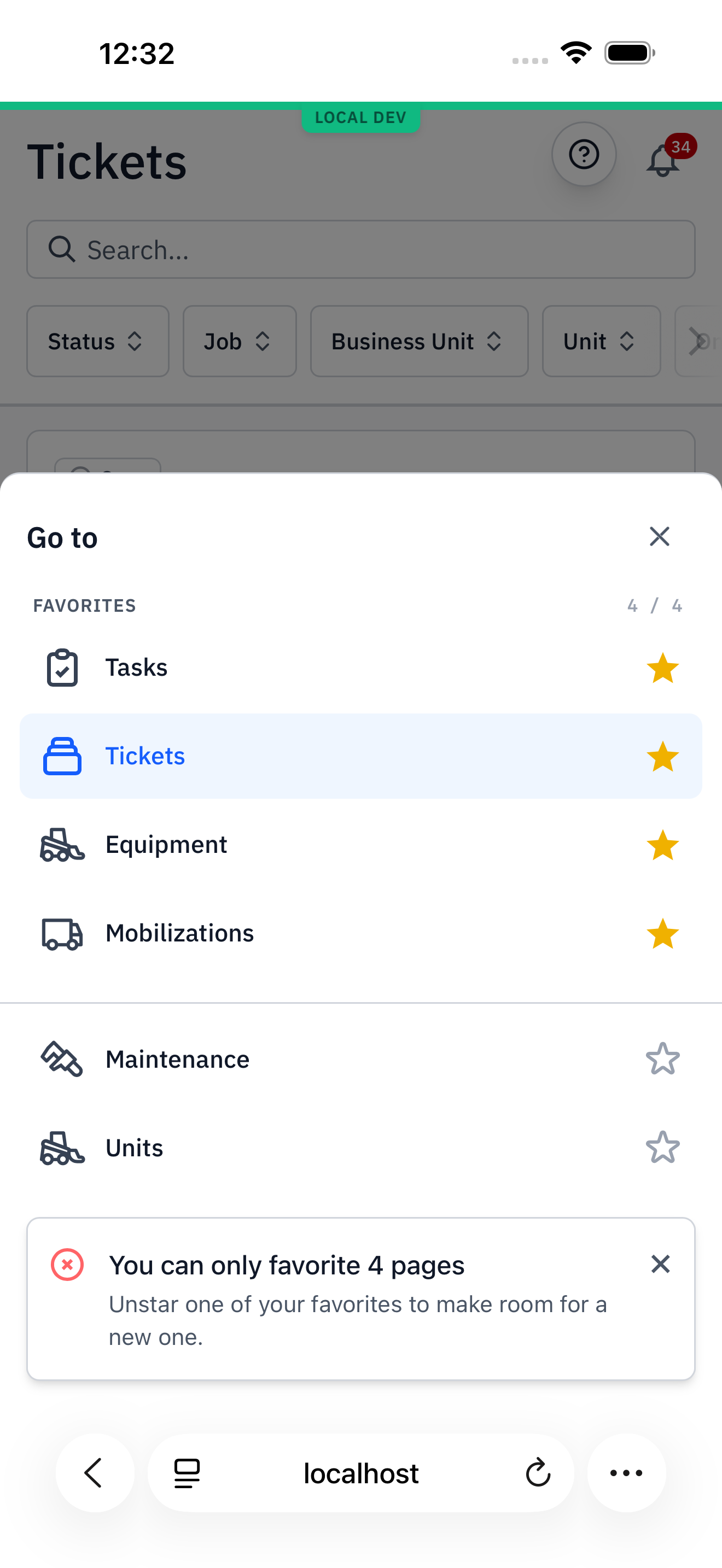
4 / 4, tapping a hollow star — here Maintenance — raises "You can only favorite 4 pages — Unstar one of your favorites to make room for a new one." Nothing changes until you free a slot.#Step 3: Unpin one to make room
Tap the gold star next to a favorite you reach for less — say Mobilizations — and it drops out of the Favorites group, its star empties, and the counter falls to 3 / 4.
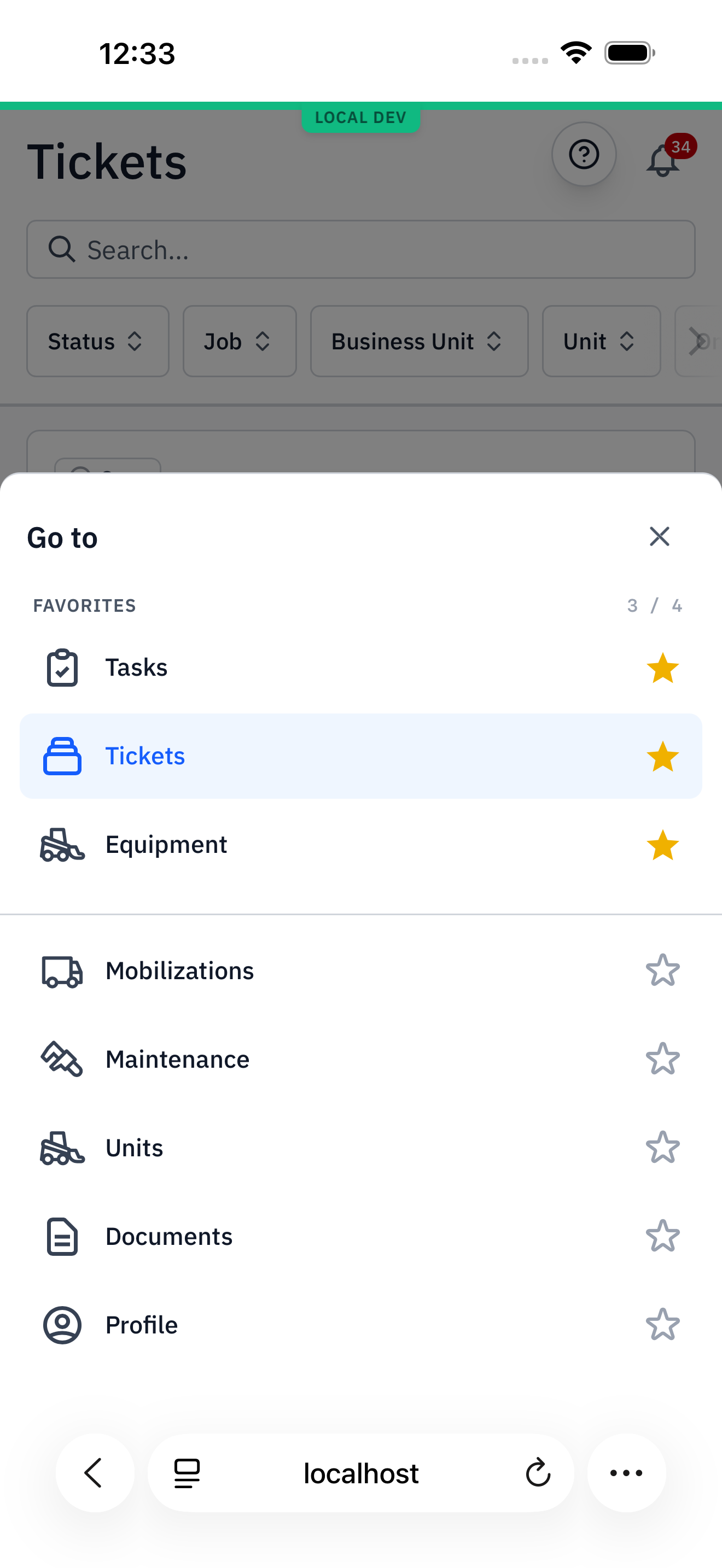
3 / 4 — one slot open. The change is instant; there's no save button.#Step 4: Pin the page you want
Now tap the hollow star next to Maintenance. It jumps up into the Favorites group, its star fills in, and you're back to 4 / 4 — with Maintenance in, Mobilizations out.
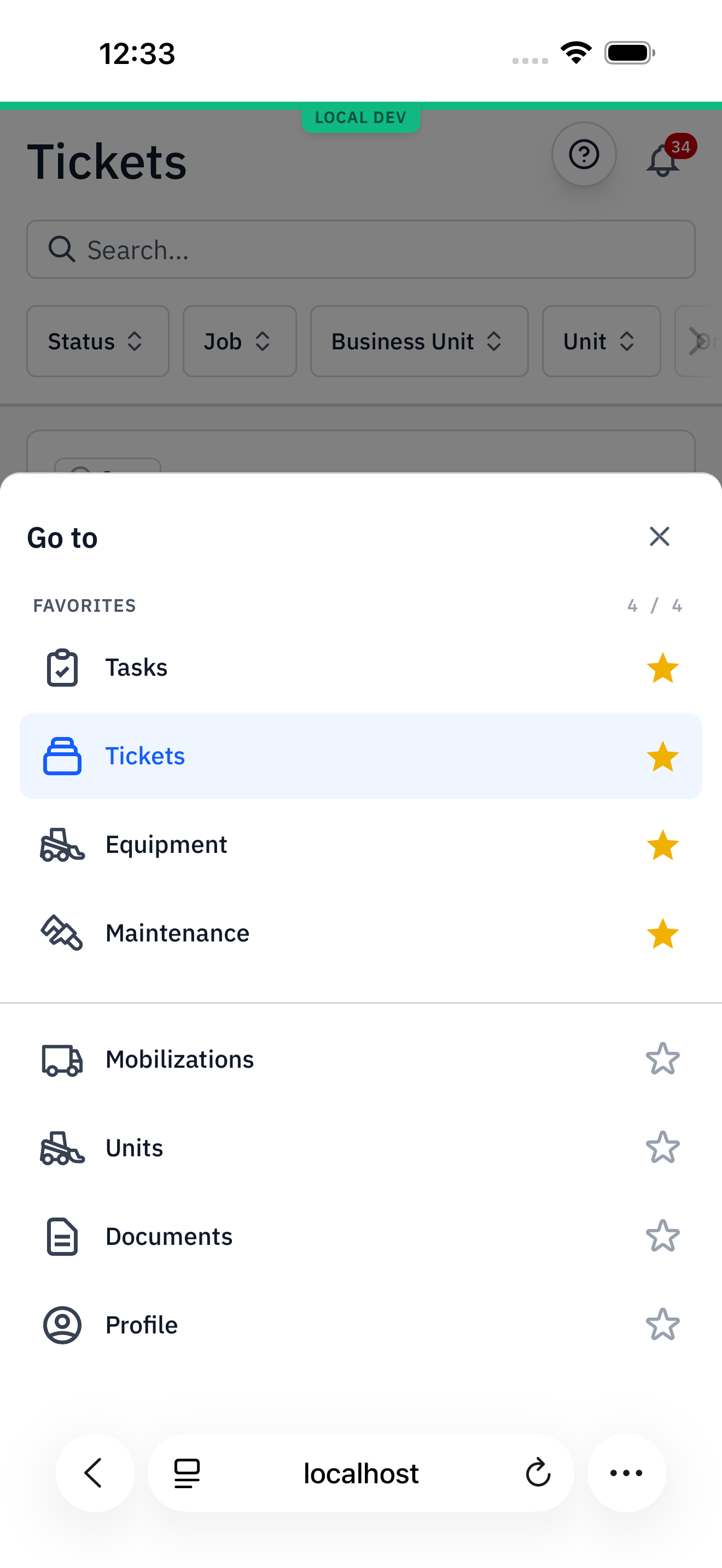
4 / 4 and the swap is done — Tasks, Tickets, Equipment, Maintenance.#Step 5: The bar updates
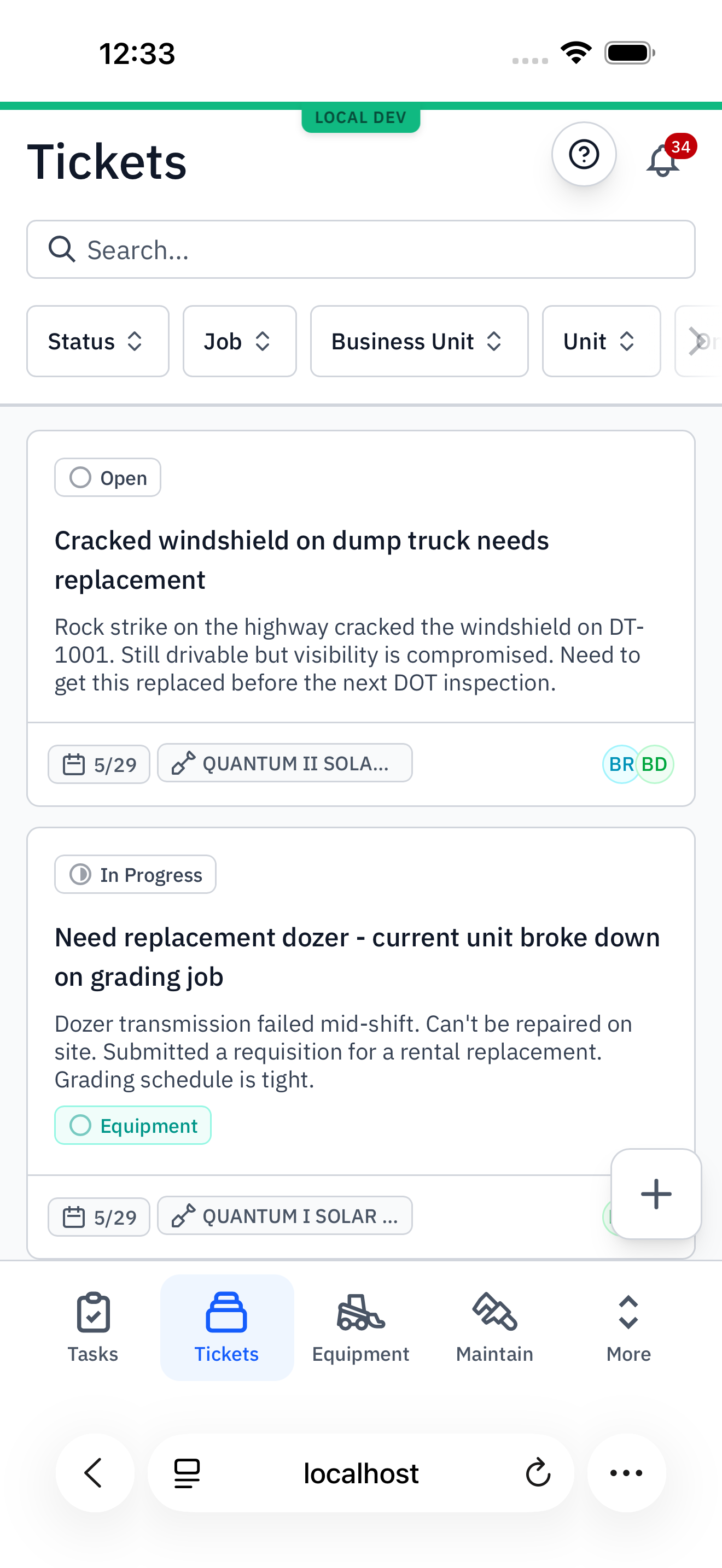
Close the sheet and the bar has rearranged itself. Maintenance — shown as the short label Maintain — has taken Mobilize's old slot, one thumb-tap from anywhere in the app.
#Step 6: More follows where you are
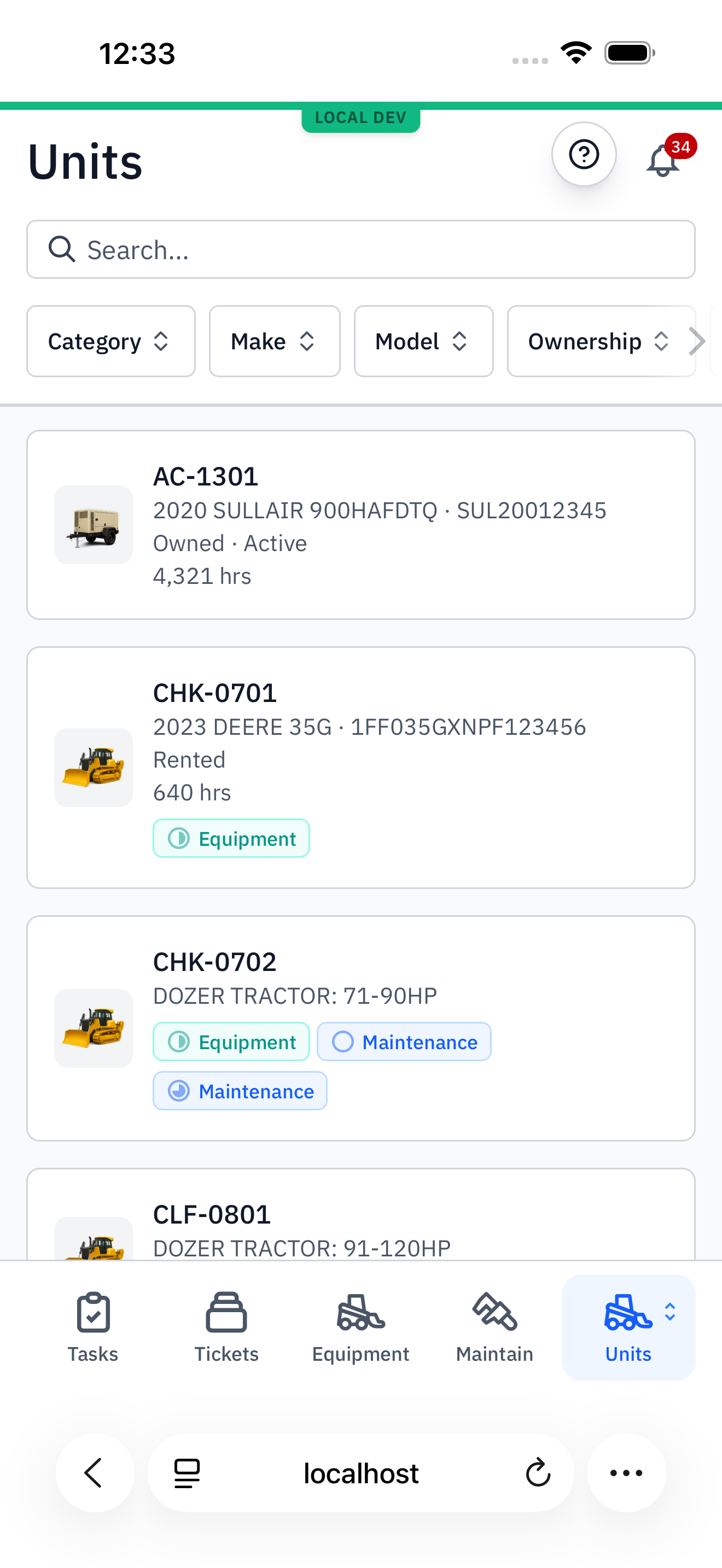
Here's the detail that makes the bar feel smart. When you navigate to a page that isn't one of your favorites, the More button stops saying "More." It takes on that page's icon and label, and highlights blue — so the bar still shows you where you are, even on a page you never pinned.
#What can go in a slot
The menu lists every destination the signed-in user is allowed to reach. The common ones, with the short label the bar uses and the fuller name the menu shows:
| Bar label | Menu name — what it opens |
|---|---|
| Tasks | Tasks — the action items assigned to you, with an unread count badge. |
| Tickets | Tickets — the ticket inbox from the field. |
| Equipment | Equipment — equipment requests. |
| Mobilize | Mobilizations — moving owned units between sites. |
| Maintain | Maintenance — service and repair work requests. |
| Units | Units — the equipment/asset list. |
| Docs | Documents — uploaded files and records. |
| Profile | Profile — the signed-in user, and where Sign out lives. |
Beyond these, the menu adds entries that only some users see: Settings and the admin pages (Accounts, Users, Categories, Feature Flags) for admins, and a Parts shortcut for users whose account is linked to Parts Hub Pro. Whatever the user can reach, they can pin.