Dealer team SOPs · 5 of 8
Ship or stage an order
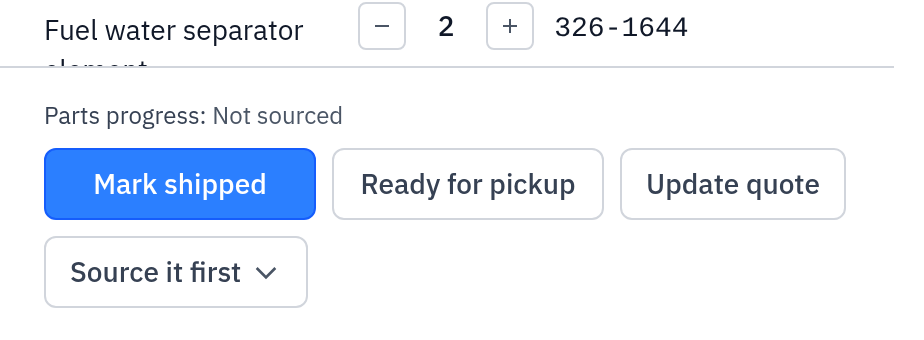
When the customer's approval is in, ship the parts or put them on the counter, then tell Gearflow: Mark shipped or Ready for pickup. The customer gets a message at once. Click Mark fulfilled when they have the parts.
Who: the counter rep, the shipping clerk or the owner of the request. When: when the parts leave your building, or when they are ready on the counter.
#Ship the order
- On Parts, click the PO received tab and open the request.
- Pull and pack the parts.
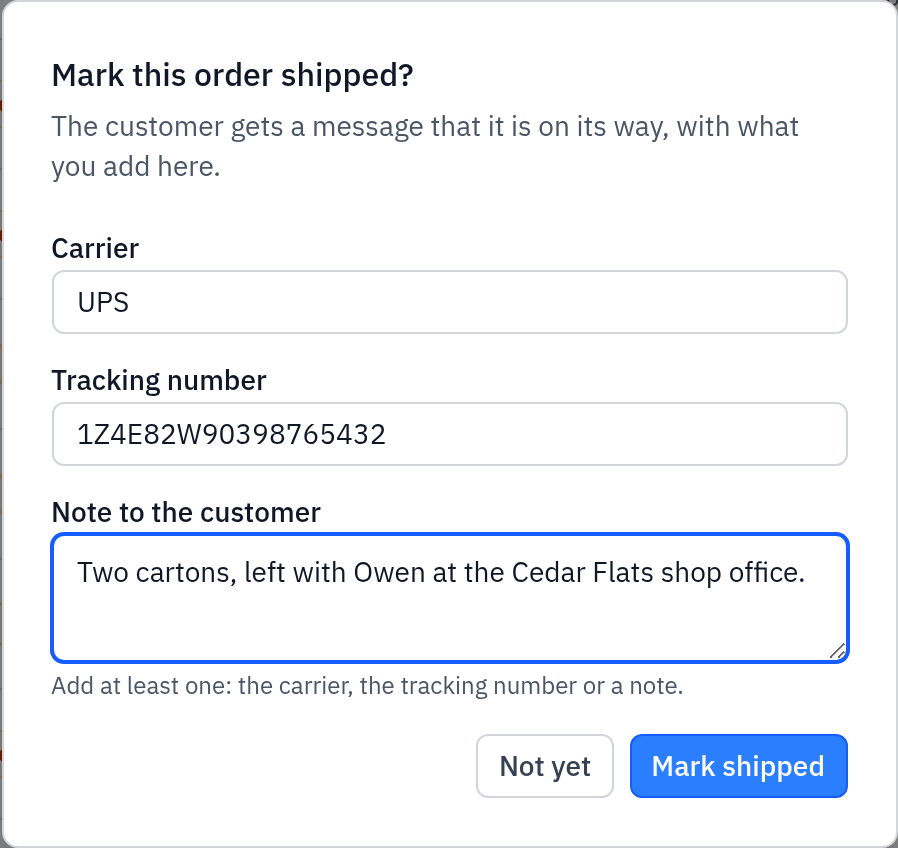
- Click Mark shipped. The window "Mark this order shipped?" opens.
- Enter one or more of these:
- Carrier, for example "UPS", "FedEx" or "our truck".
- Tracking number.
- Note to the customer, for example "Delivery Thursday morning".
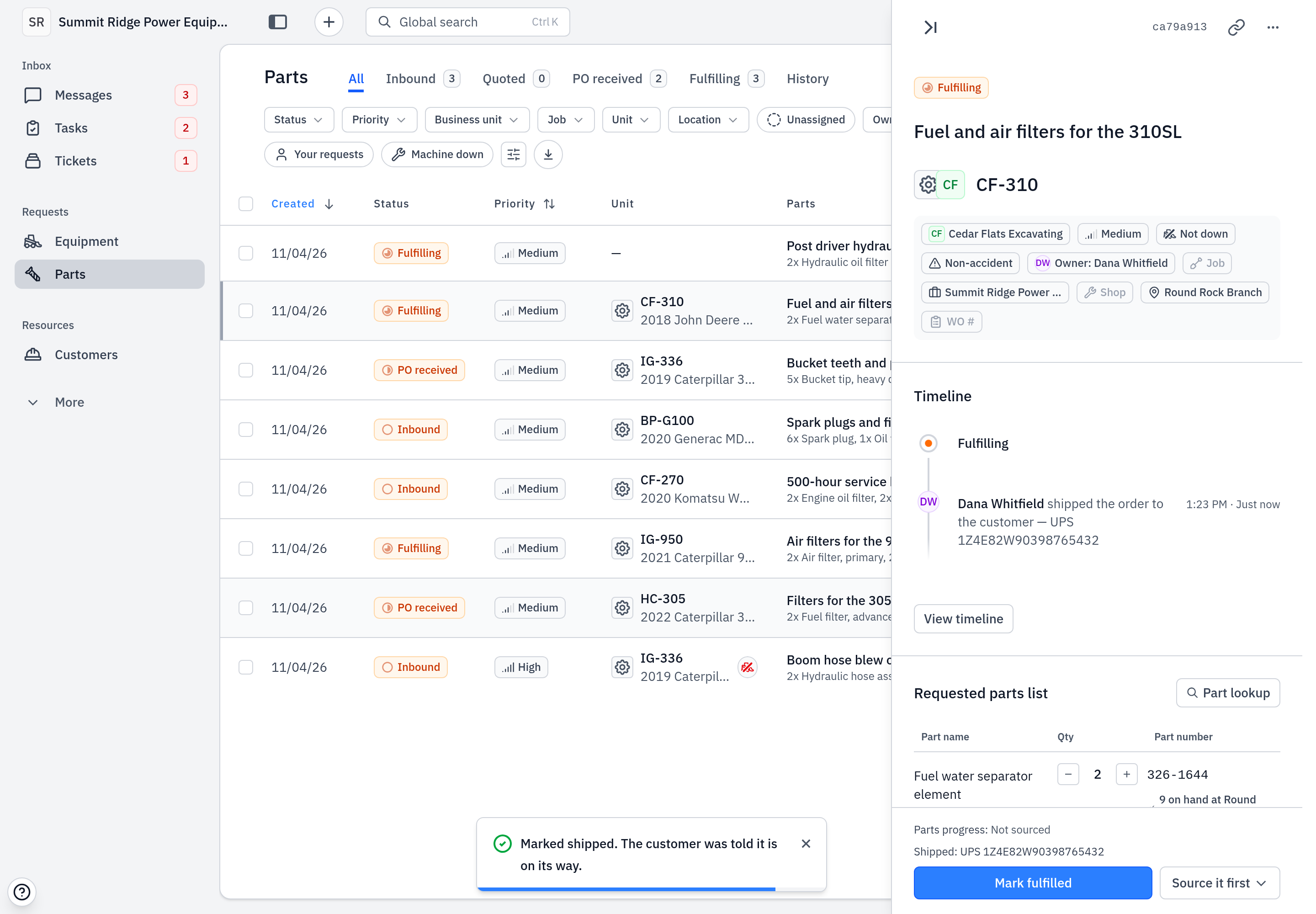
- Click Mark shipped. You see "Marked shipped. The customer was told it is on its way."
The customer gets: "Your order for … is on its way.", with the carrier, the tracking number and your note.
#Stage the order for pickup
- On Parts, click the PO received tab and open the request.
- Put the parts where the customer collects them.
- Click Ready for pickup. The window "Mark this order ready for pickup?" opens.
- Enter the Pickup location, for example "our parts counter" or "the yard gate".
- Click Ready for pickup. You see "Marked ready for pickup. The customer was told where to collect it."
The customer gets: "Your order for … is ready for pickup at location."
#Close the order
When the customer has the parts, open the request in the Fulfilling tab and click Mark fulfilled. The request moves to History.
#What you see after
- After Mark shipped or Ready for pickup, the request is in the Fulfilling lane. Its badge reads Fulfilling.
- The panel shows what went to the customer, for example "Shipped: UPS 1Z999…" or "Ready for pickup at our parts counter".
- After Mark fulfilled, the badge reads Fulfilled and the request is in History.
#Common mistakes
- Leaving every field blank. You see "Add the carrier, the tracking number or a note for the customer." Enter one of the three.
- No pickup location. You see "Add where the customer picks it up." Enter the place.
- A long carrier or tracking number. Each must have 100 characters or fewer.
- Clicking Mark shipped before the parts leave. The customer gets the message at once. If you are not ready, click Not yet.
- No Mark shipped button. The customer has not approved the quote yet, so the request is not in PO received. See Customer approval.