Log Order
A mechanic transacted entirely outside Gearflow — they stopped at NAPA on the way to a jobsite, paid with a company card, got a paper receipt — and now wants the spend recorded against the right job. This is the after-the-fact entry point.
#Why this exists
Field crews don't always have time to wait for a quote. A mechanic with a busted hose at 4 PM walks into the nearest counter, pays cash or company card, and gets back to the site. Without somewhere to record those transactions, that spend never makes it into the buyer's reporting — and the parts manager loses visibility on what's actually being bought.
Log Order is the answer. It's a one-page form that captures an existing transaction, optionally with the receipt or invoice attached.
#What's different from Standard RFQ and Quick Order
Both Standard RFQ and Quick Order start with a Request that flows out to vendors. Log Order has no outbound — there's no notification, no vendor action, no Quote. It's a record-after-the-fact, structurally closer to "data entry" than "ordering." The Order lands in the system already in a fulfilled or near-fulfilled state, with whatever pricing the buyer keys in.
#Walkthrough
#Open Log Order
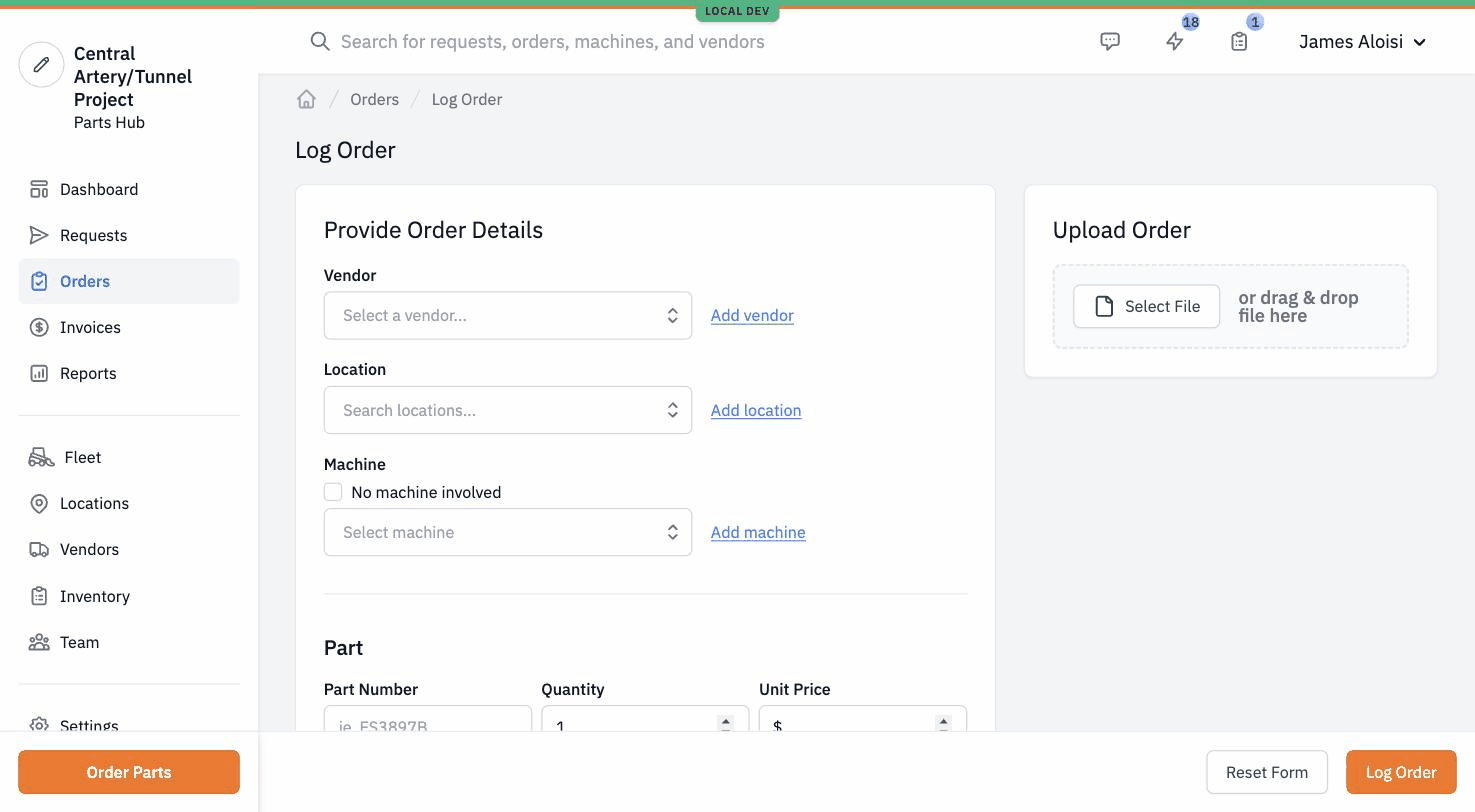
From the Orders list, the buyer hits the Log Order button at the top right. The form opens immediately — no wizard.
#Two paths to the same record
The buyer chooses one of:
- Type it in. Vendor, location, machine, then each part with its part number, quantity, and unit price. Submit. Done.
- Upload a receipt or invoice PDF. Gearflow runs OCR (Textract) over the document, pulls out the vendor and line items, and prefills the form. The buyer reviews, edits if needed, and submits.
The upload path is the differentiator. A field tech with a paper receipt can take a photo, drop it in, and have a structured Order with line items in roughly a minute.
#What gets created
On submission, Log Order creates the Request, a single Order from the chosen vendor, line items for each row of the form, and (optionally) an Invoice record with the uploaded document attached. The Order is created already in a fulfilled state — there's no "vendor confirms" step because the transaction already happened.
#Tips
- The field-buying flow. For teams with crews who buy at counters, this is the entry point.
- The OCR does the data entry. Drop a receipt PDF and the lines auto-fill.
- Logged Orders don't link to Part Requests. Unlike Standard RFQ and Quick Order, the line items on a Logged Order don't get linked back to original Part Request records — there were none. Cost-coding by line item still works (the buyer can enter cost codes per row), but reports that pivot on Part Request will not include this volume.
- Useful for capturing legacy buying patterns. A new Parts Hub Pro customer with months or years of historical receipts can backfill spend reporting by Logging a batch of past orders.