Standard RFQ
A buyer needs parts and wants competing prices. They post one Request, multiple vendors respond with Quotes, and the buyer picks the winner. The flagship Parts Hub Pro flow.
#Why this exists
Procurement at a heavy-civil contractor lives in spreadsheets and phone calls. A parts manager who needs bearings for a crane repair will email three vendors, wait for replies, paste prices into a sheet, and pick the cheapest one that can deliver in time. None of that is captured anywhere — there's no record of who quoted what, no audit trail, no spend reporting until the invoices arrive.
Standard RFQ replaces that with one structured ask. The buyer enters the parts once, picks the vendors, and the vendors respond on the same Request (also called an RFQ — Request for Quote). The buyer compares their Quotes and approves one — the approved Quote becomes the Order. Everything — Quotes, the chosen vendor, fulfillment, invoice — hangs off the same Request.
#Lifecycle
The Request advances through these states as the work progresses. Submitted is the moment after the buyer creates it. It moves to Quoted when one or more vendors send back Quotes. PO Sent means the buyer accepted one of those Quotes; the accepted Quote is now an Order. Fulfilling covers shipping; Fulfilled is buyer confirmation of receipt.
#Walkthrough
#Step 1: Buyer creates the Request
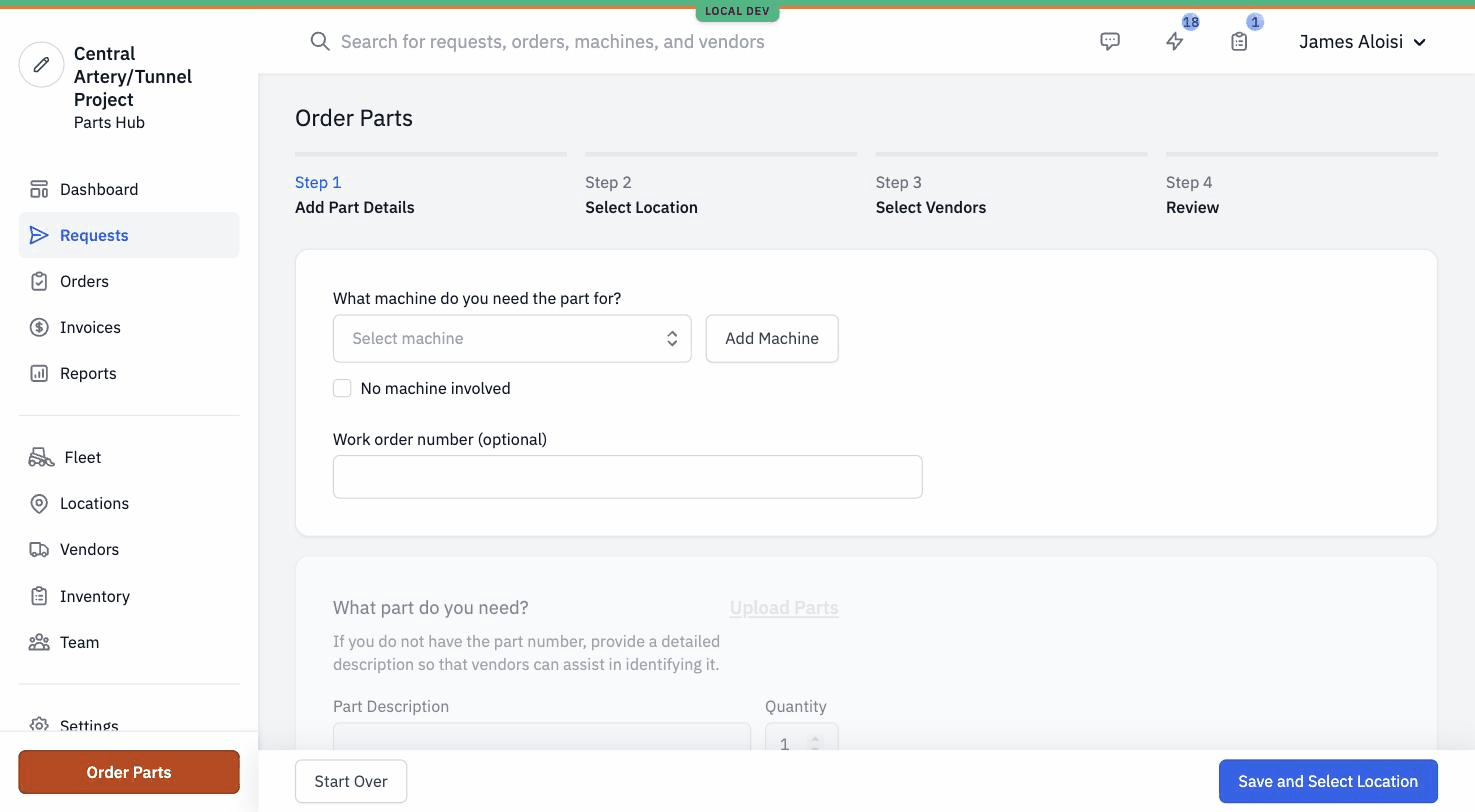
The buyer hits Order Parts in the left sidebar. The flow is a four-step wizard: Add Part Details → Select Location → Select Vendors → Review. Step 1 is where the parts go in:
- The machine the parts are for (or "No machine involved" for shop stock).
- Optional work order number — links the Request back to the buyer's ERP / work-order system.
- Each part: a part description, optional part number (MPN), quantity. The buyer can add as many parts as they need with Add Another Part, or upload a parts list if they have one.
- Urgency — High (24 hrs), Medium (3 days), Low (1 week+). Vendors use this to prioritize their quoting.
- Optional comments to give vendors fitment context.
#Step 2: Vendors respond with Quotes
On submission, each target vendor gets a notification with a link to the Request. They open it in Sales Hub Pro — the supplier-side product — and respond. Some type the Quote in directly; some upload a quote PDF and let Gearflow extract the line items; some email a quote to a Gearflow address and Gearflow creates the Quote on their behalf.
The result, regardless of how the vendor got there, is one Quote per responding vendor on the buyer's Request. The Request's status moves from Submitted to Quoted.
#Step 3: Buyer reviews the Quotes
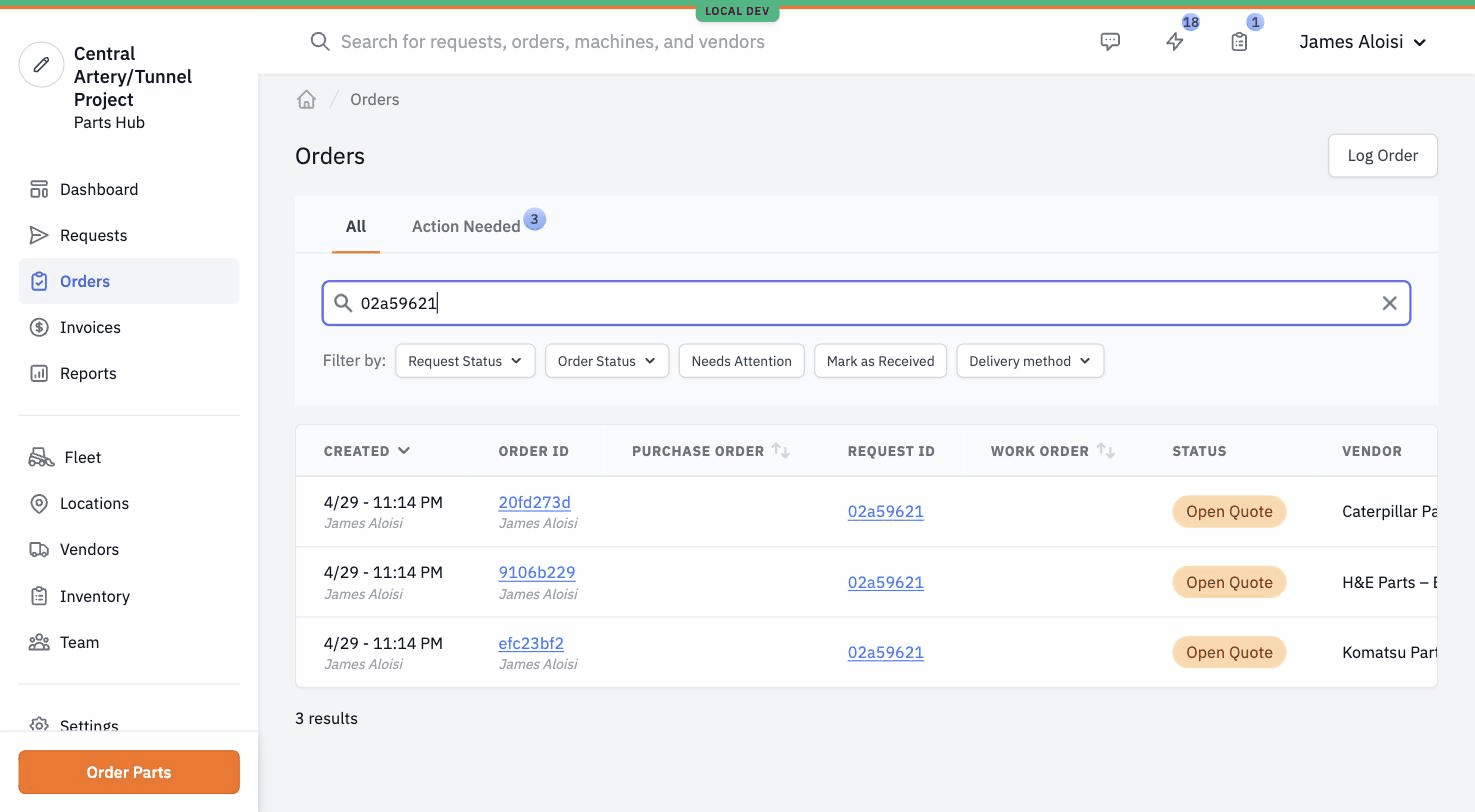
Each vendor's response shows up in the buyer's Orders list, one row per Quote, with status "Quoted" and the Request ID linking back to the parent. Multiple Quotes on the same Request appear as separate rows so the buyer can sort and compare.
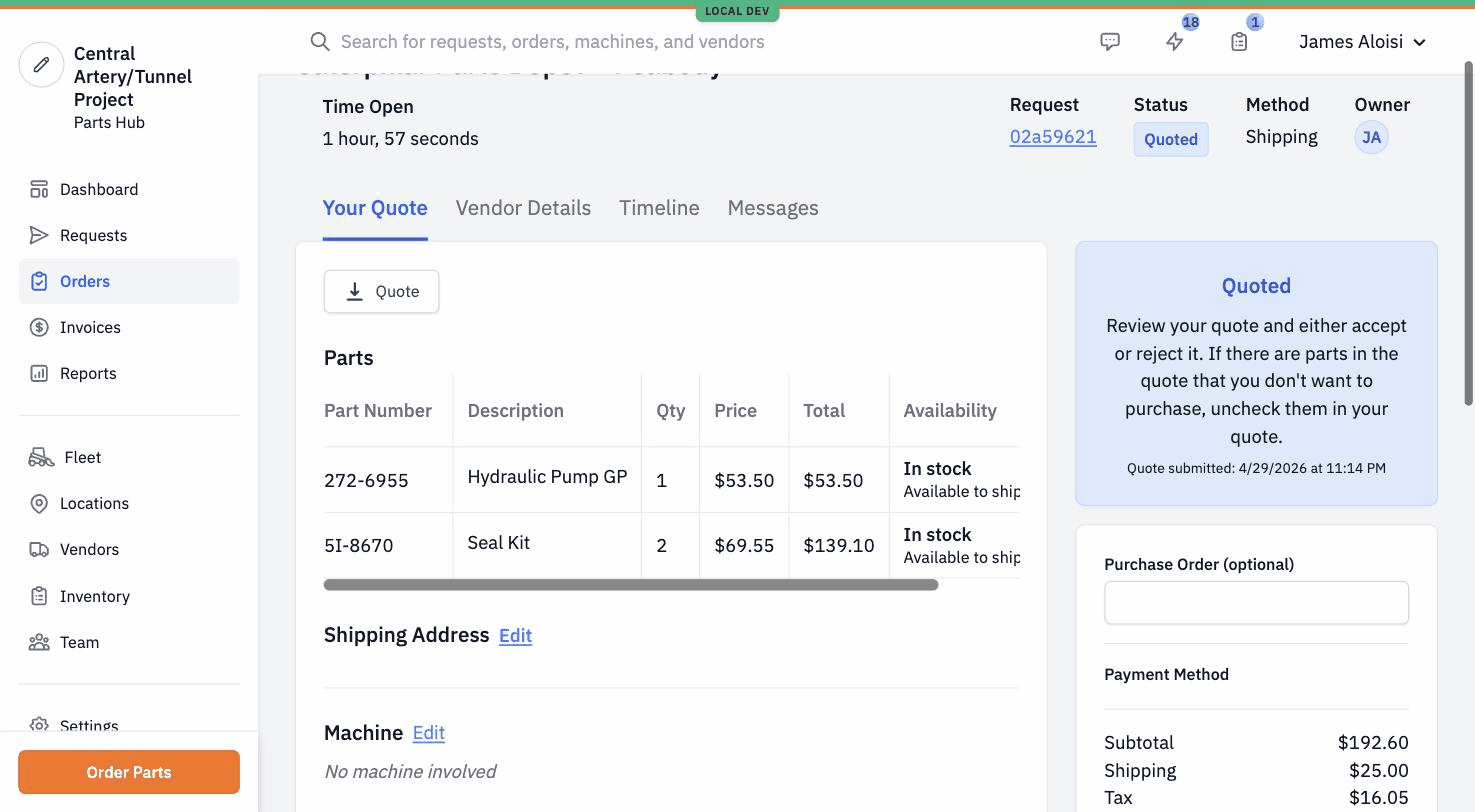
Clicking a Quote opens its detail page: parts, prices, availability, the vendor's quote number, payment method, and totals. The buyer can mark some parts unwanted before accepting.
#Step 4: Buyer accepts one Quote
The buyer accepts one Quote — it becomes an Order and moves into the fulfillment lifecycle. The other Quotes on the Request are marked Canceled. The Request itself moves from Quoted to PO Sent.
#Step 5: Vendor fulfills, invoice arrives
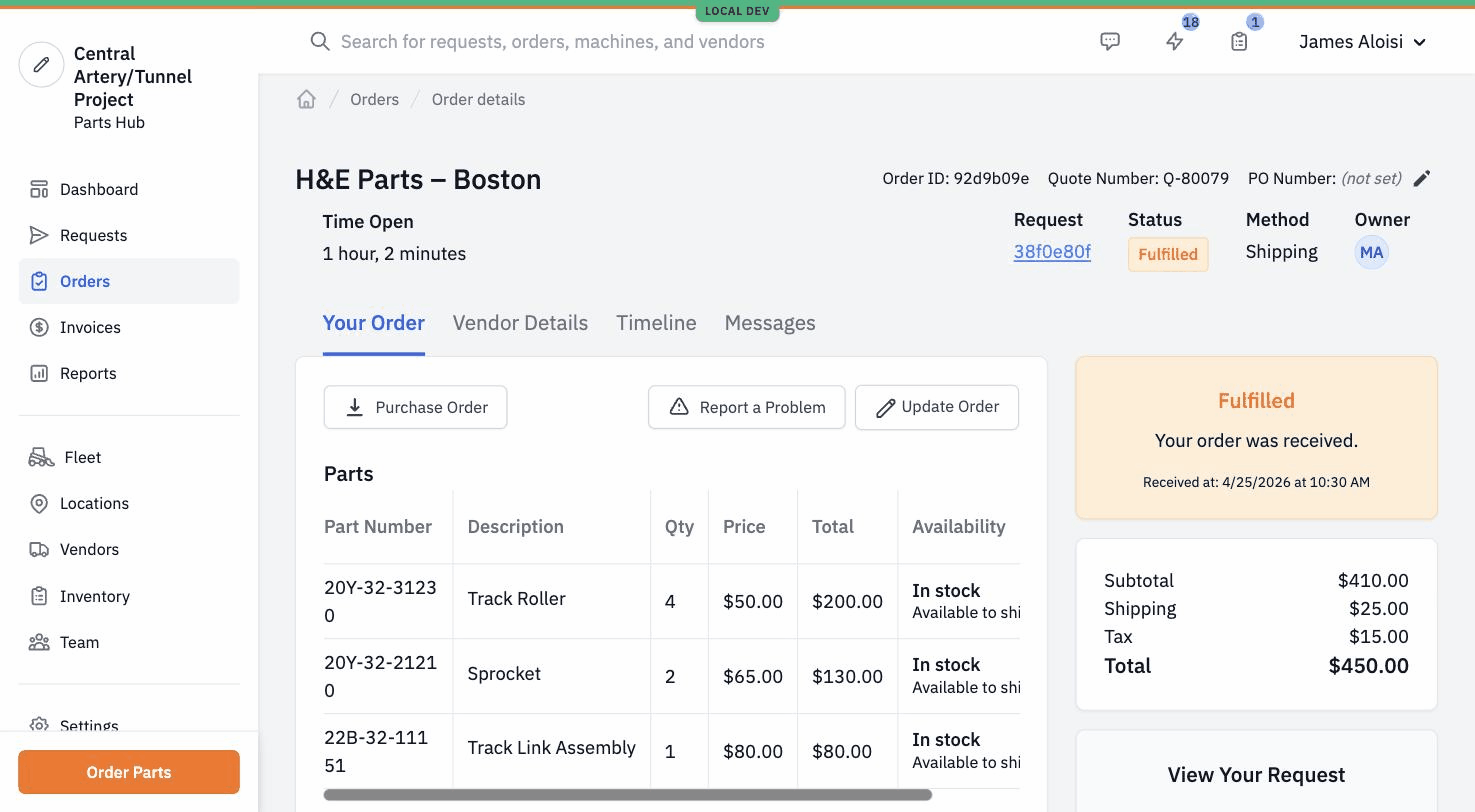
The vendor (in Sales Hub Pro) marks shipments, attaches tracking, and marks the Order ready. The buyer confirms receipt — the Request moves to Fulfilled. The vendor sends an invoice — usually a PDF, either uploaded by the buyer or emailed in by the vendor. Gearflow extracts the invoice and updates prices on the existing line items.
#The Manual Order escape hatch
#Tips
- Built for comparison shopping. For a buyer-side team of any meaningful size that comparison-shops its parts spend, Standard RFQ is the workflow that fits.
- Cost codes and task numbers carry through. A buyer who codes their Requests by job and accounting category gets that detail propagated to the Order's line items, which means it shows up in spend reporting later.
- Vendors don't need to learn a new app. Vendors can keep emailing PDFs and Quotes still appear structured in the buyer's UI — so getting your vendors on board doesn't mean asking them to adopt a new tool.
- Don't conflate this with Quick Order. Quick Order is the same Order Parts page with a toggle, but a totally different flow — one vendor, no Quote step, fulfill-and-invoice.