Quote a request
Build the quote on the request: price each line, pick parts from your catalog, set In stock or a lead time, then review the message and send it. The customer gets it by text or email with a PDF and a link to approve.
Who: counter reps and inside sales reps. When: as soon as you own an Inbound request, or when a customer asks for a price with no request.
No Gearflow account? A vendor who gets the request by email quotes from the link in that email. See Video: quote a Gearflow request: 2.5 minutes, with a one-page PDF guide.
Videos: Quote a parts request (1:52) and Find and resend the quote PDF (1:33) show these steps on screen.
#Start the quote
- From a request: open the request and click Send quote.
- With no request (a customer at the counter or on the phone): click + in the top bar, then Send quote. Or click Send quote at the top of the Parts page. Under "Who is this quote for?", click Choose a customer and select the customer, or click New customer… to add one.
The sheet opens with the title Quote this request (or Send a quote when the customer asked for nothing yet).
#Steps
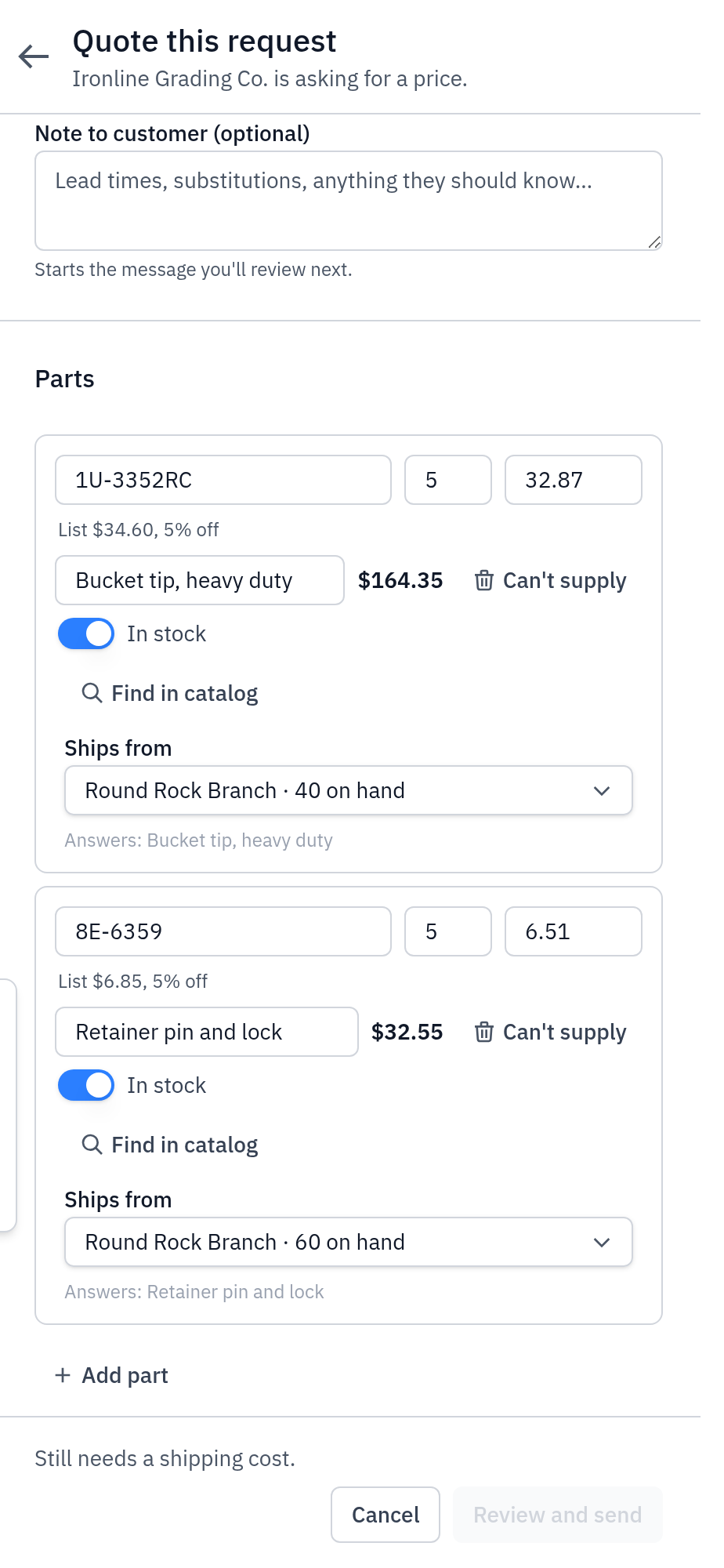
- Check the quote details. Quote number has your next number already, and Valid until is 30 days from today. Change them if you must.
- Add a note in Note to customer if needed: lead times, substitutions, anything they should know. The note starts the message you review later.
- Price each line. For each part the customer asked for, enter the part
number, quantity, unit price and description.
- To use your catalog, click Find in catalog on the line. Type a part number or a description, then select the item. Gearflow fills in the part number, description, price and stock. The quantity does not change.
- If you have a quote PDF from your own system, drop it on the sheet. Gearflow reads it and fills in the prices. Check each price before you send.
- Set availability on each line. Each line starts as In stock. If the part is not on your shelf, turn In stock off and enter a Lead time in days, or an available on date.
- Choose where it ships from, if your account has stock locations. Use Ships from on the line. Each location shows how many are on hand.
- Remove what you cannot supply. On a line the customer asked for, click Can't supply. To add a part they did not ask for, click + Add part, then set Answers to the part it replaces, or to "Nothing they asked for — an extra".
- Enter costs. For a delivery order, Shipping cost is required: enter 0 if it ships free. Sales tax is optional and is a dollar amount.
- Click Review and send. If the button is not active, read the "Still needs …" text next to it.
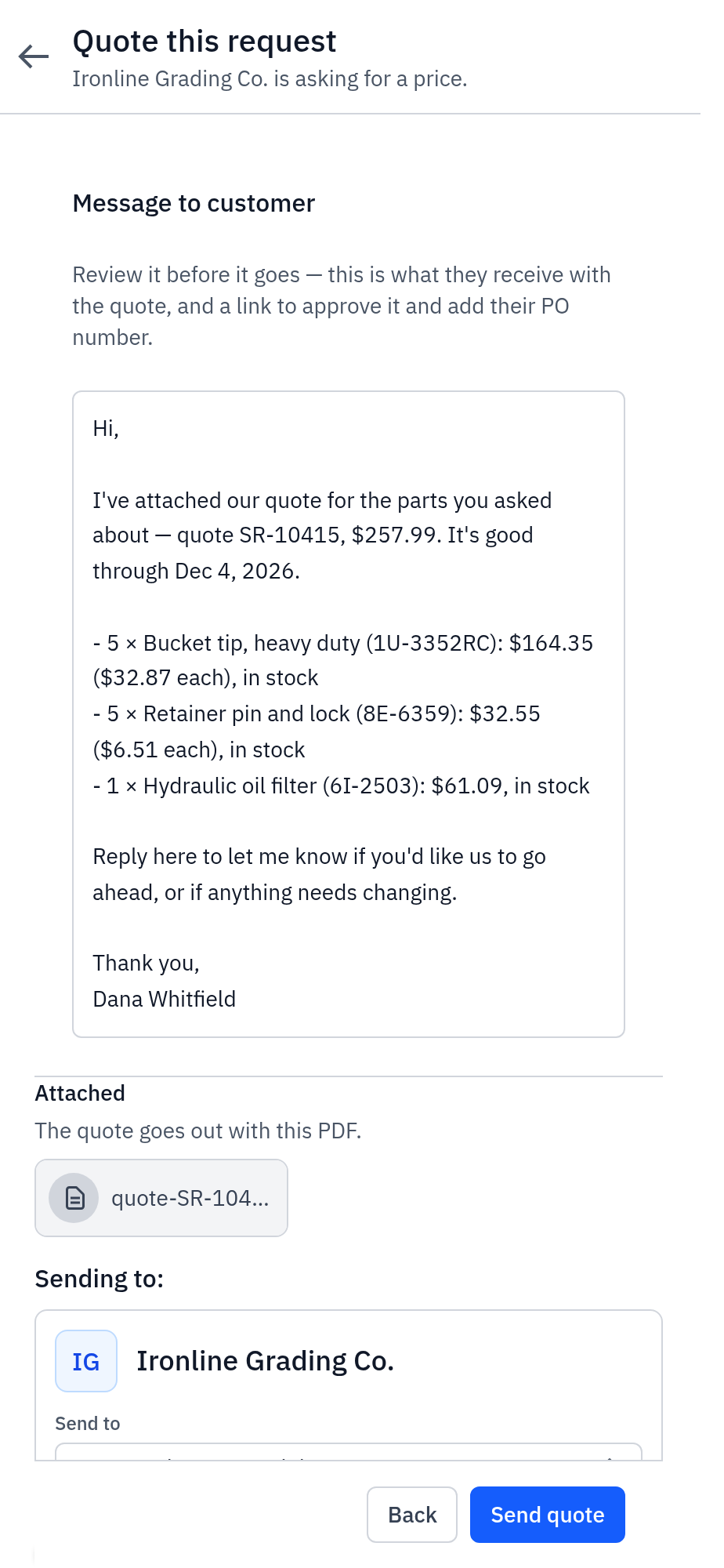
- Review the message. Message to customer is the text the customer gets. Edit it if needed. Under Attached, open the PDF and check it.
- Choose who gets it. Under Send to, the requester and the people on the request are already selected. Add or remove people, or click Add contact.
- Keep the follow-up on. Follow up if they don't reply sends one reminder after 3 business days. It does not go if the customer replies, accepts or declines first. Change the date or the text if needed.
- Click Send quote. You see "Quote sent to customer."
#What the customer gets
- By email: the message with the quote PDF attached. The subject is "Quote number from your company". The last line is a link: "Approve the quote and add your PO number here".
- By text: the same message, with a link to the PDF (the link works for 7 days) and the approval link.
- Each contact gets the quote on their own channel: text, email or both. A contact who replied STOP gets email only. To change a contact's channel, see Customers and their units.
#The customer's discount
You do not type a discount on the quote. Set the customer's Discount off list, % on the customer instead (see Customers and their units). When you pick a part from the catalog, its price is the list price less that discount. The line shows a note, for example "List $28.50, 10% off". The PDF shows the net price and no discount row.
#The quote PDF
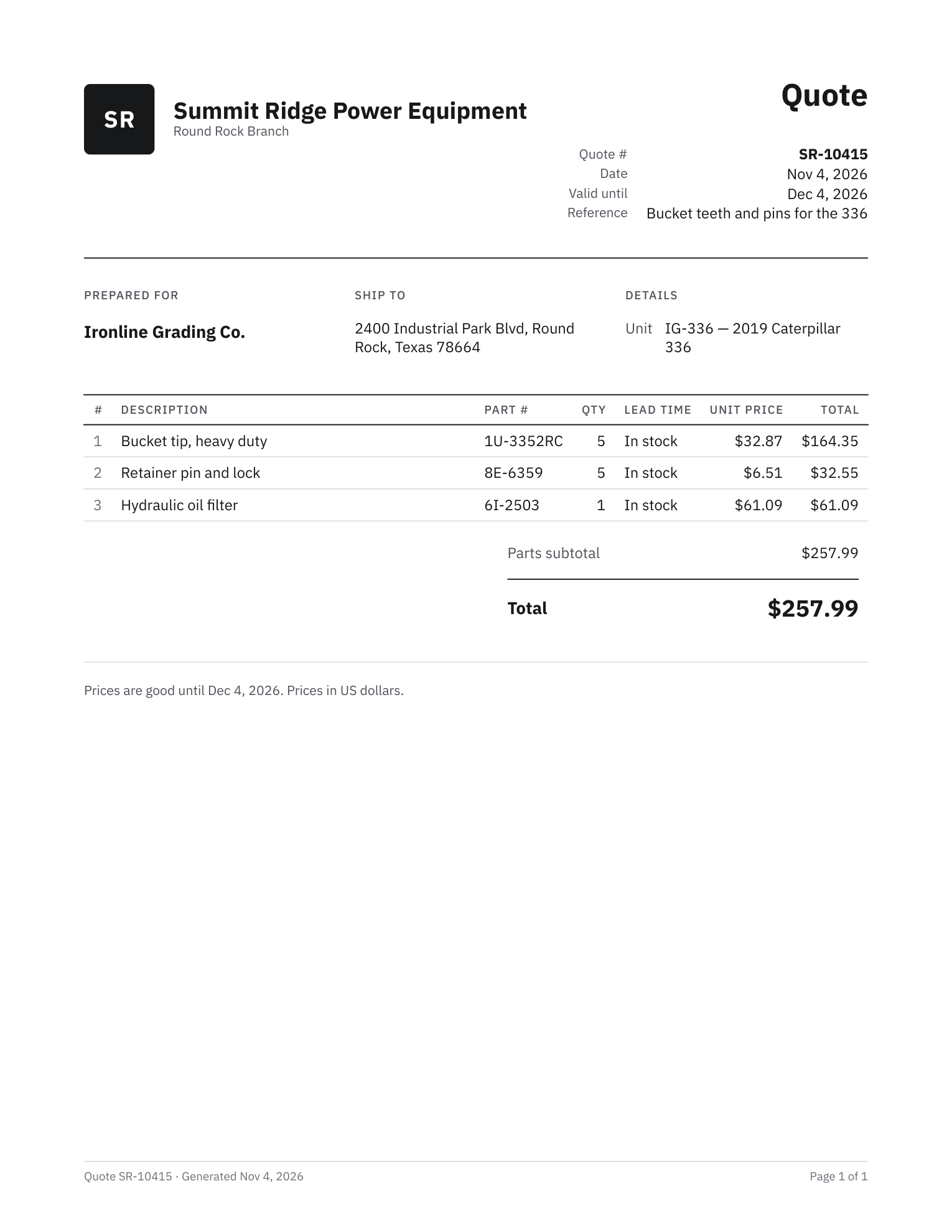
The PDF has your company name and logo, the quote number, the date, Valid until, Prepared for, Ship to (or Will call), a table of the lines (part number, quantity, ships from, lead time, unit price, total), then the subtotal, shipping, tax and total. Your note prints under "Note from your company".
#What you see after
- The request moves to the Quoted lane. Its Customer card reads Quote sent.
- The quote is a message in the request's customer thread, with the PDF.
- To change a sent quote, click Update quote, make the change and send again. The customer gets a new message and a new PDF. An approval of the old version no longer counts.
#Common mistakes
- Leaving In stock on for a part you must order. The customer reads "in stock". Turn it off and enter a lead time.
- A contact with no email and no phone (for example, one made before Gearflow required one). That person gets nothing, and no warning shows. Add an email or a phone to the contact first.
- "enter a price, or uncheck this line". A line has no price. Enter the price, or click Can't supply (or the x on a line you added).
- "Some lines are priced at $0.00." If the price is correct, select I confirm these prices are correct.
- "Keep at least one line on the quote." A quote needs one line or more.
- "Price at least one of the customer's lines." You priced only extra lines. Price one of the parts the customer asked for.
- No Find in catalog button. Your catalog is empty, or your seat cannot read it.