Maintenance work requests
A unit owned by the customer needs service — a hydraulic leak, a failed sensor, an unscheduled repair. Maintenance work requests capture the ask, route it to a service writer, and carry the work through quote, PO, technician, and completion on one record.
#Why this exists
Most heavy civil contractors run their work-request intake on a spreadsheet, and it's the same loop everywhere: a foreman calls or texts a problem in, a service writer types it into a tab, the tab gets passed around, the spreadsheet drifts out of date, the work either happens or it doesn't, and nobody has a record of what was promised against what was delivered.
Maintenance replaces that intake. A field user reports a problem against a unit; the request lands in the service writer's queue with the asset, the job, and the details already attached; the service writer picks it up, sources a vendor or assigns an internal technician, the work happens, and the request closes. One record — open, scheduled, in service, complete — that the service writer, the field user who reported it, and the technician all work from, and that the vendor's emailed replies land back on.
#Maintenance vs. Equipment requests vs. Mobilizations
Three surfaces involve a unit and, usually, an outside vendor — and the side-by-side quote screen looks much the same across all three. This is the table that tells them apart.
| Whose unit | Maintenance: the customer's own unit. Equipment request: a unit the customer doesn't have yet. Mobilization: the customer's own unit. |
|---|---|
| What's being procured | Maintenance: service or repair (and often parts). Equipment request: a rental or rental-purchase. Mobilization: a move from one site to another. |
| The vendor | Maintenance: repair shops, dealer service departments, mobile mechanics. Internal techs are the other path. Equipment request: rental yards. Mobilization: haulers and freight companies. |
| Terminal state | Maintenance: Completed (work done). Equipment request: Called Off (rental returned). Mobilization: Received (asset arrived). |
If the customer already owns the unit and it's broken, that's a Maintenance request. If they need a unit they don't have, that's Equipment. If they have the unit but it's in the wrong place, that's a Mobilization. The three flows are siblings — a single Ticket can spawn one of each — but they answer different questions and shouldn't be conflated.
#What you're looking at
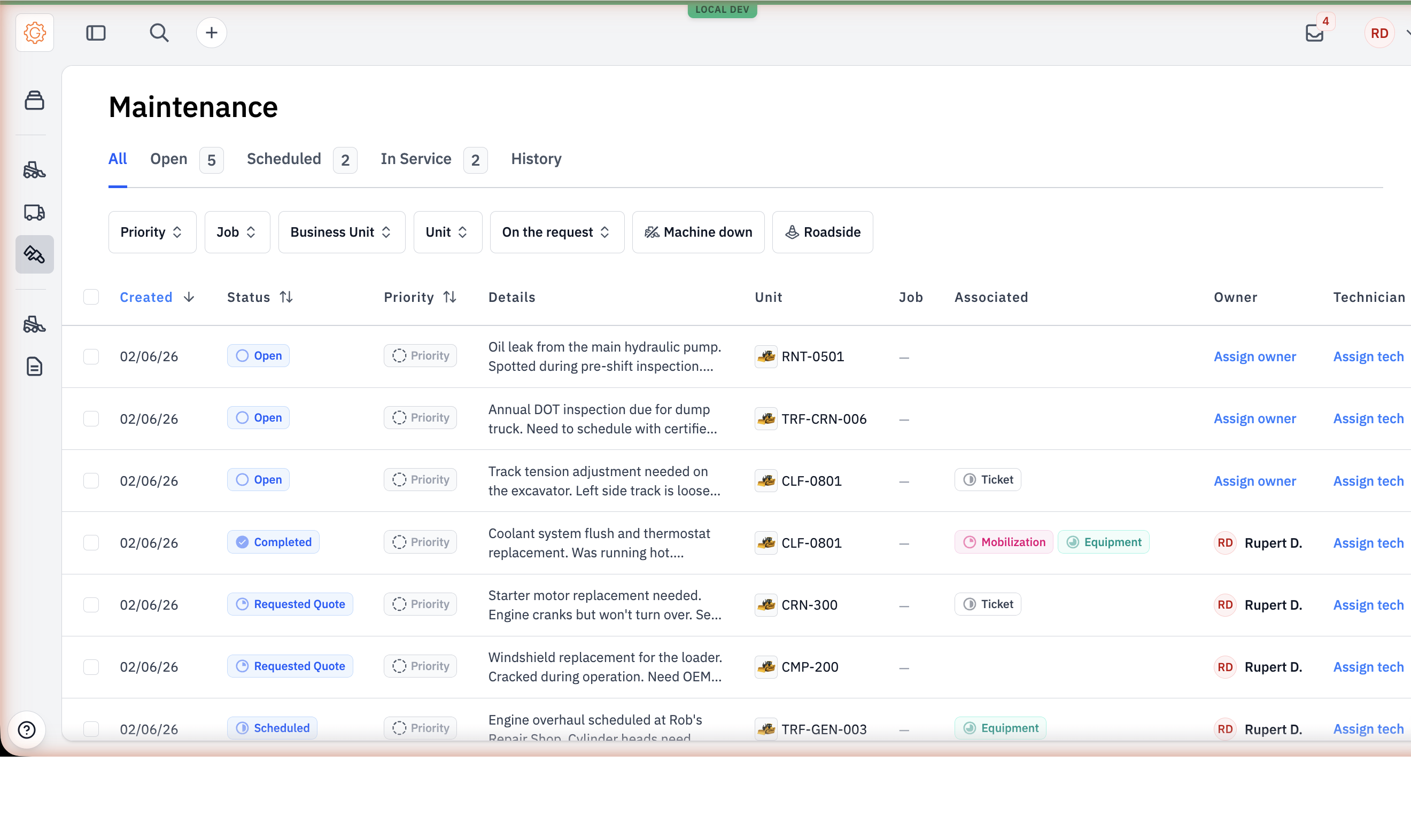
Maintenance lives under the Maintenance tab in the left navigation. Each row is one request — the unit, the job, the requester, the priority and machine-down flags, and a status pill on the right.
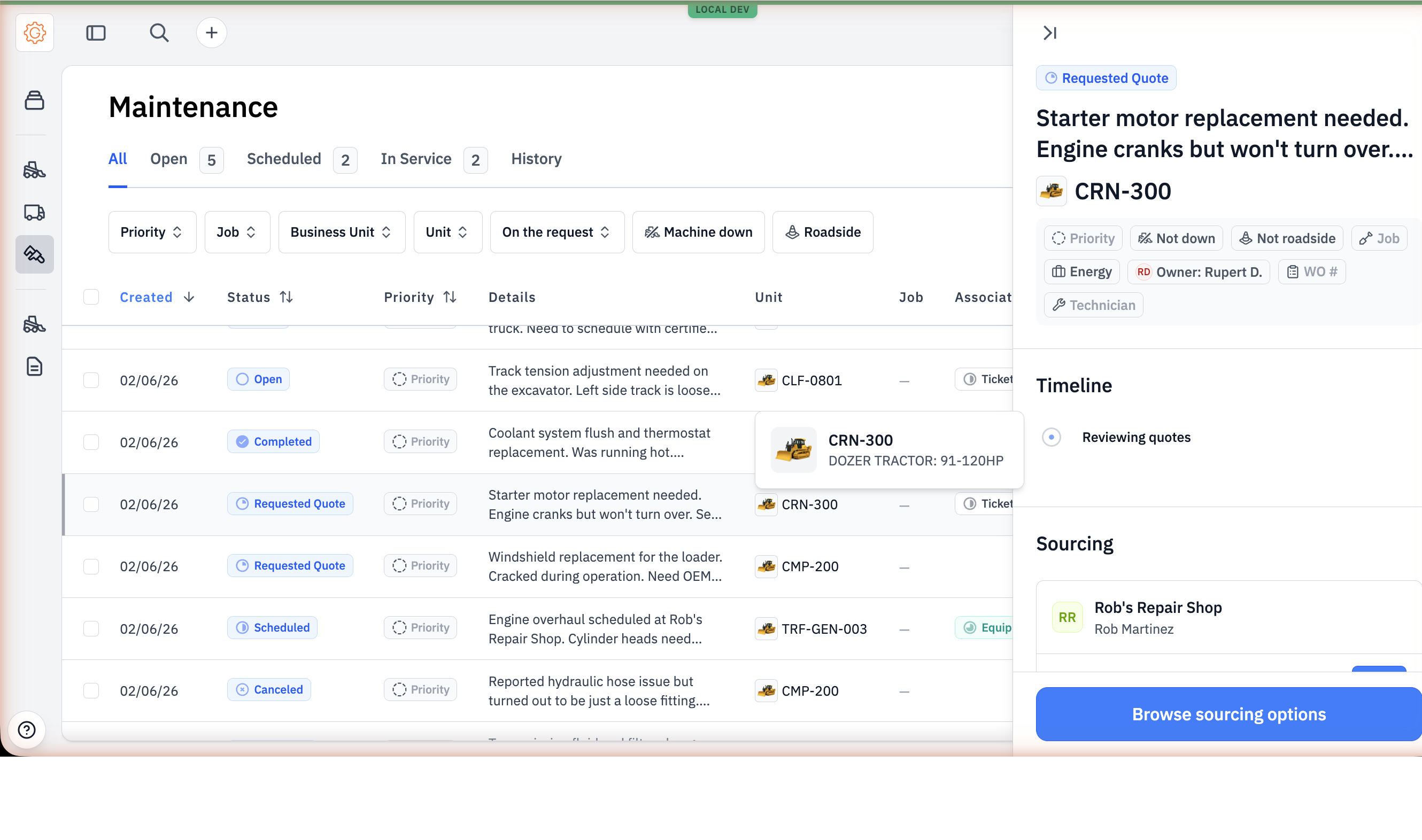
Open a request from the list and a detail panel slides in from the right.
#Lifecycle
Open is the initial state — a problem has been reported but nobody has triaged it yet. Inspecting is optional; service writers use it for the diagnostic step where a tech is figuring out what's actually wrong before a quote is requested. Requested Quote means RFQs have gone to one or more service vendors — this is also the state where comparing quotes happens, since vendors reply on the same record. Scheduled means a vendor has been accepted, a PO sent, and the work is committed. In Service covers the unit being worked on. Completed closes the loop. There's also a Canceled state for requests that get abandoned.
#The tabs along the top
Service writers triage from the tabs at the top of the list — four of them collapse the seven lifecycle states into the buckets a service writer actually uses, plus an All view:
- All — every request in the account, regardless of status. No counter.
- Open — Open, Inspecting, Requested Quote. Anything that needs the service writer's attention next.
- Scheduled — vendor accepted, PO sent, waiting on the technician to start.
- In Service — work is happening right now.
- History — Completed and Canceled. The audit-trail bucket.
#Walkthrough
#Step 1: A request gets created
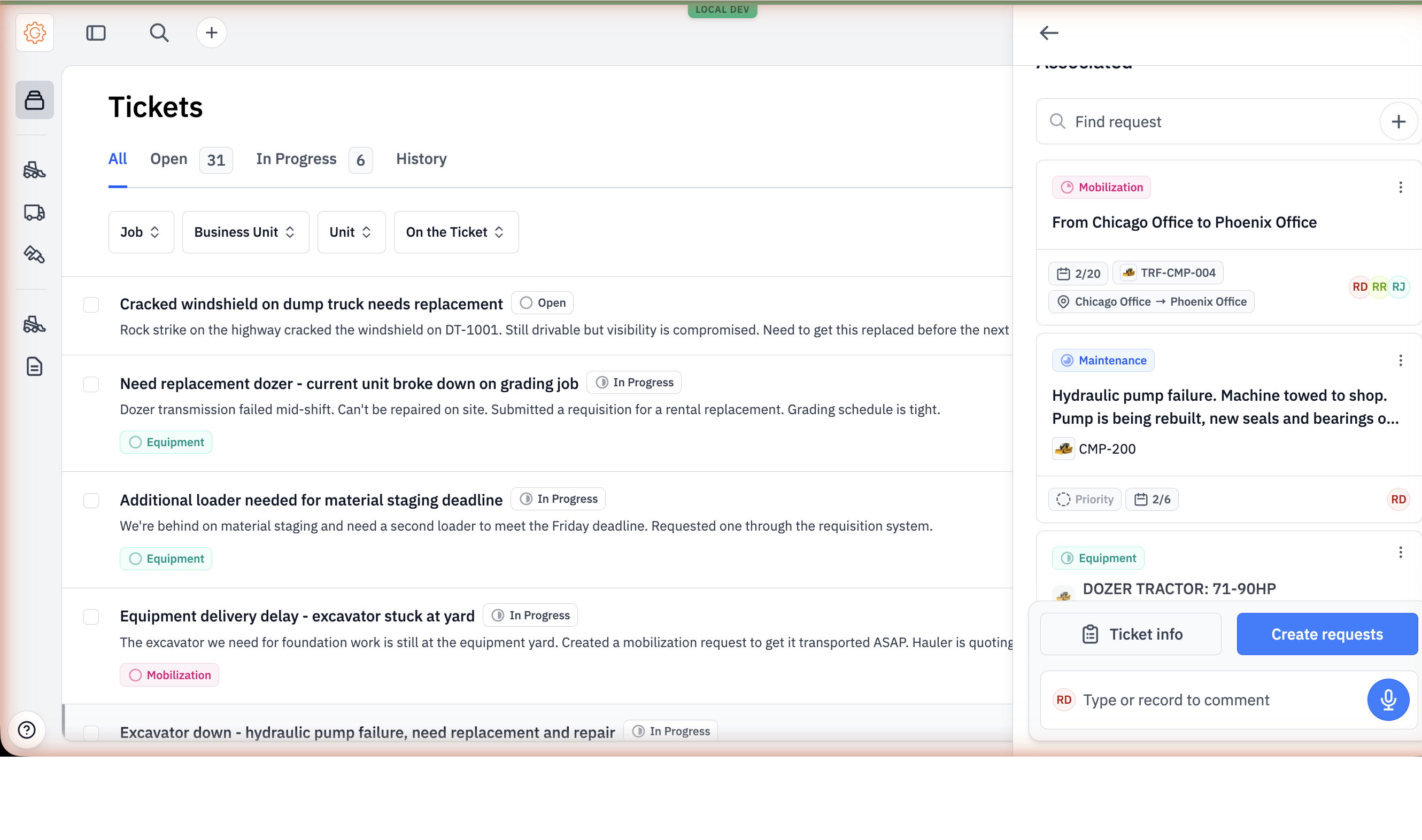
Maintenance requests get created two ways. Most commonly, the AI suggests one as part of a Ticket — a field super calls in "D9 dozer down, hydraulic leak, can't run today"; the AI reads that as a maintenance request with the unit, the symptom, and the machine-down flag pre-identified. The service writer accepts the suggestion and the form pre-fills.
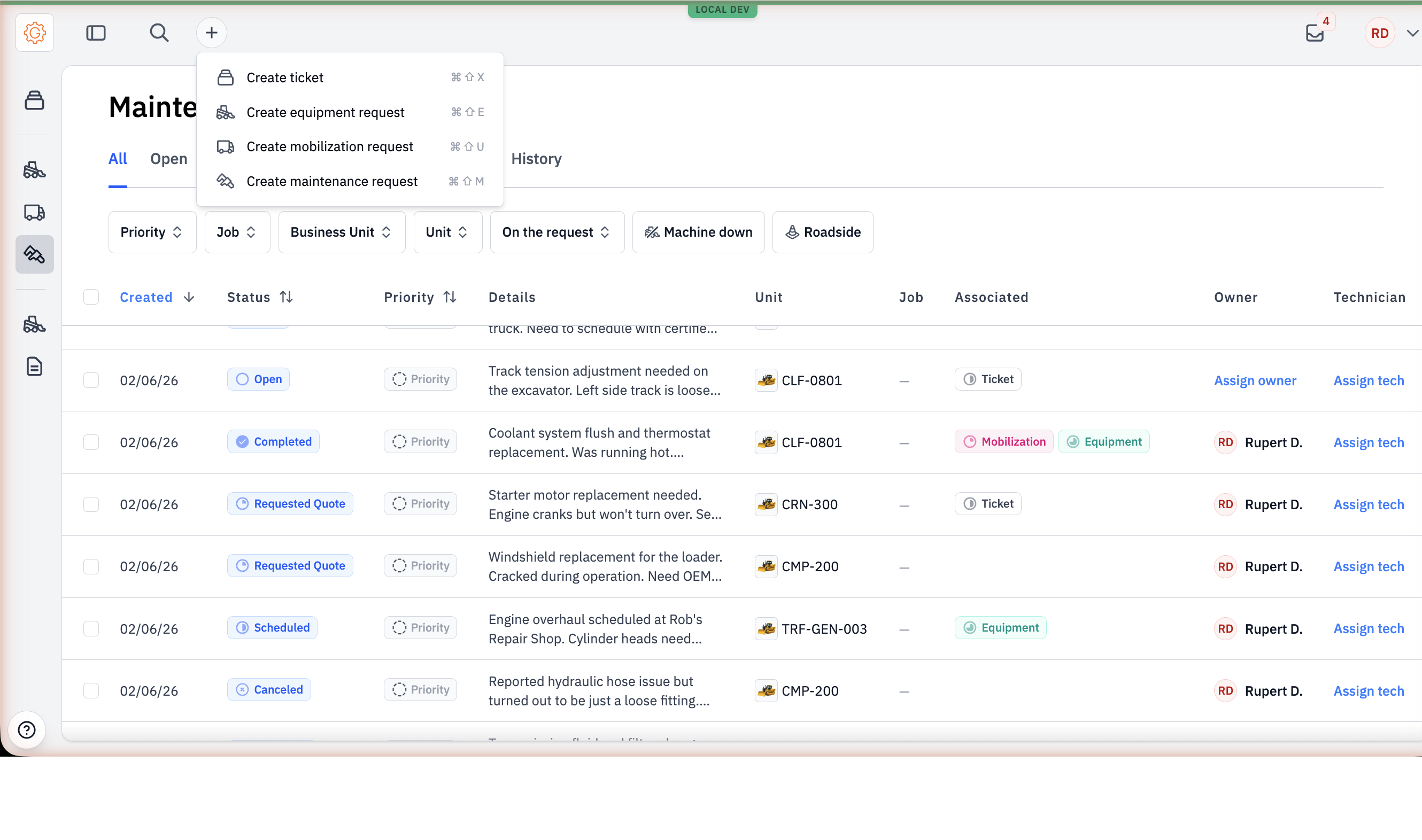
The other way is direct. Hit the + in the top header and pick Create maintenance request.
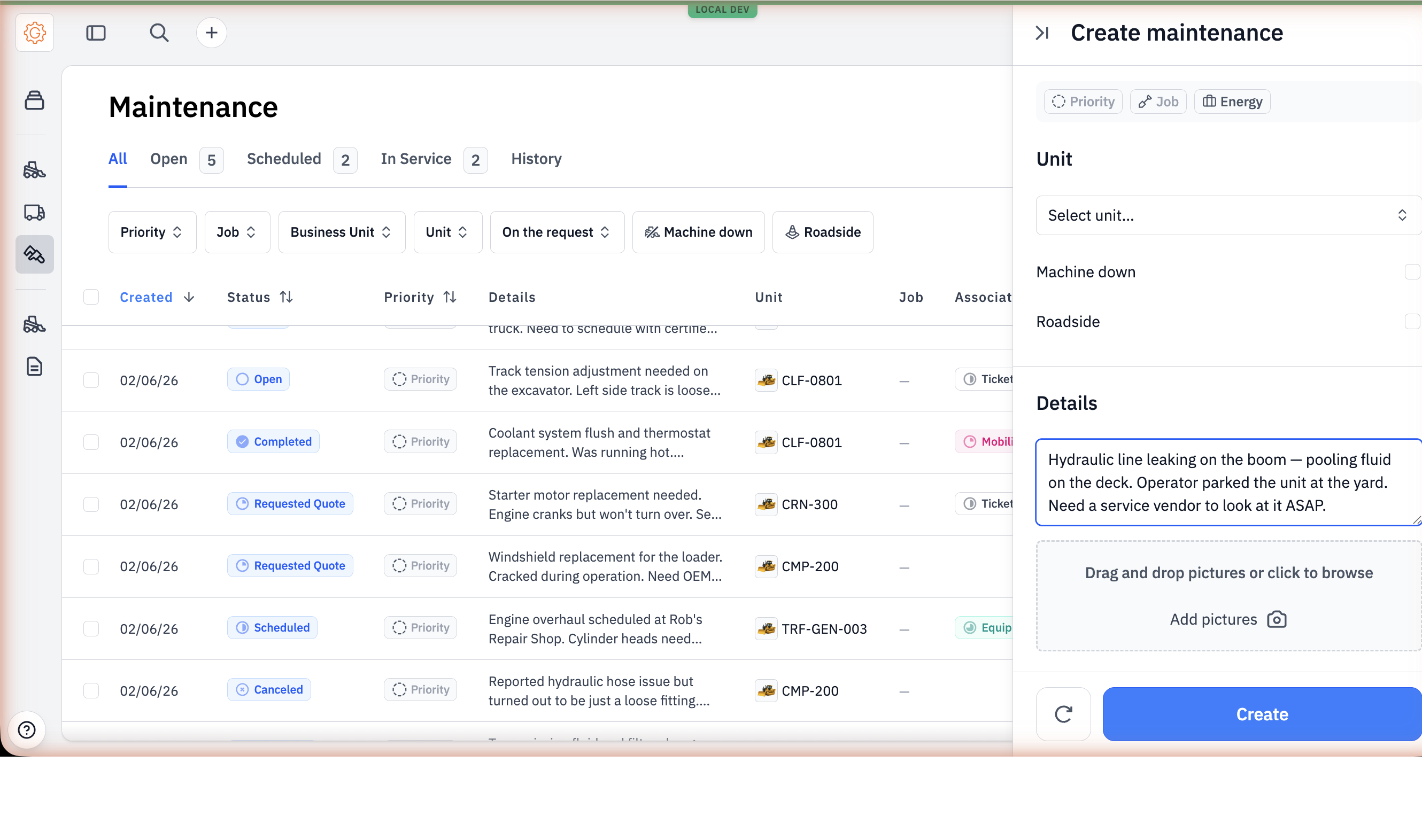
The form is small on purpose. A field user fills it in fast.
- The unit — the picker is the customer's fleet, not a generic catalog. Asset selector searches by unit number, serial, make, model.
- Two checkboxes: Machine down and Roadside. Machine down means the unit can't be operated; roadside means the unit is stranded somewhere it can't be repaired in place. Both are escalation signals — they show up as badges on every list view.
- Details — a free-text area for the symptom description. Pictures attach here; field users typically add at least one.
- Priority, job, and business unit — selectable from inline badges at the top of the form.
Submit and the request lands in Open. The creator becomes the requester; if a service writer creates it (or accepts an AI suggestion), they auto-become the owner the moment they change the status.
#Step 2: Service writer triages and assigns
From Open, a service writer does three things on the detail panel: sets the priority if it isn't set, picks an owner (the service writer who's accountable for moving the request forward), and decides whether the work is going to an internal technician or out to a vendor.
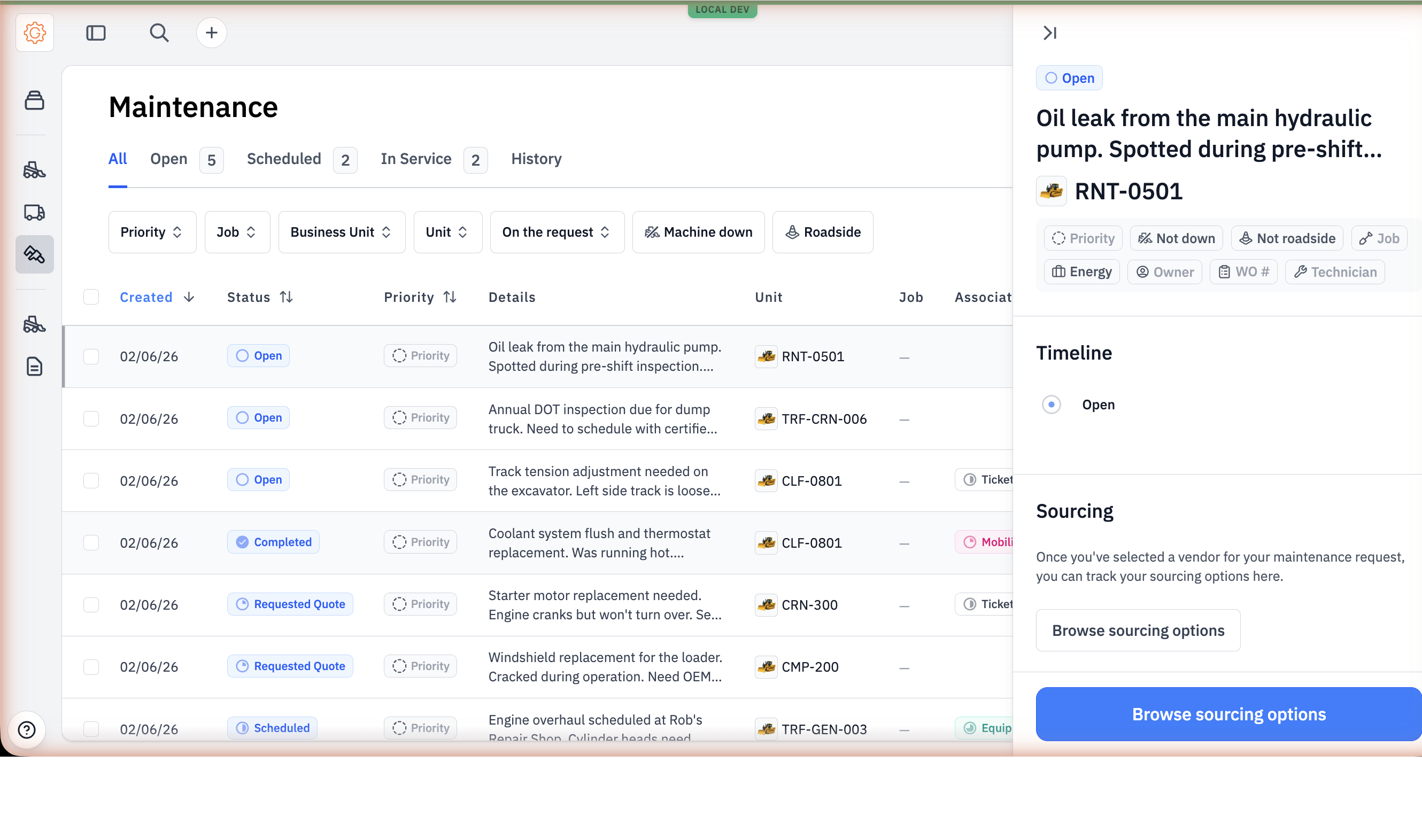
The work-order number badge sits next to the technician on the detail panel. It's a free-text field — paste in the work order number from the CMMS or ERP, and it shows up on the detail panel, in the WO column of the Maintenance table, and on the message emails that go out to vendors. (More on how that ties into a CMMS in the Tips below.)
#Step 3: Source a vendor (or skip to internal)
If an internal tech is doing the work, the service writer assigns a technician, sets the work-order number, and walks the status forward as the job progresses. No vendor flow needed.
If a vendor is doing the work, the service writer hits Browse sourcing options from the detail panel.
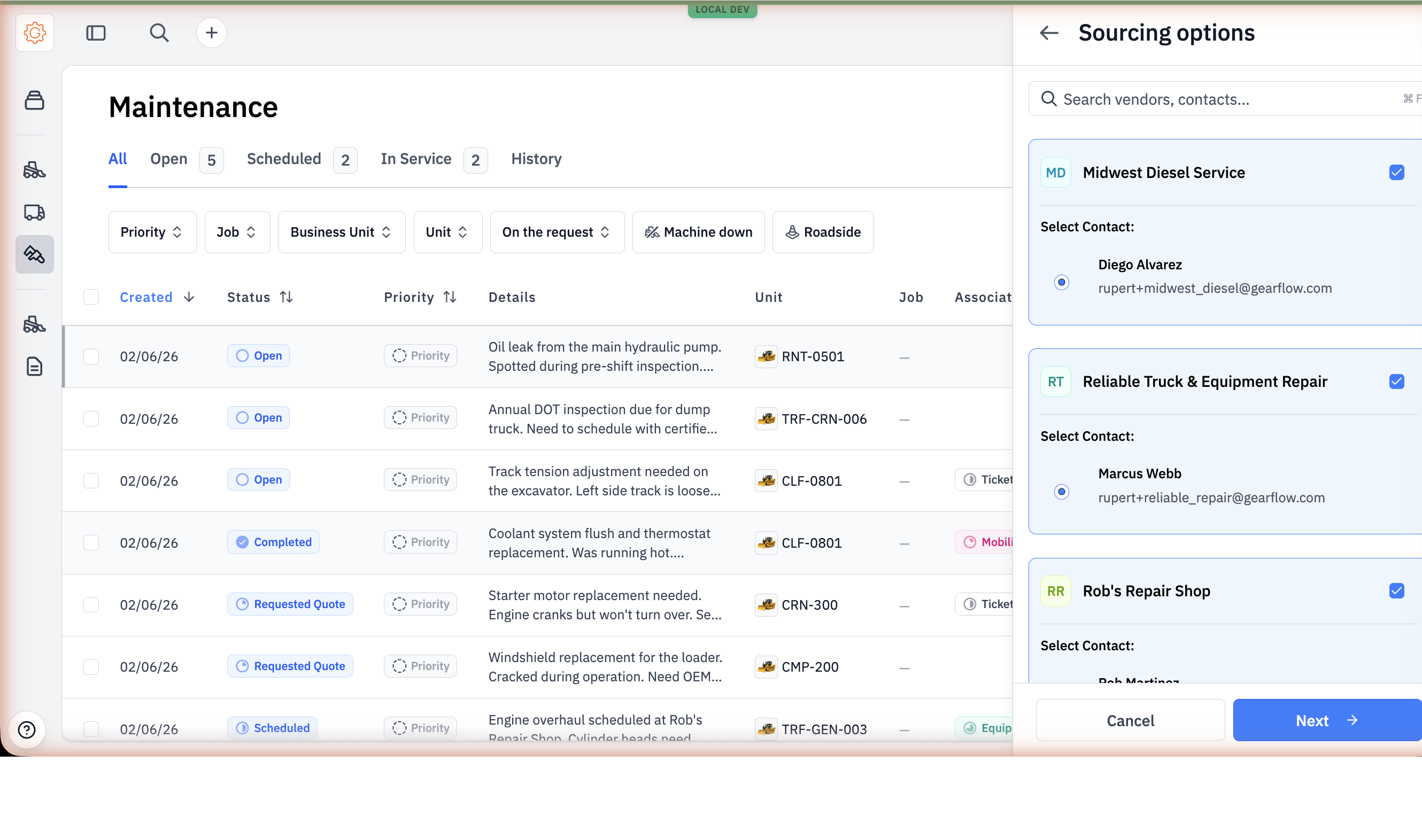
The vendor list is filtered to vendors whose service catalog includes maintenance. Pick the vendors, pick a contact at each (the shop's actual service writer or quoting rep), and click Next.
The next step is the email Gearflow will send. It auto-fills from the request — unit, symptom description, attachments. Edit if needed.
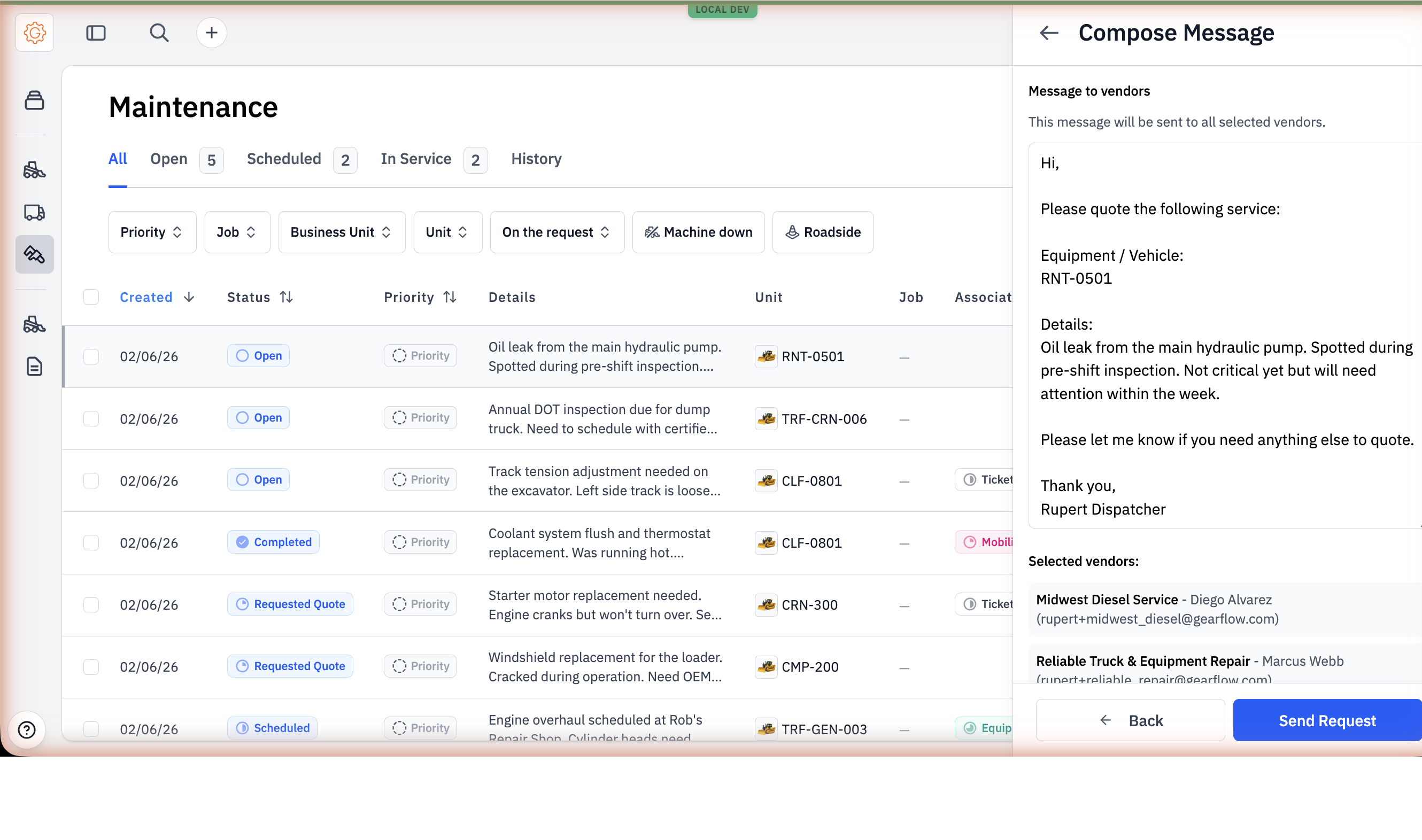
#Step 4: Compare quotes side by side
As replies come in, each vendor's quote shows up as a row in the request's Sourcing section. Three quotes show as three side-by-side rows — the same comparison shape Equipment requests and Mobilizations use.
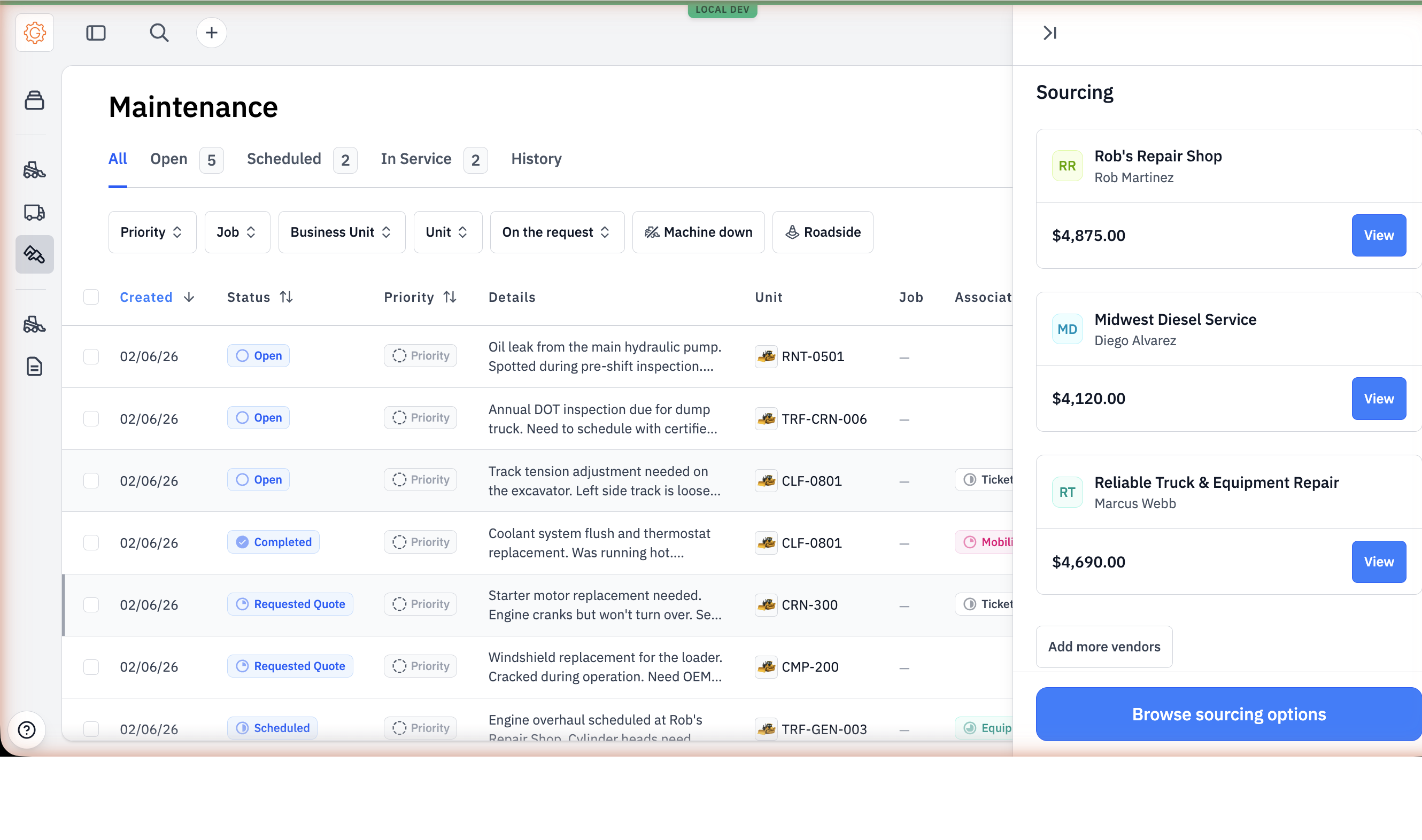
Click View Quote on any row to see the full quote — the PDF the vendor sent and the total the service writer entered.
#Step 5: Accept and PO
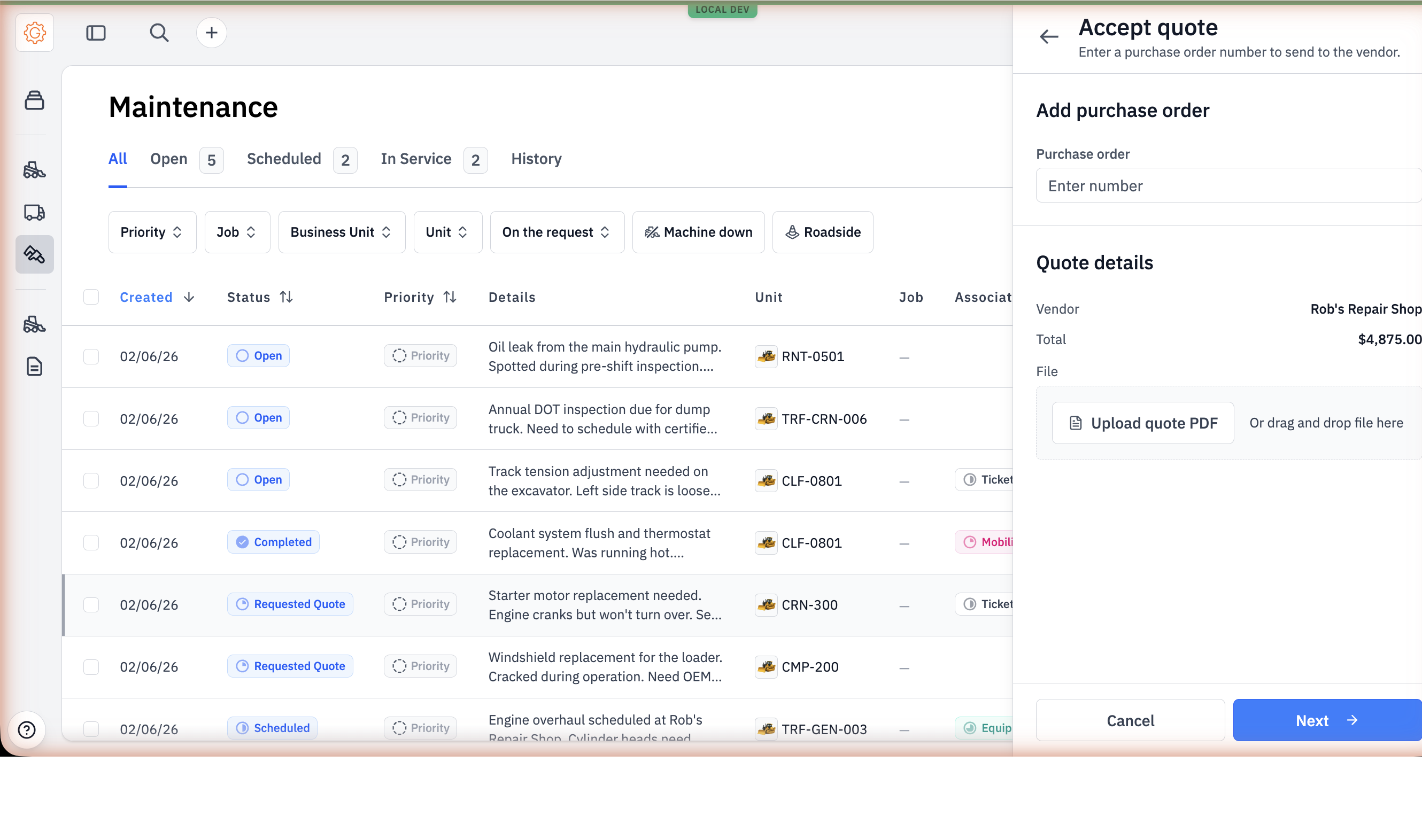
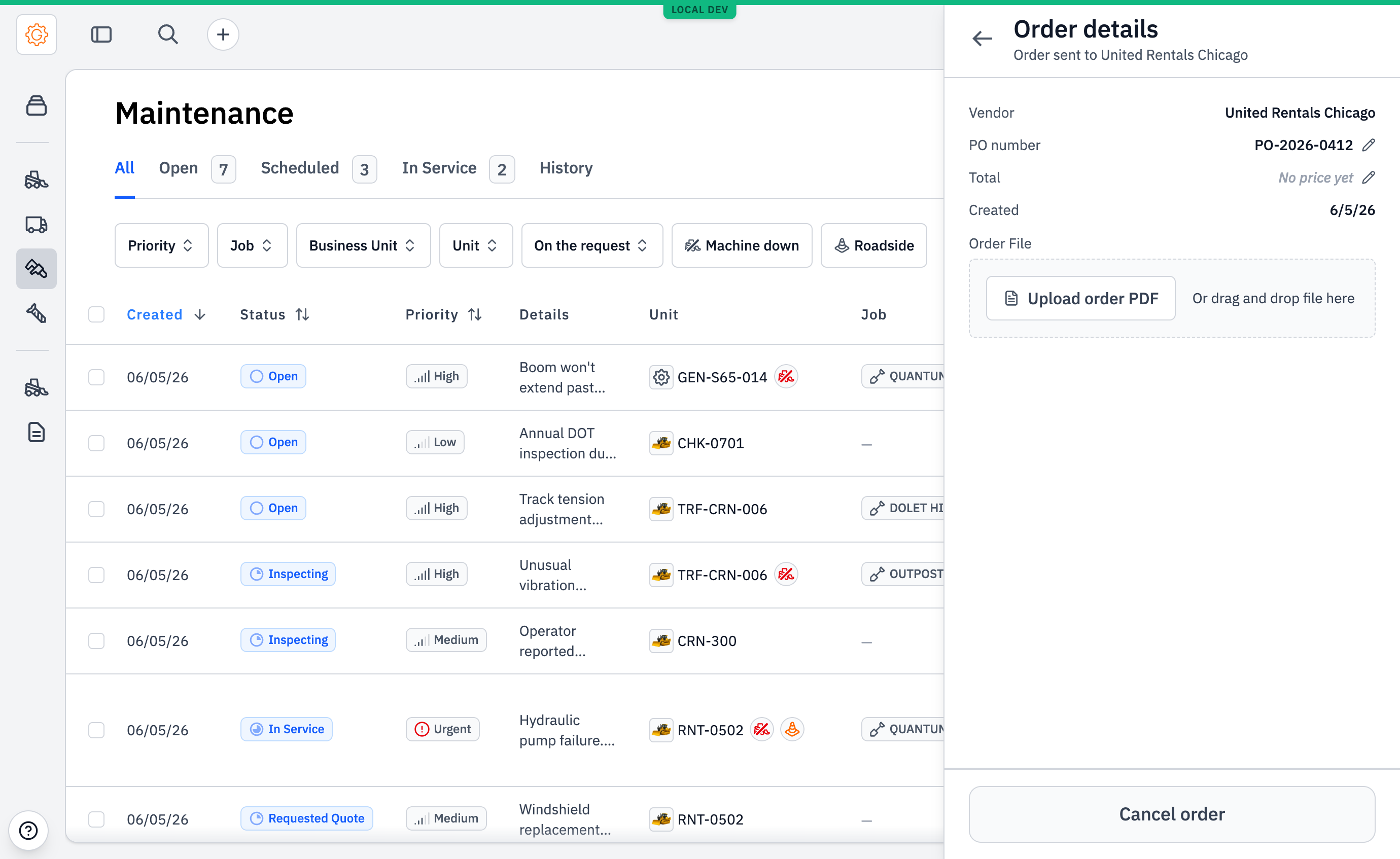
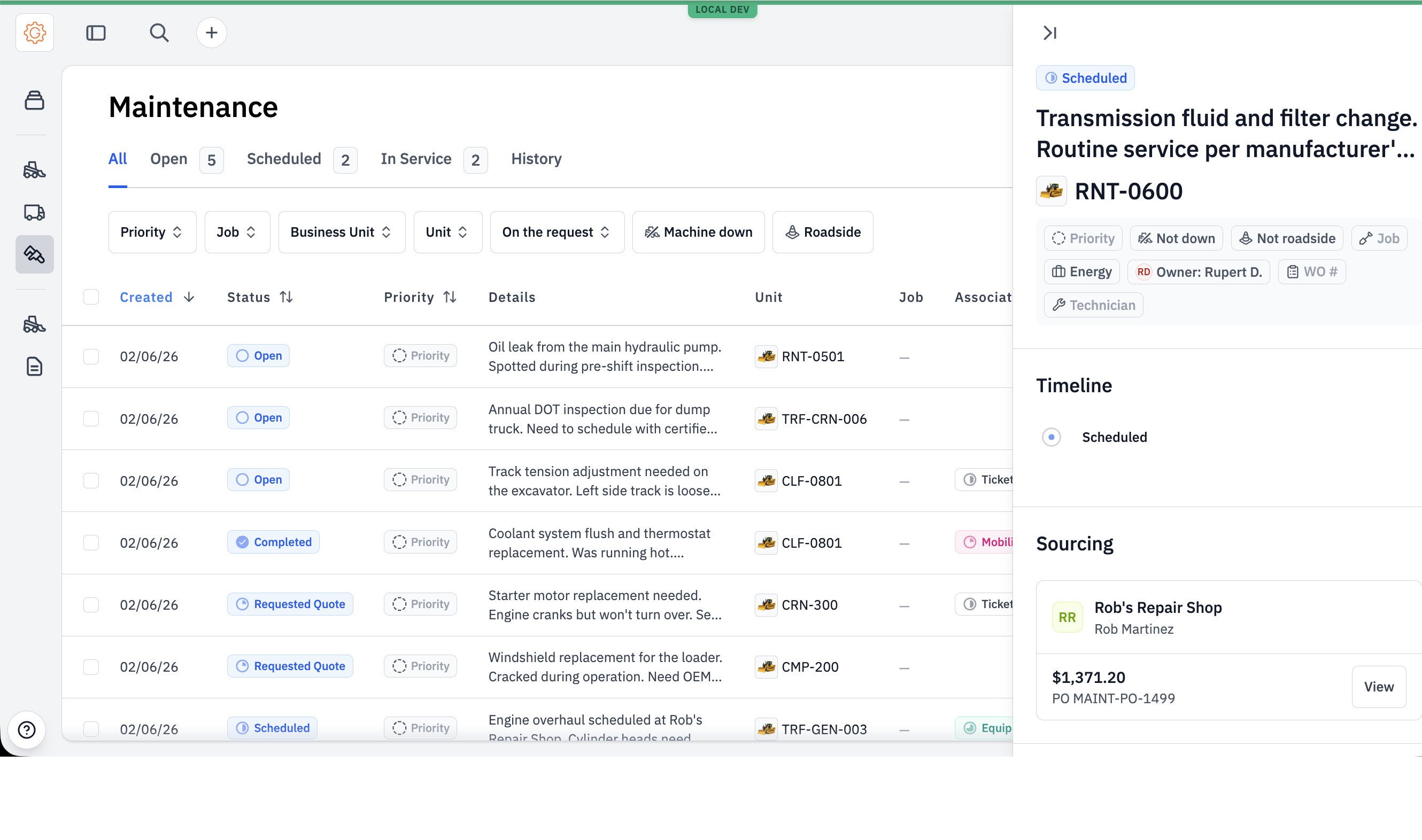
Accepting a quote prompts for a PO number and a message to the vendor. The PO number is optional — like the price, it often doesn't exist yet when the work gets committed. The service writer enters it if they have it, edits the message if needed, and sends. The request moves to Scheduled; the accepted vendor pins to the top of Sourcing, the others collapse behind a "View all" disclosure. Anywhere a missing value would appear, the record shows No price yet / No PO yet — not a fake $0.00.
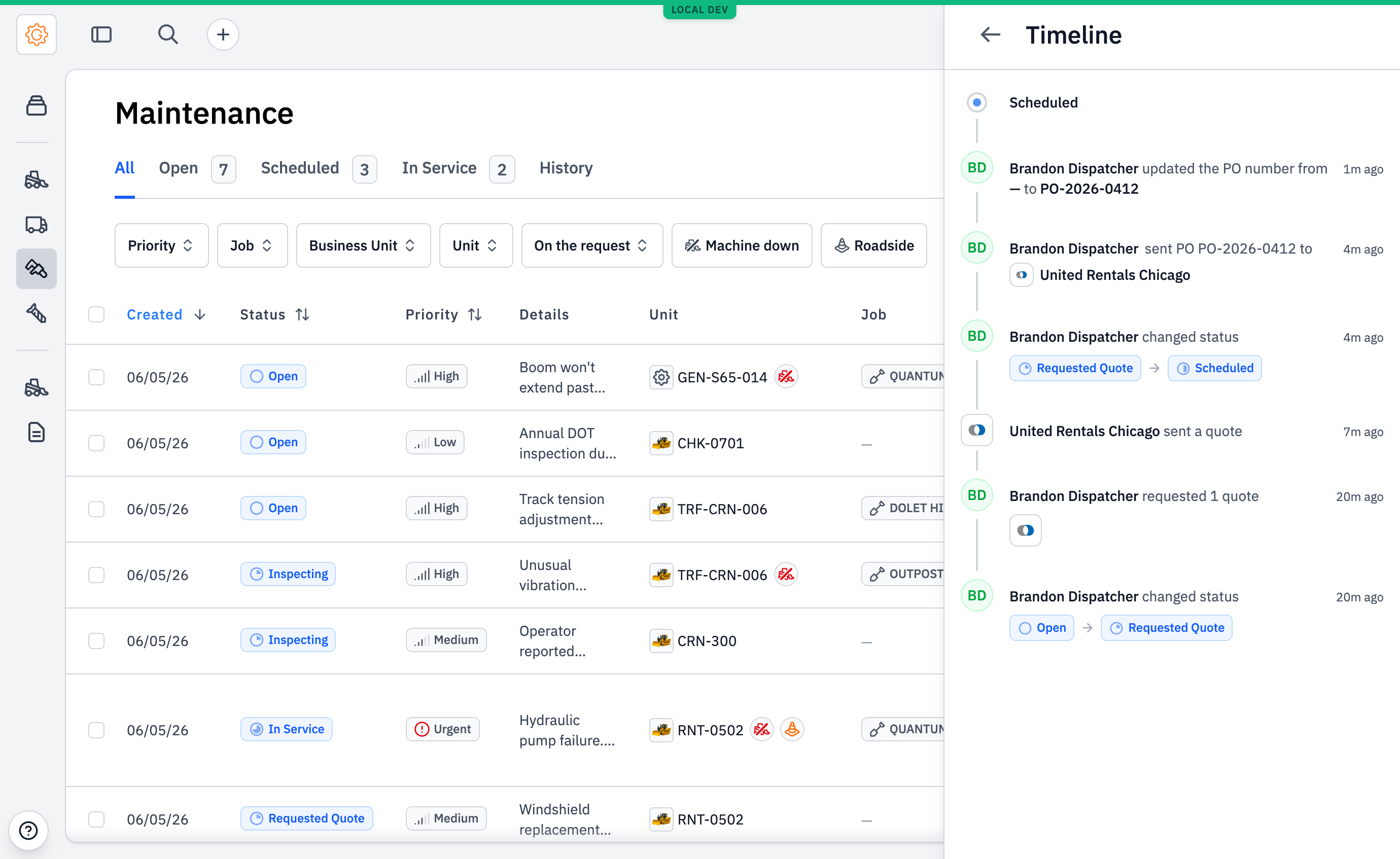
When the real numbers land — the vendor's invoice arrives, the ERP issues the PO — the service writer fills them in on the order: a pencil next to the total and the PO number opens an inline editor. Every edit writes an entry to the request's timeline ("updated the order total from $278.45 to $999.99"), so the order keeps a clean audit trail of what changed, when, and by whom.
#Step 6: In Service, then Completed
From Scheduled forward, the work is operational. The service writer flips status to In Service when the vendor or technician starts; flips to Completed when the work is done. The vendor sends an invoice; Gearflow attaches it to the same request.
Below the Sourcing section, every maintenance request has a Discussion thread. The owner, technician, and any users added to the thread are all subscribed; messages here go to all of them. This is where the service writer posts the "tech is on site" or "parts ETA Tuesday" updates that everyone needs to hear at once.
#Rental units: contact the rental vendor
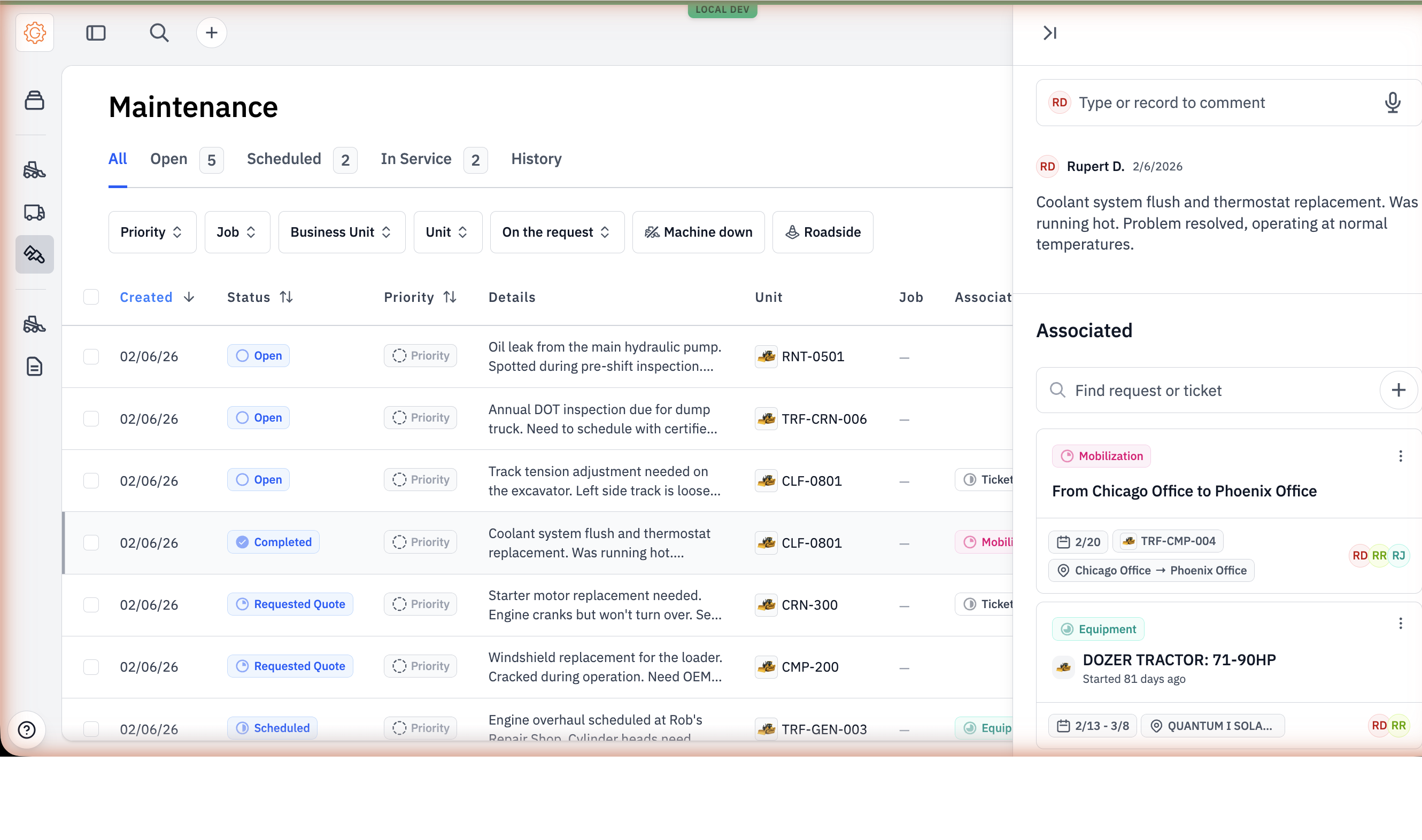
When the broken unit is a rental, the sourcing question changes. The service writer doesn't need three competing quotes — the unit belongs to the rental vendor, the rental vendor services it, and the job is to tell them there's a problem and get a tech out. Gearflow knows who a unit is rented from (the vendor on its Equipment request order) and turns that into a one-click path.
On a maintenance request for a rented unit, the rental vendor shows up in two places: a vendor avatar stacked on the unit in the header, and a Contact rental vendor card at the top of the Sourcing section.
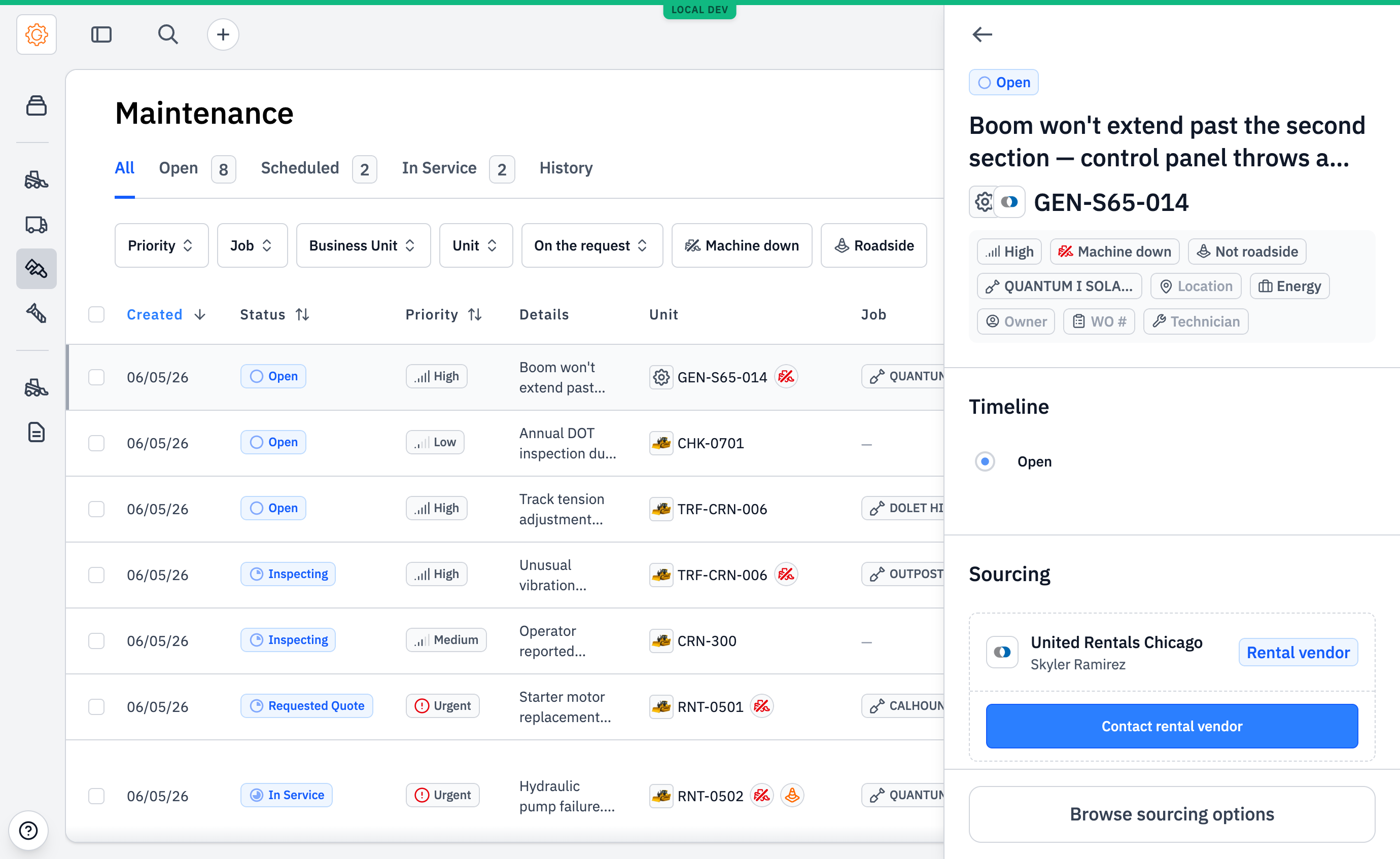
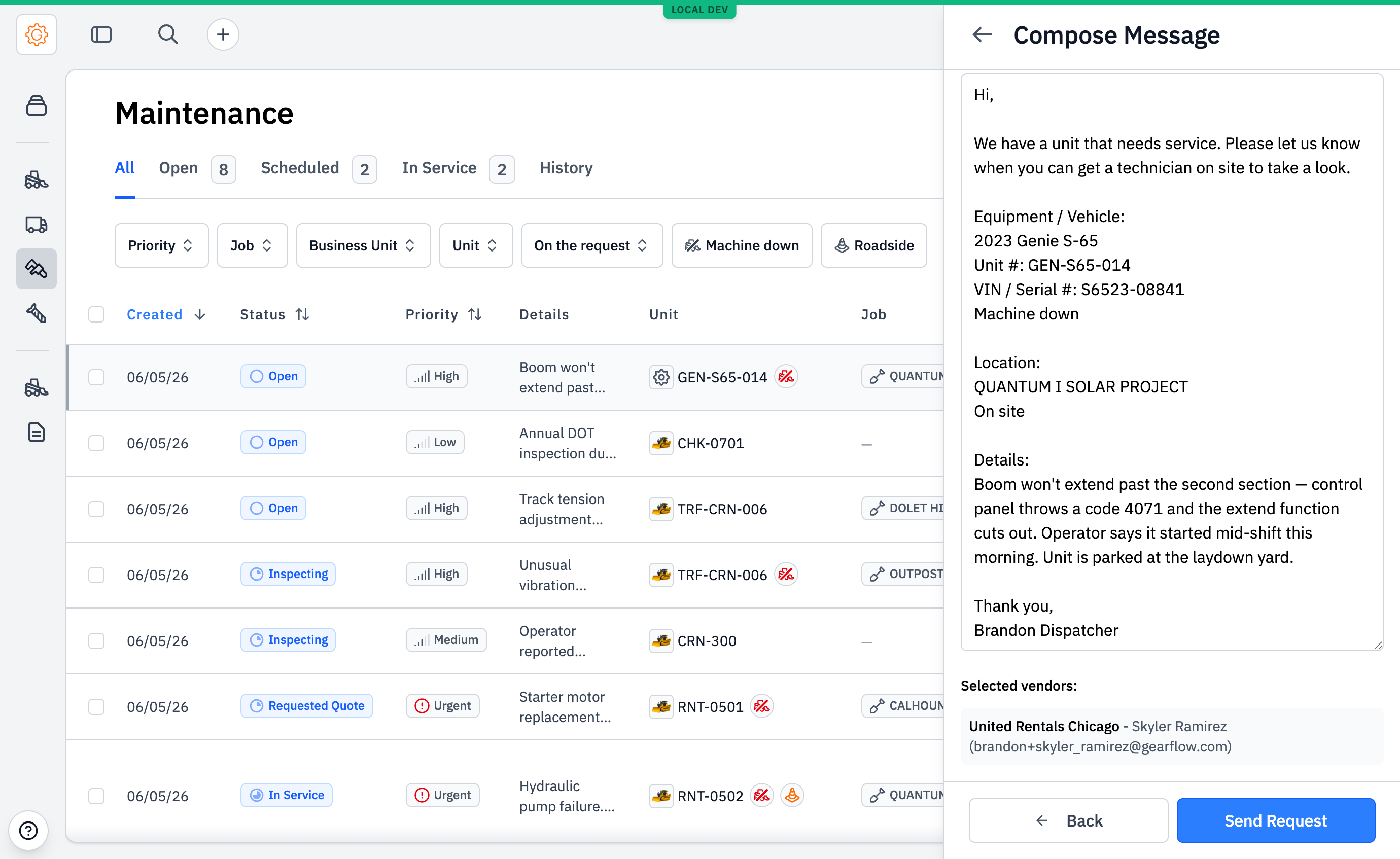
Click the card and you land directly on the message step, the rental vendor pre-selected, the message pre-filled. The message is framed around getting a tech on site and an ETA — not a price quote. It carries what the vendor's service desk asks for on the phone: the unit, its serial number, the vendor's own unit number when Gearflow has it, machine-down status, the location, and the original symptom details.
The service writer can still browse the full vendor list — the rental vendor is pinned to the top with a blue Rental vendor badge, and a different contact at the same vendor is one click away. Nothing about the flow forces the rental path; it just makes the most common case the fastest one.
This pairs with the optional price and PO above: a rental vendor servicing its own machine usually means no quote and no PO at all. The service writer sends the message, gets a tech committed, and the request moves on without inventing paperwork that doesn't exist.
#From Ticket to maintenance request
#Tips
- The work-order number is the hand-off to your CMMS. The badge is plain text — paste in the M5 work order number, the FMIS reference, the ERP record number, whatever your CMMS calls it. Maintenance is the intake; your CMMS stays the system of record for the work itself, and the WO number is what ties the two together.
- Don't conflate this with Equipment requests or Mobilizations. All three have a multi-vendor RFQ flow that looks similar on screen. Maintenance is service or repair on a unit you already own. Equipment is renting or buying a unit you don't have. Mobilization is moving a unit you own.
- Pictures matter on intake. The Details textarea takes attachments and field users typically add at least one. A photo of the leak or the fault code lands harder than a typed-out symptom, and it saves the service writer a round trip.
- Roadside catches more than you'd expect. The Roadside checkbox sounds niche, but for fleets running over-the-road equipment it's a frequent escalation — the unit is stranded somewhere it can't be repaired in place, which changes who you call.