Tickets
A ticket is a single place to capture a problem or need from the field. From it, Gearflow's AI spawns the actual requests — equipment, mobilization, or maintenance — needed to solve it.
#Why tickets exist
Field people don't think in terms of "I need to file three forms." They think the loader is down and I need it back today. Tickets let them say that, in their own words, and let Gearflow translate it into the right requests on the back end.
You'll find tickets under the Tickets tab in the left navigation.
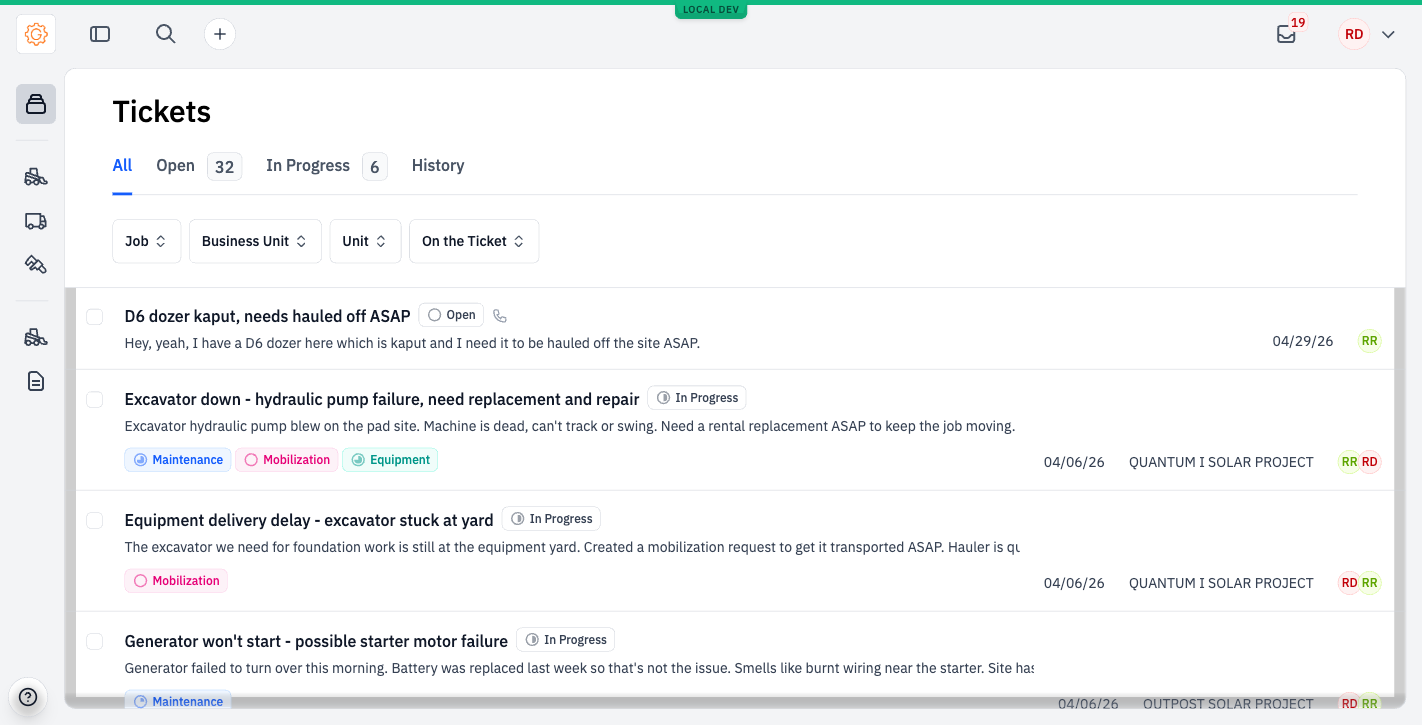
#What's on a ticket
Open a ticket from the list and a detail panel slides in from the right.
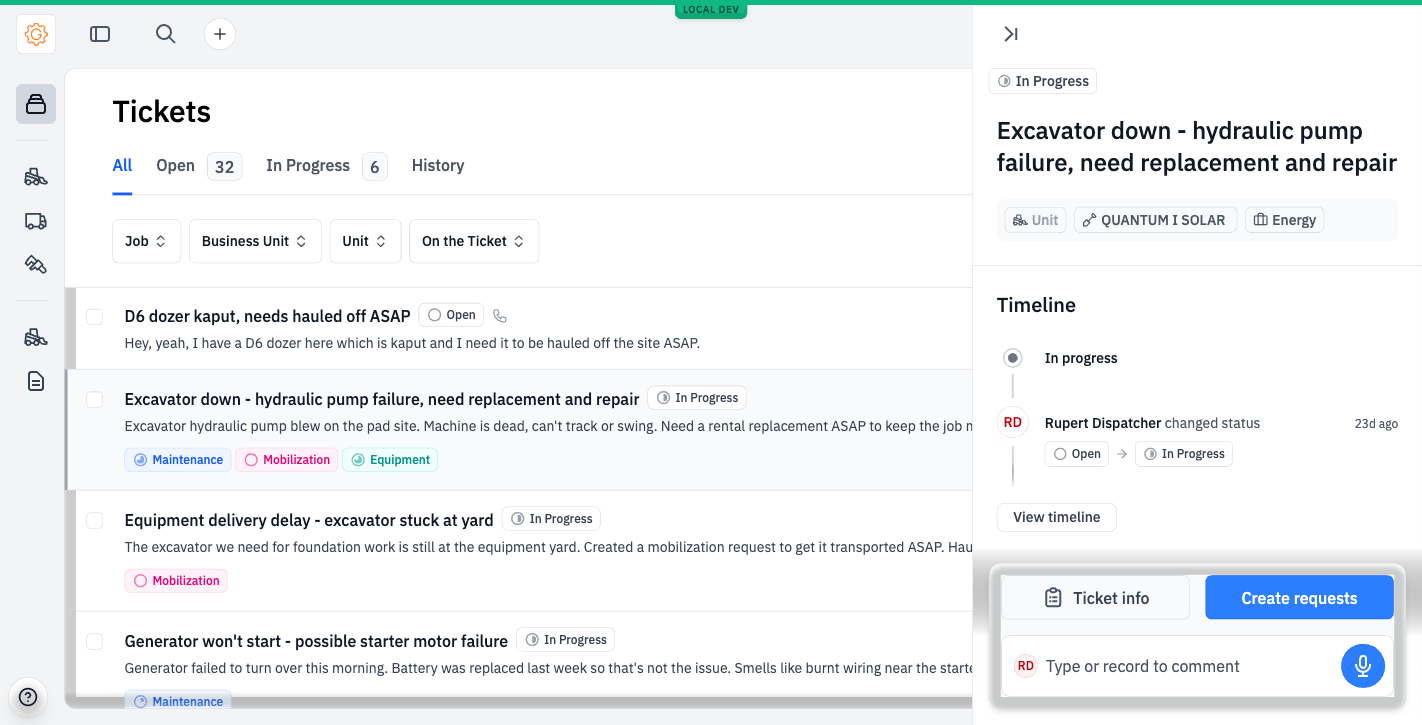
The two key buttons:
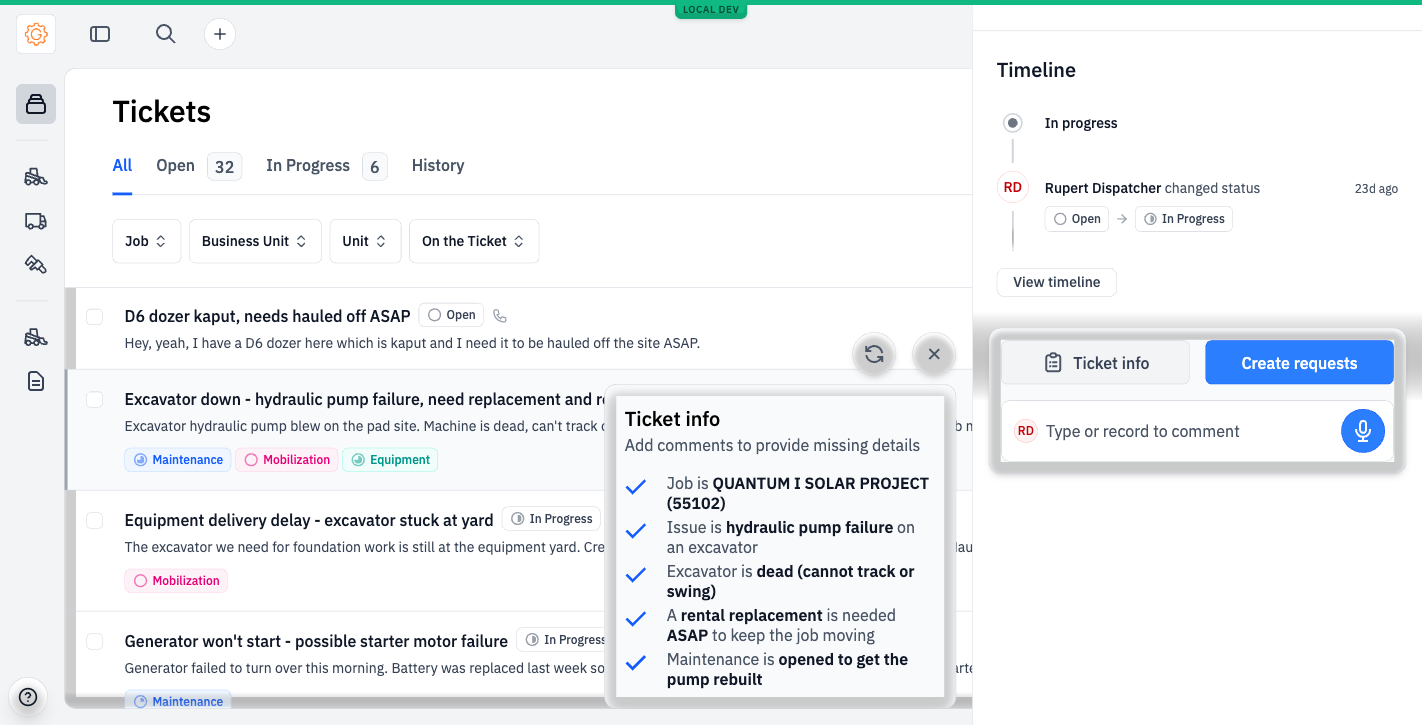
- Ticket info — shows the AI's structured read of the ticket: who, what, where, what's needed.
- Create requests — opens a stack of pre-filled requests the AI thinks will solve the problem.
#The three request types
A ticket spawns one or more of these:
Equipment
Rent or buy something — a replacement excavator, parts, an attachment.
Mobilization
Move a piece of equipment between yards, jobs, or sites.
Maintenance / Service
Repair or service a machine. The badge says Maintenance; this capability is also called Service.
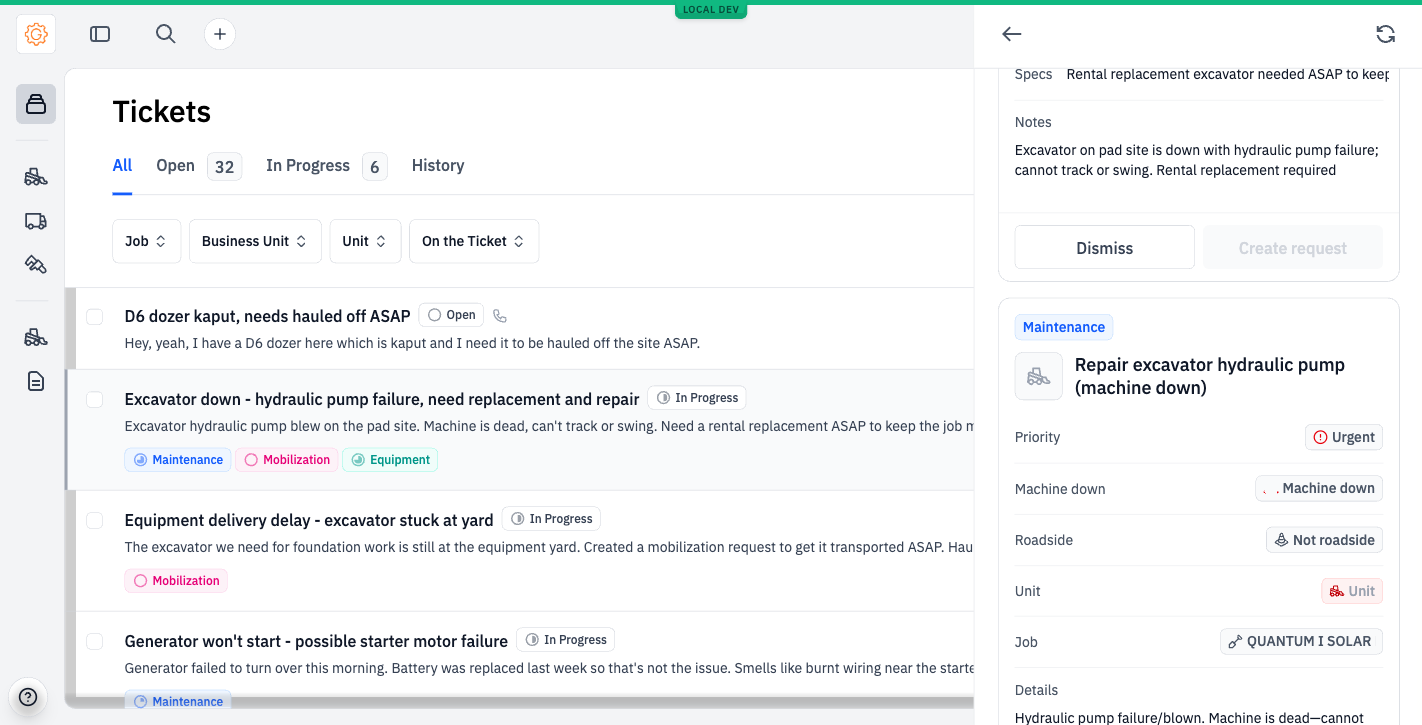
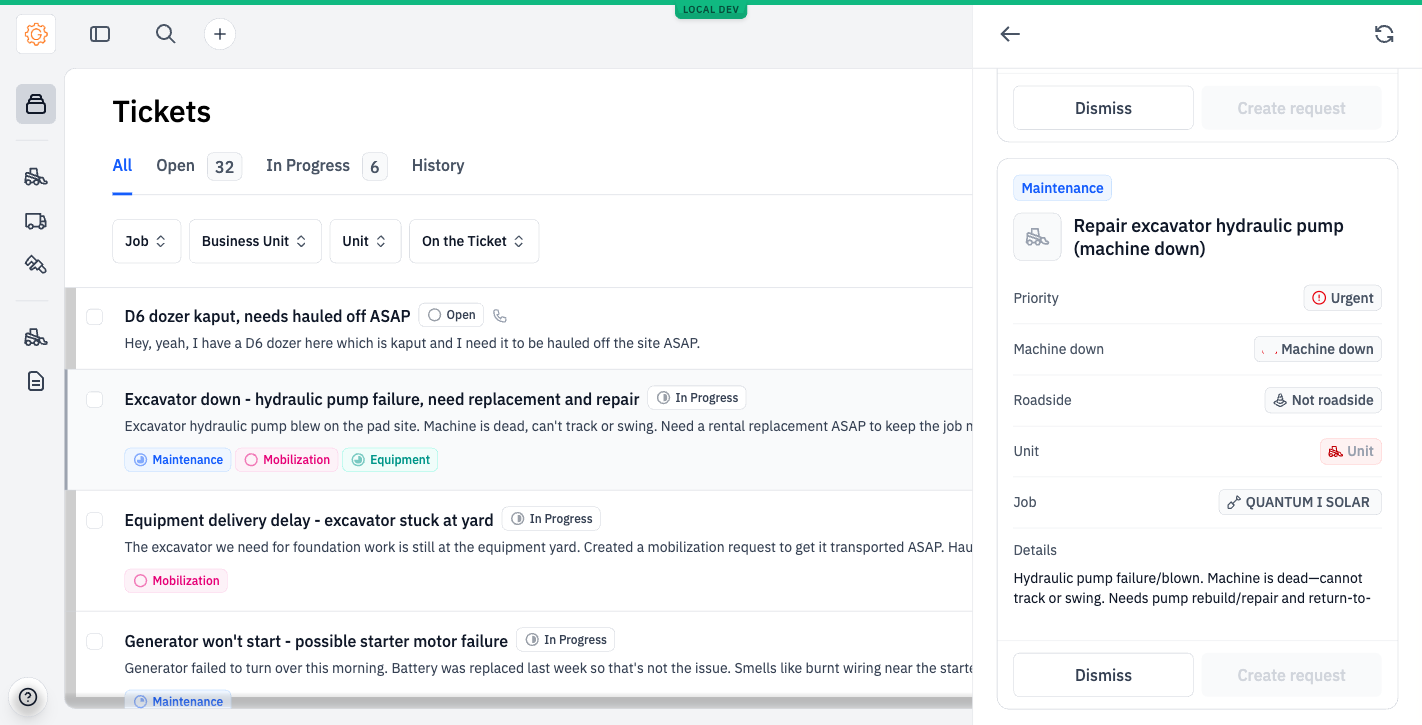
A single ticket can produce any combination. A "loader down" ticket commonly produces both an equipment request (rent a replacement so the job can keep moving) and a maintenance request (repair the broken one).
#Lifecycle
A ticket starts Open. Once anyone takes action — usually by creating a request from it — it moves to In Progress. When the work resolves successfully it moves to Done; if it was a duplicate, a false alarm, or otherwise dropped, it moves to Canceled. Both are terminal.
The Tickets list shows a fourth tab called History — this is a filter that bundles Done and Canceled together, not a status of its own. A ticket in History is either Done or Canceled, and the badge on the row tells you which. See Working a ticket for how a coordinator actually moves a ticket through these states.
#Creating a ticket
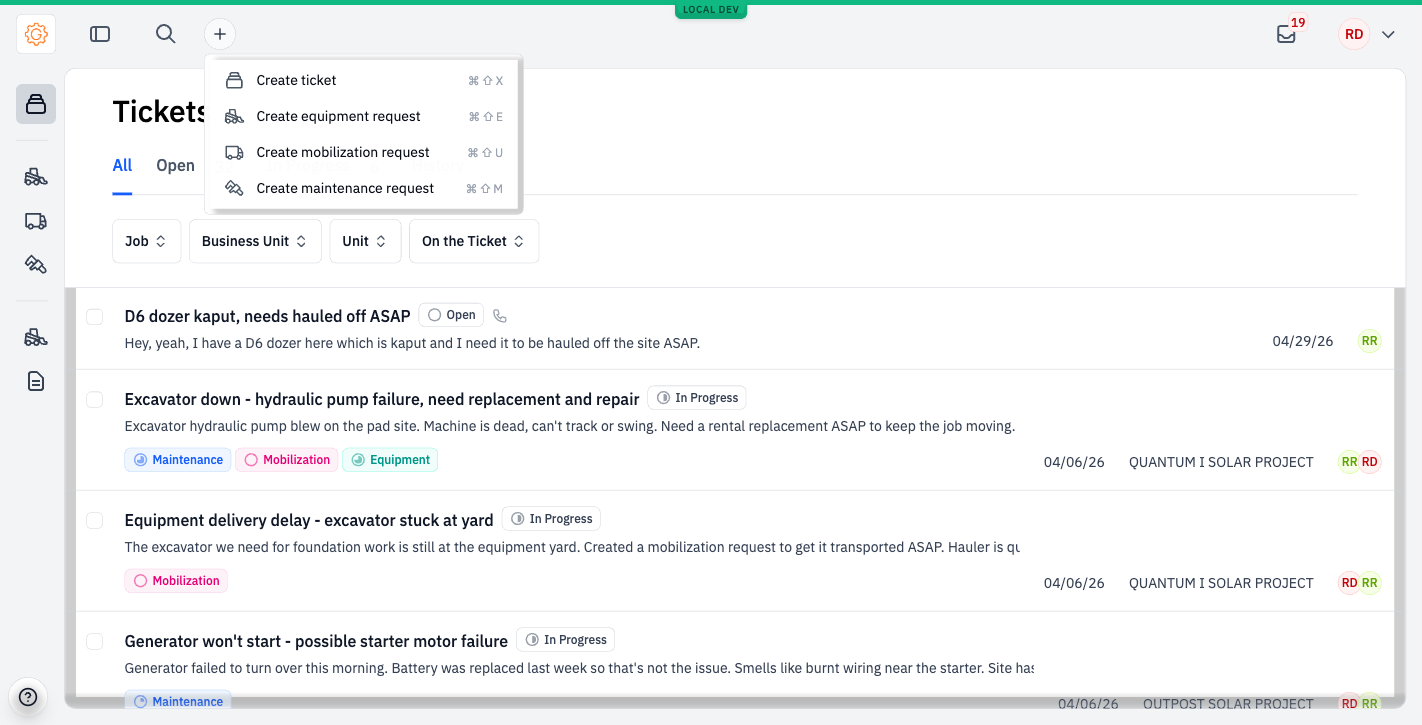
Hit the + in the top header and pick Create ticket.
The Create ticket panel gives you tips and a few examples of how to phrase things.
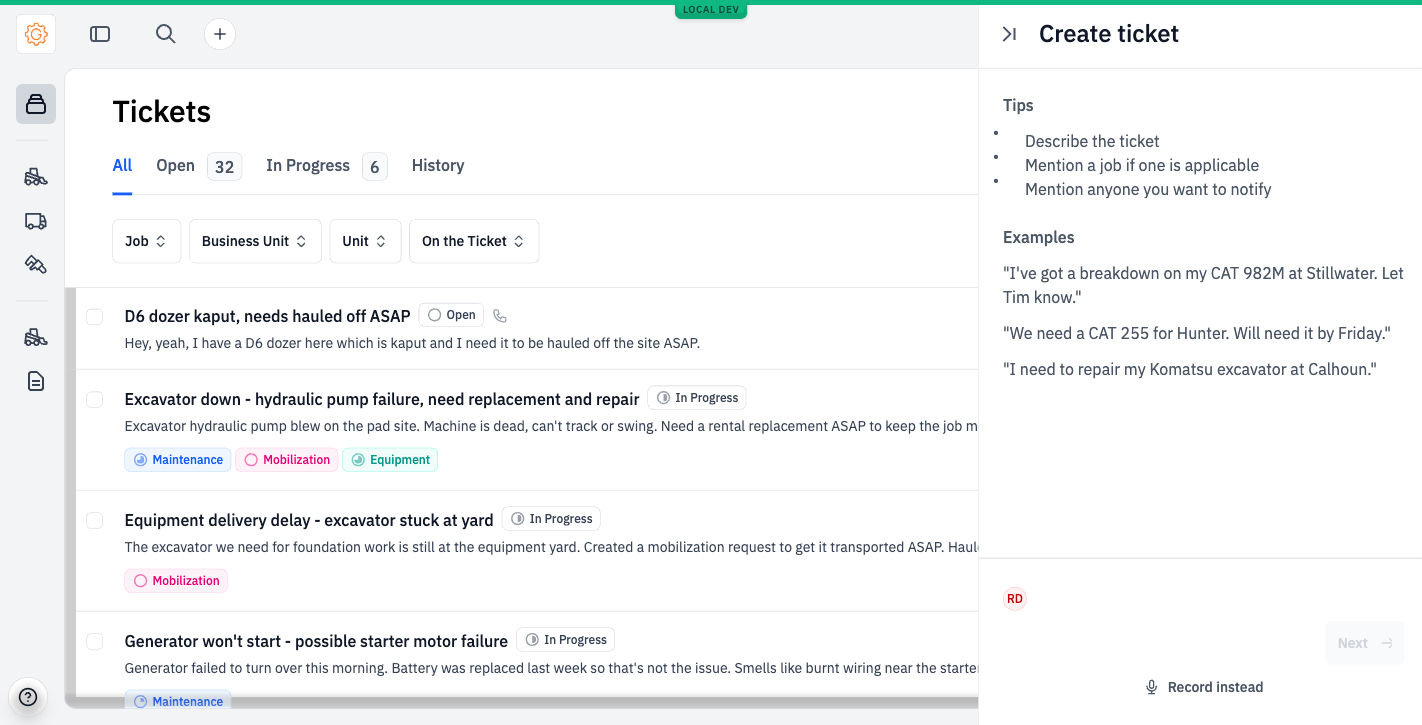
Type the situation in plain language — the way you'd describe it to a coworker.
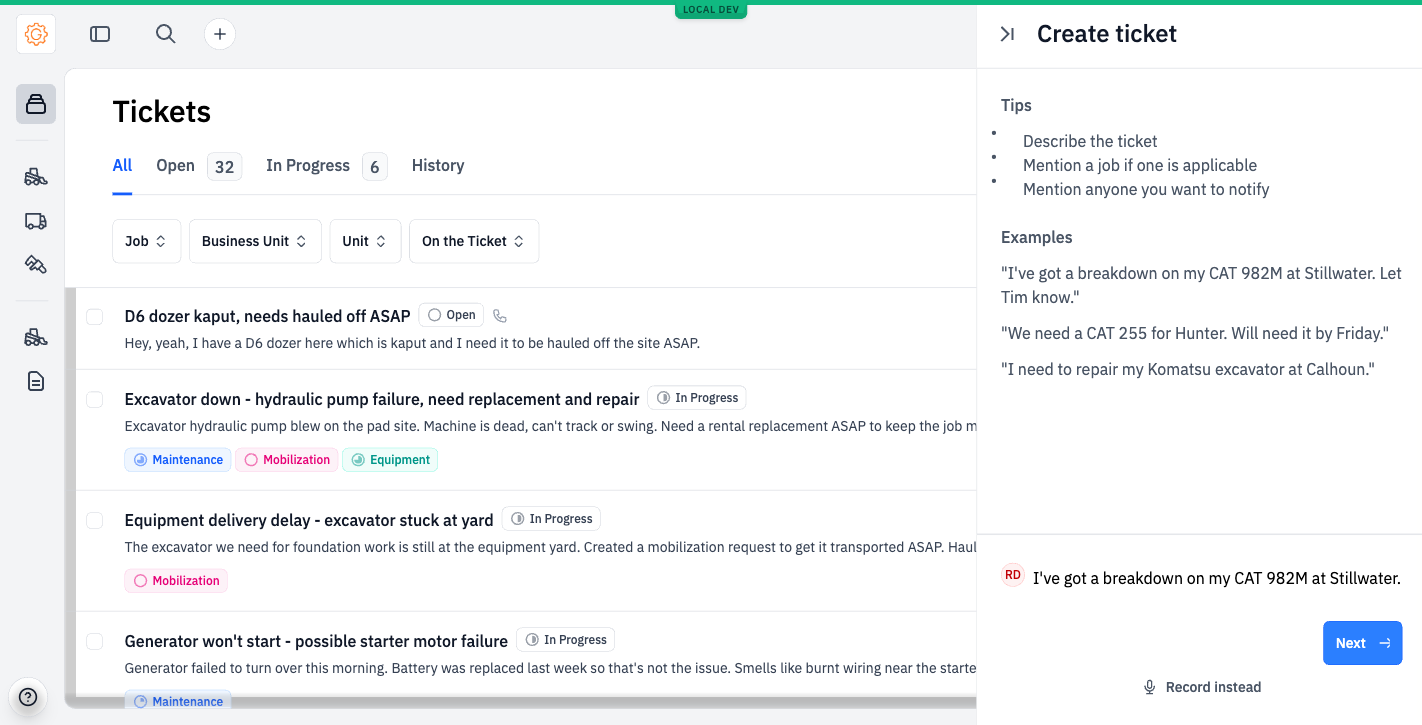
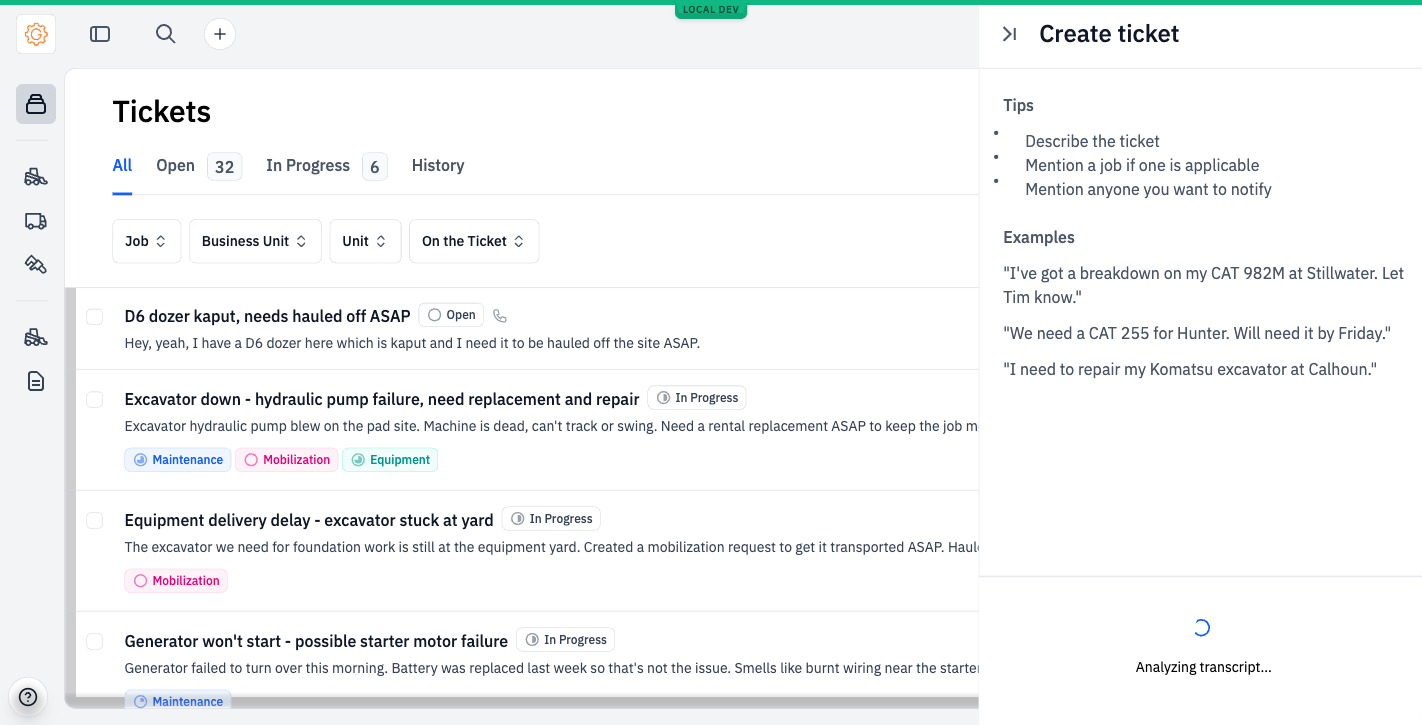
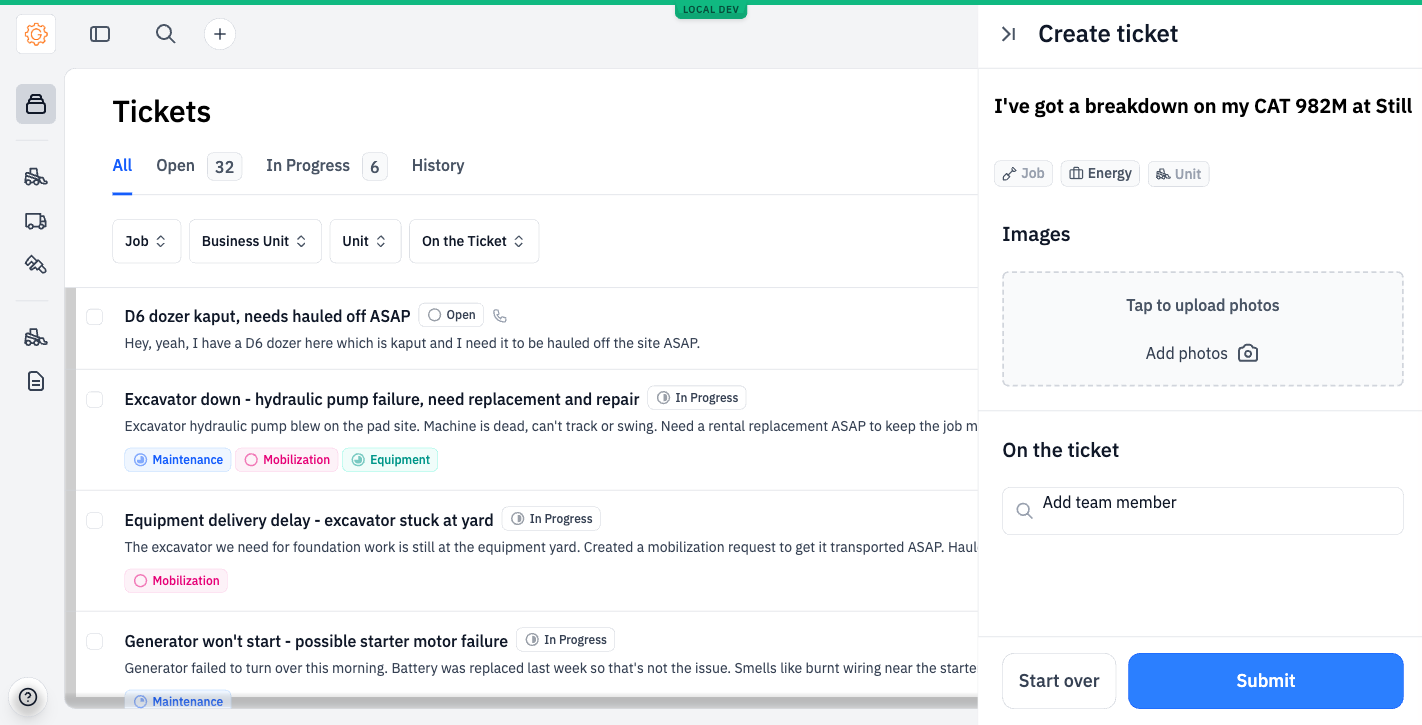
Click Next. The AI analyzes the transcript and pulls out the structured details.
#Turning a ticket into requests
This is where the AI does the most work for you.
#Step 1: Check the AI's read
From the ticket detail panel, click Ticket info. You'll see what the AI extracted as facts — what's broken, where, what's needed, and what should happen next.
#Step 2: Generate the requests
Click Create requests. The panel opens with one or more pre-filled requests stacked vertically.
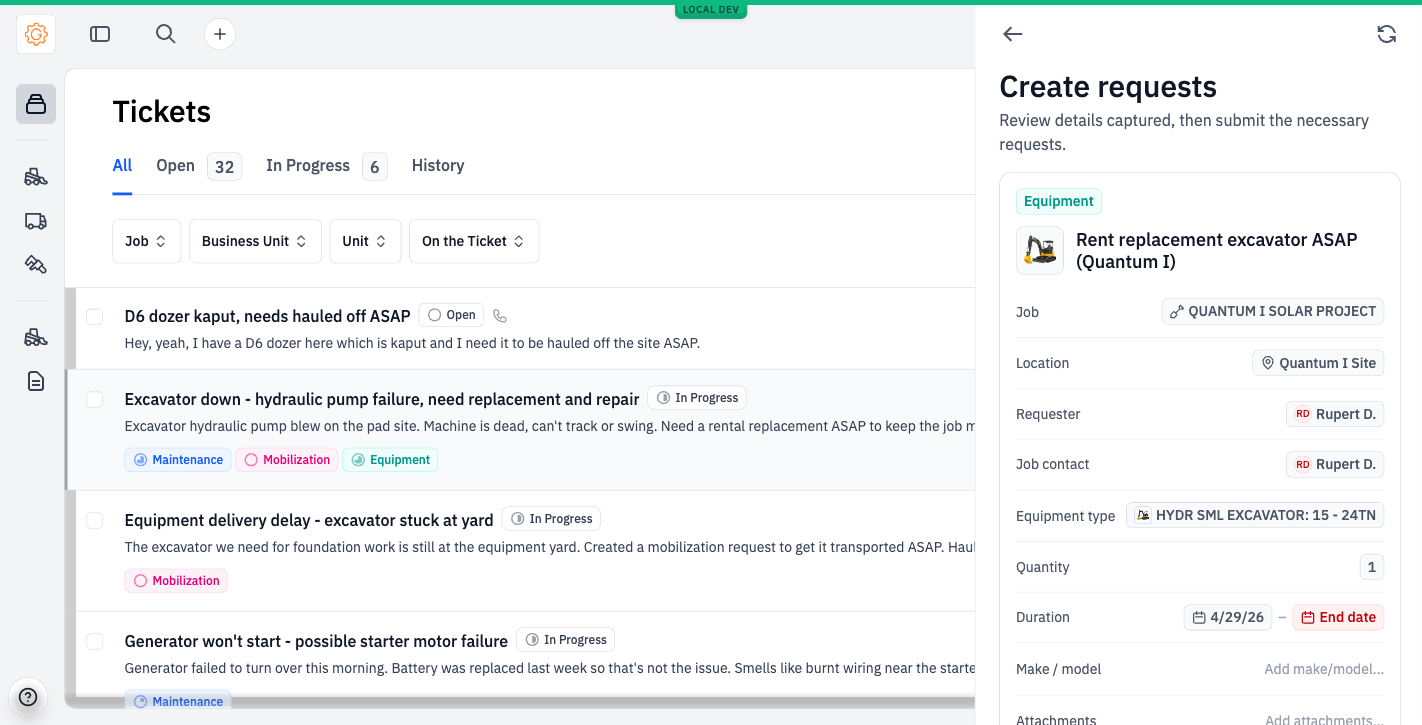
Scroll down the panel to see the other suggested requests.
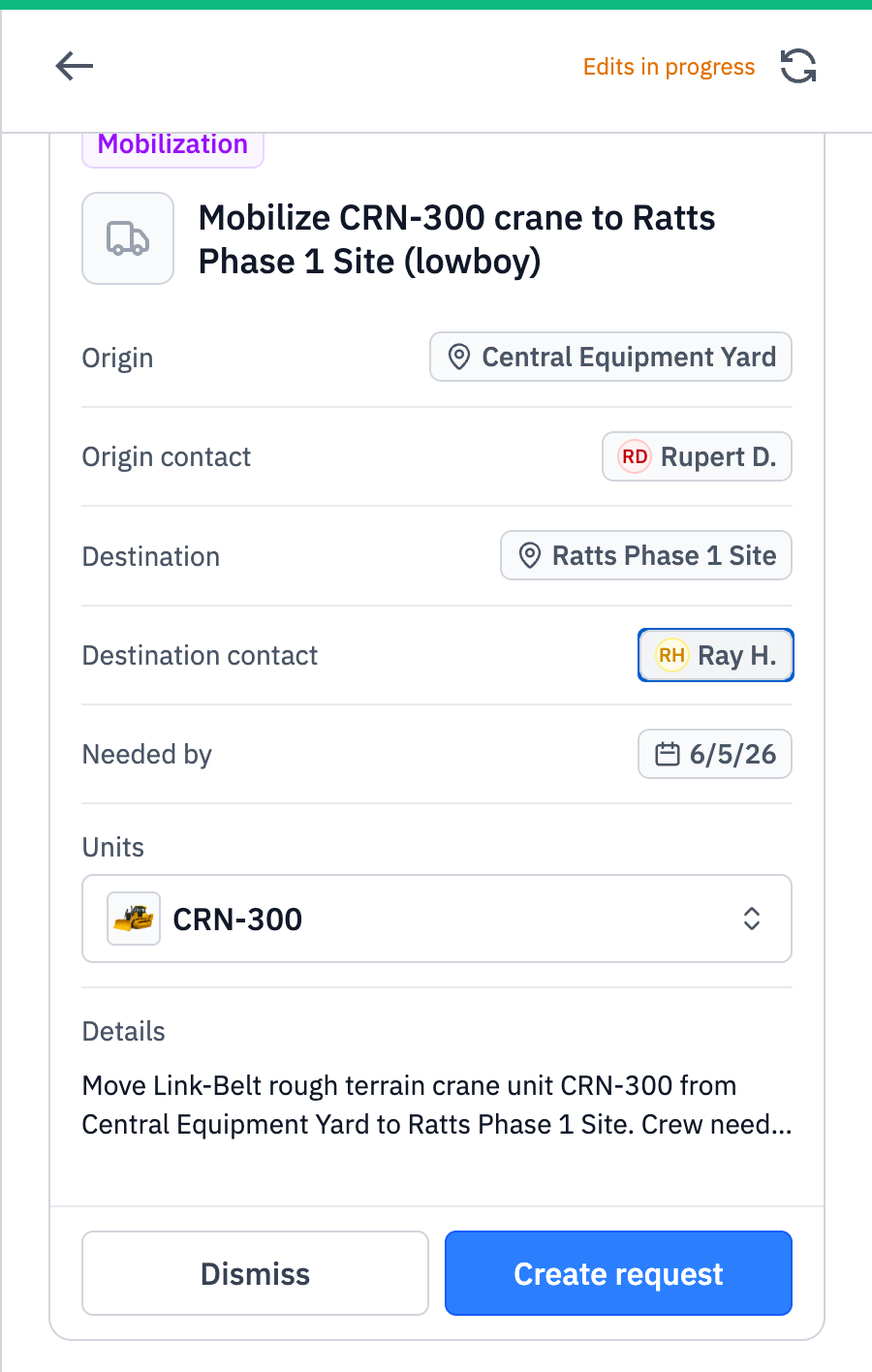
The panel proposes Mobilizations on the same footing. When a ticket reads as moving a machine the company already owns — "haul the crane from the yard out to Ratts Phase 1 by Friday" — the AI fills a Mobilization card instead of a rental: the unit, the origin and destination, the needed-by date, and a contact at each end, all resolved from the ticket and the fleet.
#Step 3: Track everything from the ticket
Created requests link back to the ticket. The ticket's timeline shows everything that happened — request created, status changes, comments — in one place. The ticket moves to Done when the spawned work resolves; a coordinator can also mark it Canceled directly from the status dropdown if the original problem turned out to be a duplicate or a false alarm. See Working a ticket for the rest of the response side — discussion thread, participants, linking to existing work.
#Tips
- Be specific about the equipment. Including a make, model, or unit ID lets the AI link to the right machine in your fleet.
- Mention the job. The AI can usually infer the job, but stating it directly removes ambiguity when you have multiple sites with similar names.
- Don't overload one ticket. If you've got two unrelated problems, file two tickets — the AI will create cleaner request stacks.
- Use Call with Gearflow for hands-free capture. A phone call routed to Gearflow becomes a ticket automatically. Look for the phone icon next to such tickets in the list.