Roles and permissions
Three roles in Parts Hub Pro — Admin, Purchaser, Requester — plus an order-approval threshold that routes big orders to a Purchaser or Admin first.
#Why these three roles
Parts buying at a heavy-civil contractor splits into two jobs. There are the people who find what they need — mechanics, foremen, project engineers — who know which part on which machine. And there are the people who commit money — purchasers, parts managers, accounting — who have signing authority. Sometimes one person does both. Often they don't.
Parts Hub Pro's three roles map directly onto that split:
- Requester creates requests for the parts a machine needs.
- Purchaser commits the money — approves orders, adds payment terms, pays invoices.
- Admin does both, plus configures the account.
The same roles work on web and on the mobile app — a mechanic dispatched to a job site uses the mobile app as a Requester, and an order they create that exceeds the org's threshold lands in their Purchaser's queue for approval. One identity, one set of permissions, two surfaces.
#The three roles
| Role | What they can do |
|---|---|
| Admin | Everything. Manages users, vendors, shipping locations, machines, integrations, organization settings, and approval rules. Approves orders, pays invoices, adds net terms. |
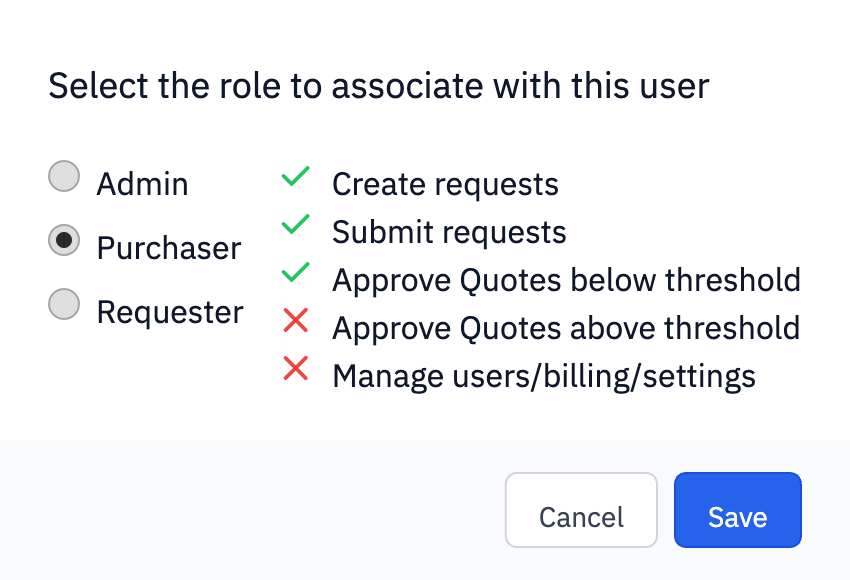
| Purchaser | Everything a Requester can do, plus the money-side actions: approve orders, add net terms, and pay invoices. Can't change account-level settings or manage users. |
| Requester | Creates and edits part requests. Views machines, vendors, and shipping locations; can add machines and shipping locations. Can't approve orders, can't pay invoices, can't add net terms. |
#What you're looking at
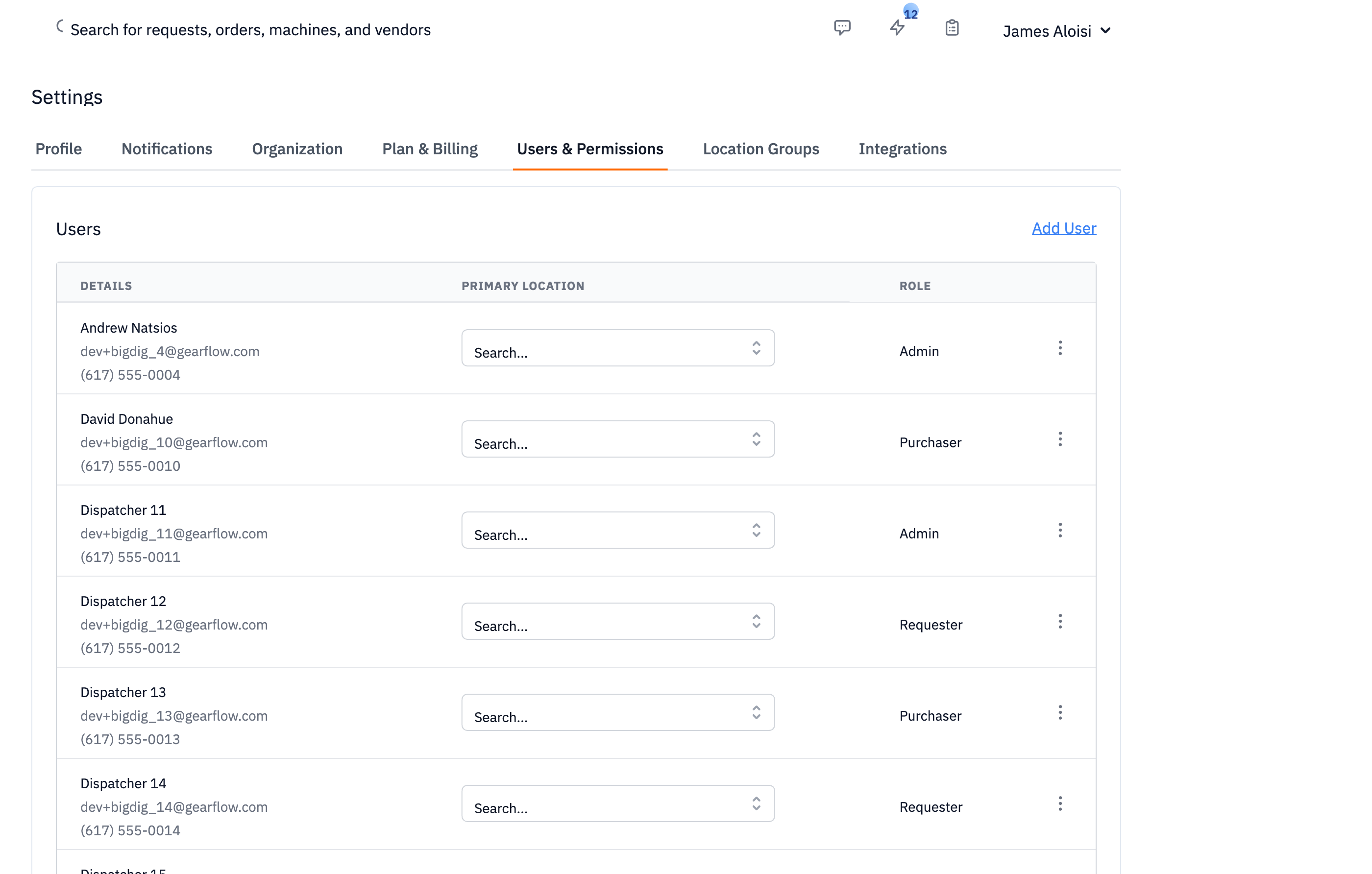
Roles live under Settings → Users. Each user has one of the three roles. An admin assigns the role when inviting a new user and can change it later from the user's detail page.
#Picking a role
The role picker shows all three options as radio buttons with their permission summaries. Clicking a role shows exactly which actions it grants.
#The approval threshold
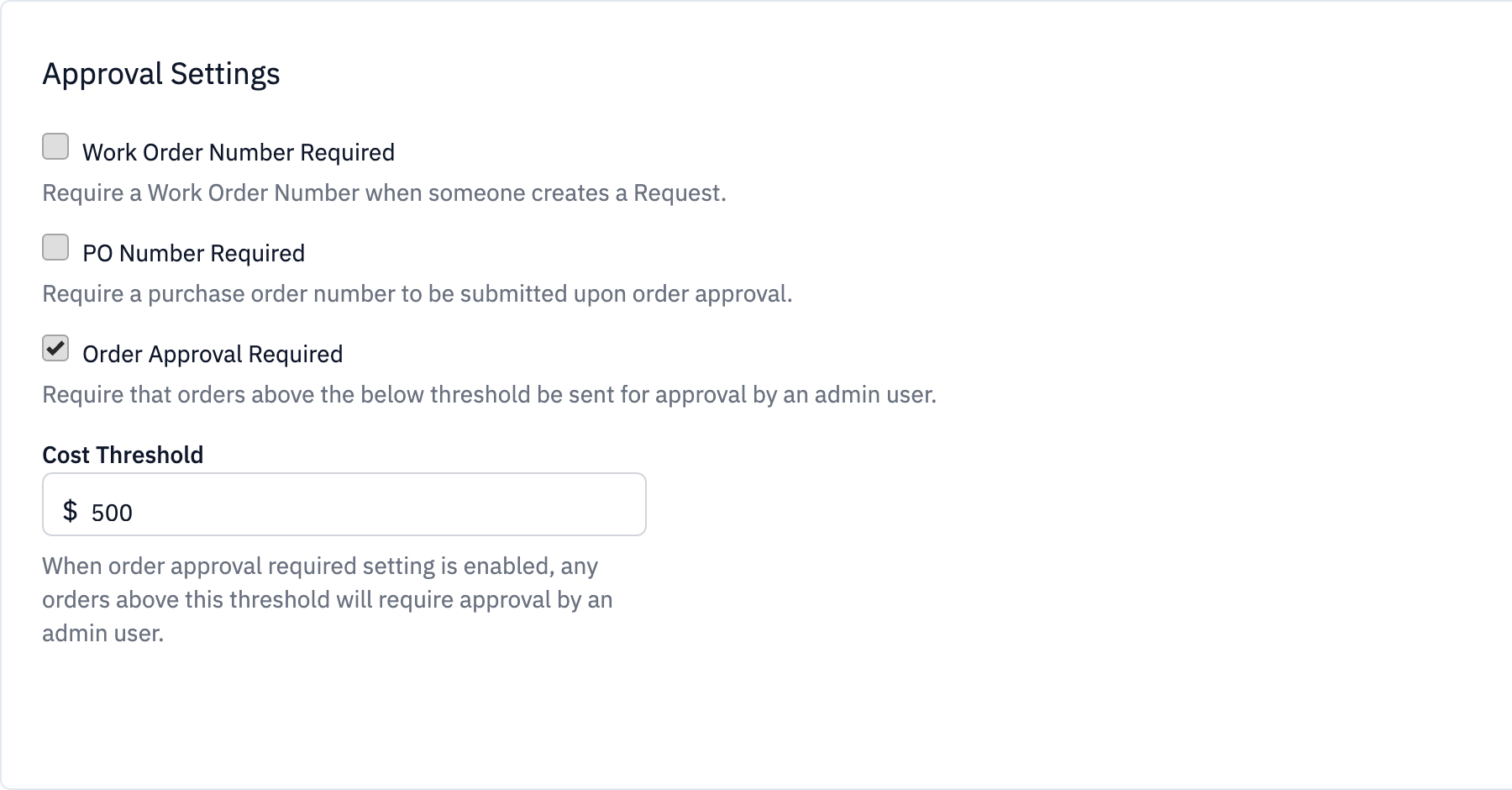
A common ask from parts managers: "My techs can place orders for routine parts, but anything over $500 needs a real signoff." Parts Hub Pro answers that with an account-level toggle.
From Settings → Organization, an admin enables Order Approval Required and sets a Cost Threshold. Any order placed by a Requester whose total exceeds the threshold goes into a held state — the Requester sees "Submitted for approval"; a Purchaser or Admin gets it in their queue, reviews it, and either approves (the order proceeds) or declines (back to the Requester).
Below the threshold, the order commits directly. Disable the toggle and Requesters always commit directly — useful for accounts where every tech has signing authority on routine spend.
#What each role can't do
- Purchasers can't change organization settings, add or remove users, or configure approval rules. Everything order-related and money-related is open; account configuration is admin-only.
- Requesters can't approve orders (their own or anyone else's), pay invoices, add net terms, or change vendor lists in any way that affects pricing. They surface what's needed; a Purchaser commits.