Quick Order ("Order Now")
A buyer already knows what they're buying and who they're buying it from. They don't want competing quotes — they want to record the order and let the vendor fulfill it.
#Why this exists
Some buyers spent years building tight relationships with their preferred vendors. They've negotiated pricing, the vendor knows the fleet, and shopping every order to three vendors would slow everything down. For these buyers the value of Parts Hub Pro is not the marketplace — it's having a clean, structured record of every parts purchase against the right job, machine, and cost code.
Quick Order serves that user. Same wizard as Standard RFQ, but a single click at Step 3 commits the buyer to one vendor and skips the entire Quote-and-accept cycle. The Order goes out already accepted; the vendor fulfills, sends an invoice, and the line items get backfilled with prices when the invoice arrives.
#Lifecycle
No Submitted, no Quoted. The Request enters life already in PO Sent — there's nothing to quote on. Fulfillment and invoicing work the same as the back half of Standard RFQ.
#Walkthrough
#Step 1 and 2: parts and location
Identical to Standard RFQ. The buyer enters parts in Step 1 and picks a shipping location in Step 2. See the Standard RFQ walkthrough for the form details.
#Step 3: pick a path
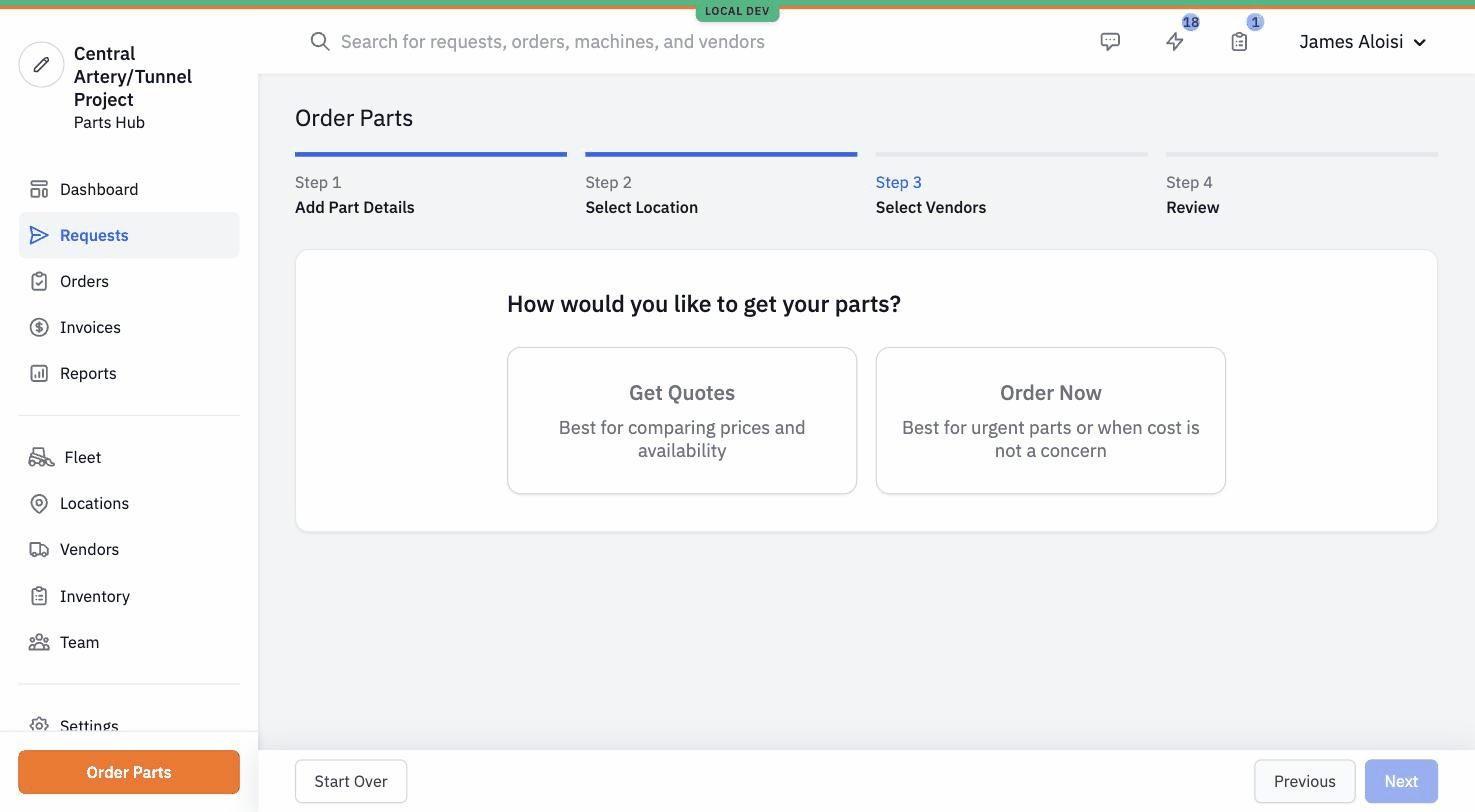
After Step 2, the wizard interrupts with a question: How would you like to get your parts? Two cards: Get Quotes (Standard RFQ) or Order Now (Quick Order).
#Step 4: pick the vendor
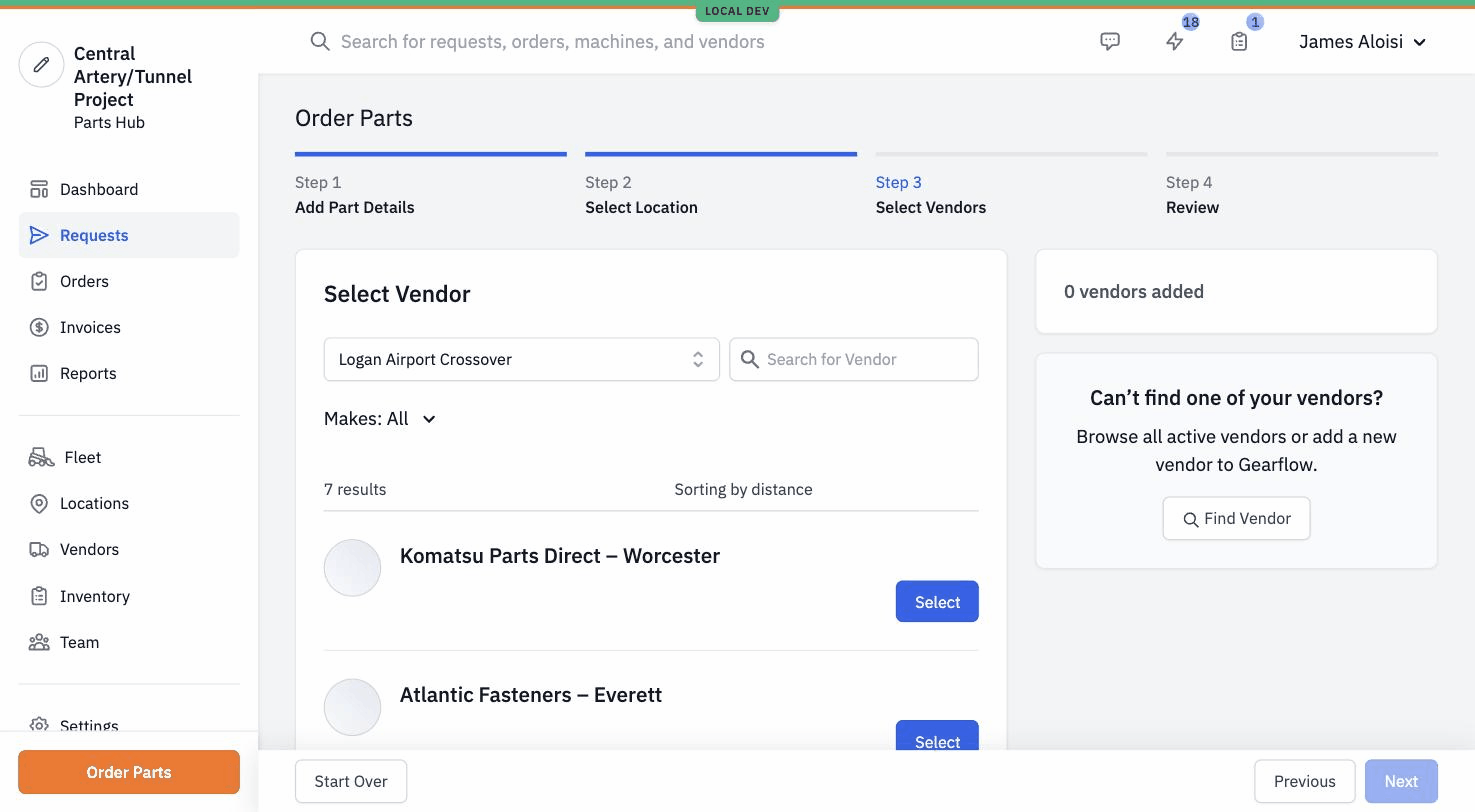
The vendor selection step shifts to Select Vendor (singular). The list shows vendors at the chosen location, sorted by distance. The buyer picks one.
#Step 5: review and submit
The Review step is the same as Standard RFQ but reflects the no-quote path. On submission, the Request is created with the chosen vendor as the sole Order, already in fulfillment state. The vendor receives it as an inbound Order to fulfill, not as a Quote to respond to.
#Tips
- The standing-relationship flow. For a team with a small, trusted vendor list and procurement that runs on routine, this is the default entry point.
- The "Order Now" label undersells it. The product copy says "Best for urgent parts or when cost is not a concern," but Quick Order works just as well for routine ordering with a known vendor — you don't need an urgency to use it.
- Invoice augmentation closes the loop. As soon as the invoice comes in, prices appear on the line items. Until then the order looks like it has no costs — that's expected, not a bug.
- Watch out for duplicate part numbers. If a buyer enters the same MPN on two lines of the same Order, the system collapses them into one line item and sums the quantities. The grouped line keeps the cost code and external_id of the first row only. Most buyers don't notice.