Working a ticket
Once a ticket lands in the queue, this is what the coordinator does with it — set status, work the discussion thread, watch the timeline, and link the work it spawns back to the original record.
#Why this exists
The intake article shows how problems get into Gearflow. This article picks up where intake ends. A ticket without follow-through is just a Smartsheet row in a fancier app — the value lands when the coordinator (the office person who works tickets — in Settings > Users, typically the Dispatcher or Account Admin role) uses the ticket as the place where everyone gathers around the same problem: who's on it, what's been promised, what's been done, and what work it spawned downstream.
Most fleet operations teams have nowhere to look for that picture today. They have a status column on a spreadsheet that one person updates, a thread of texts a different person knows about, and an email chain a third person started. That unowned space between the field reporting needs and the office sourcing them is the coordination gap — the problem Gearflow exists to solve. The Working a ticket surface closes it for one ticket at a time: one record, one timeline, one discussion thread, with the requests it spawned linked back to it as cards.
#What you're looking at
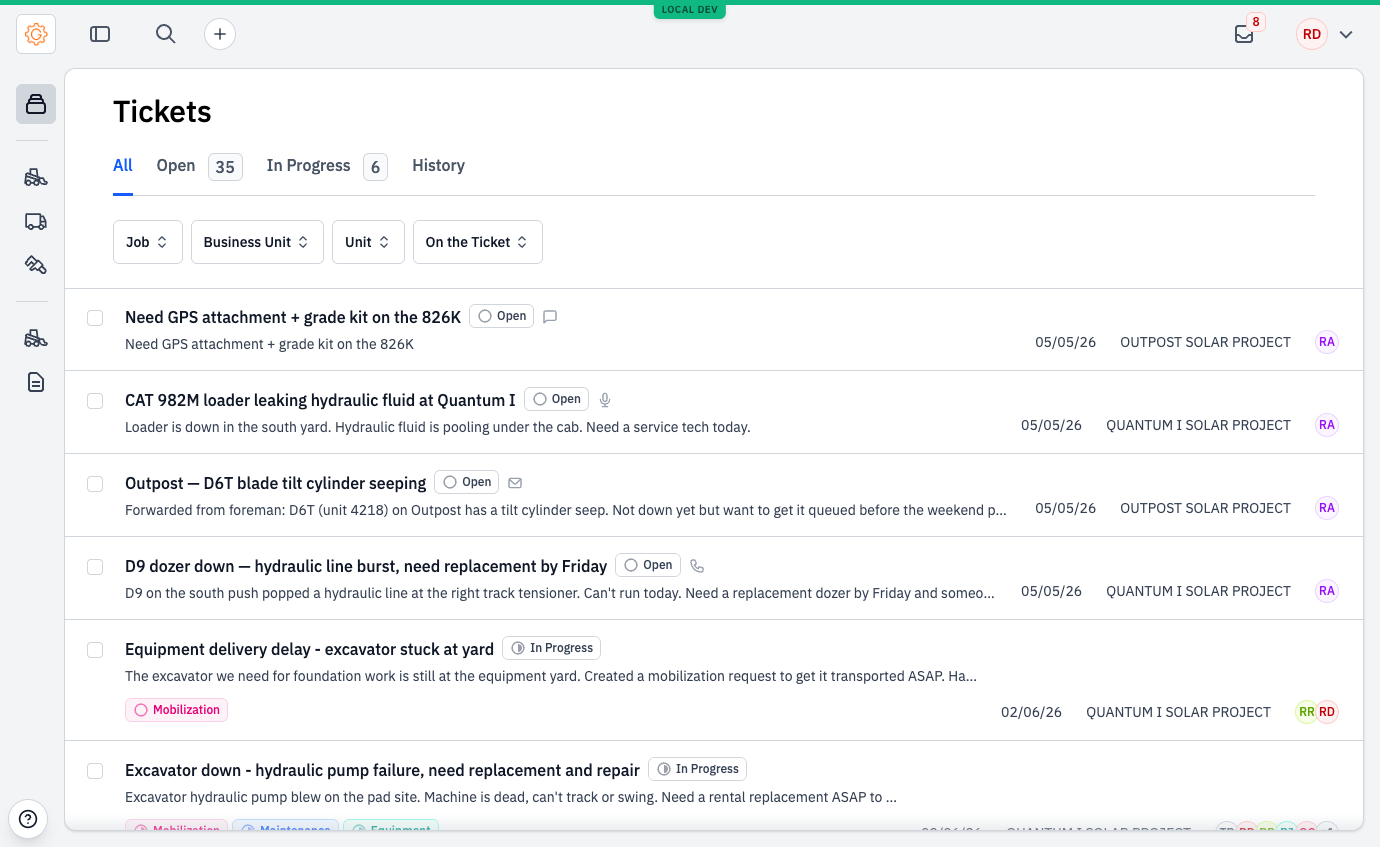
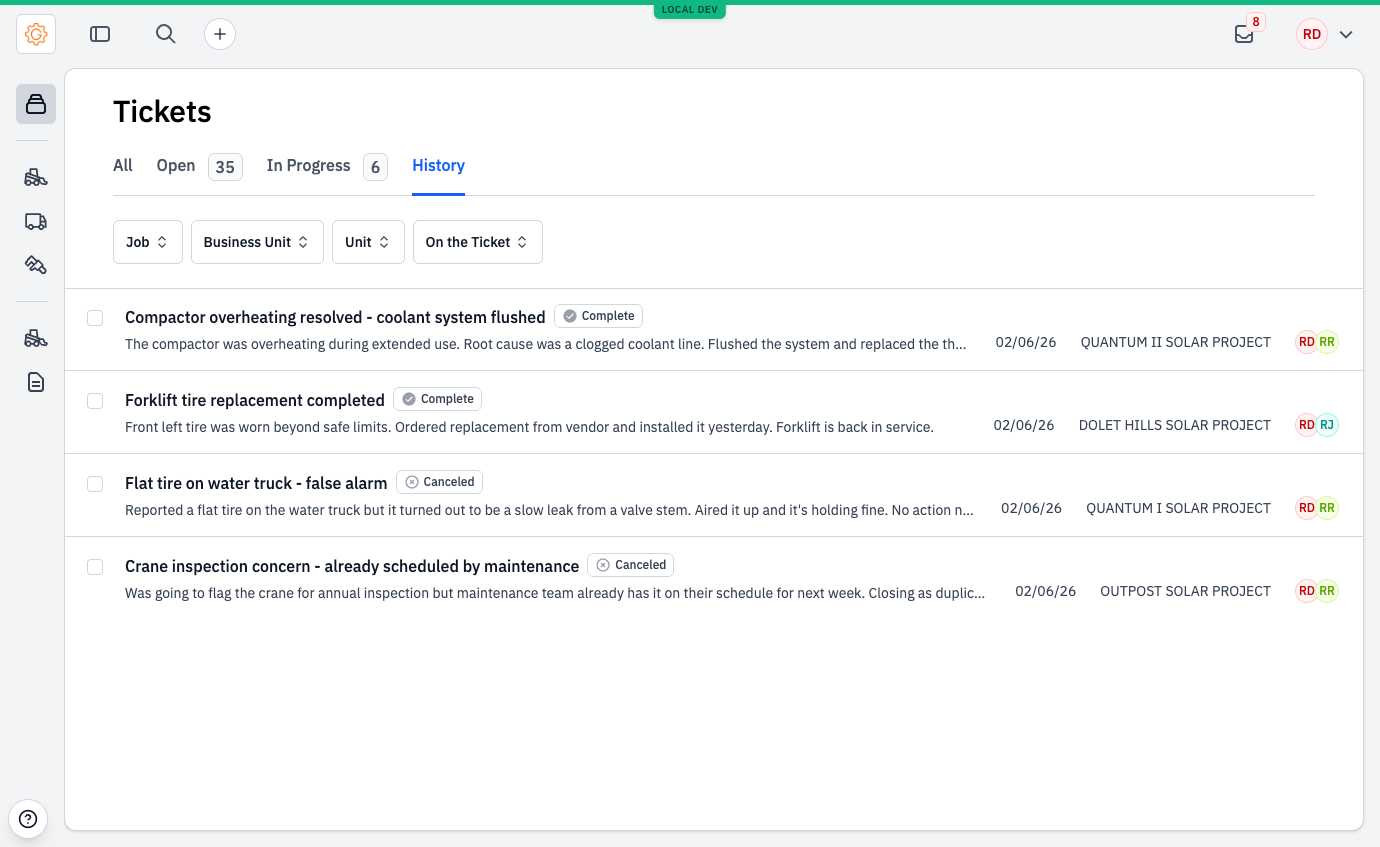
Tickets live under the Tickets tab in the left navigation. Each row is one ticket — title, status pill, the job it touches, the unit, and the people on it. The tabs along the top (All / Open / In Progress / History) split the lifecycle into the three buckets a coordinator actually triages from.
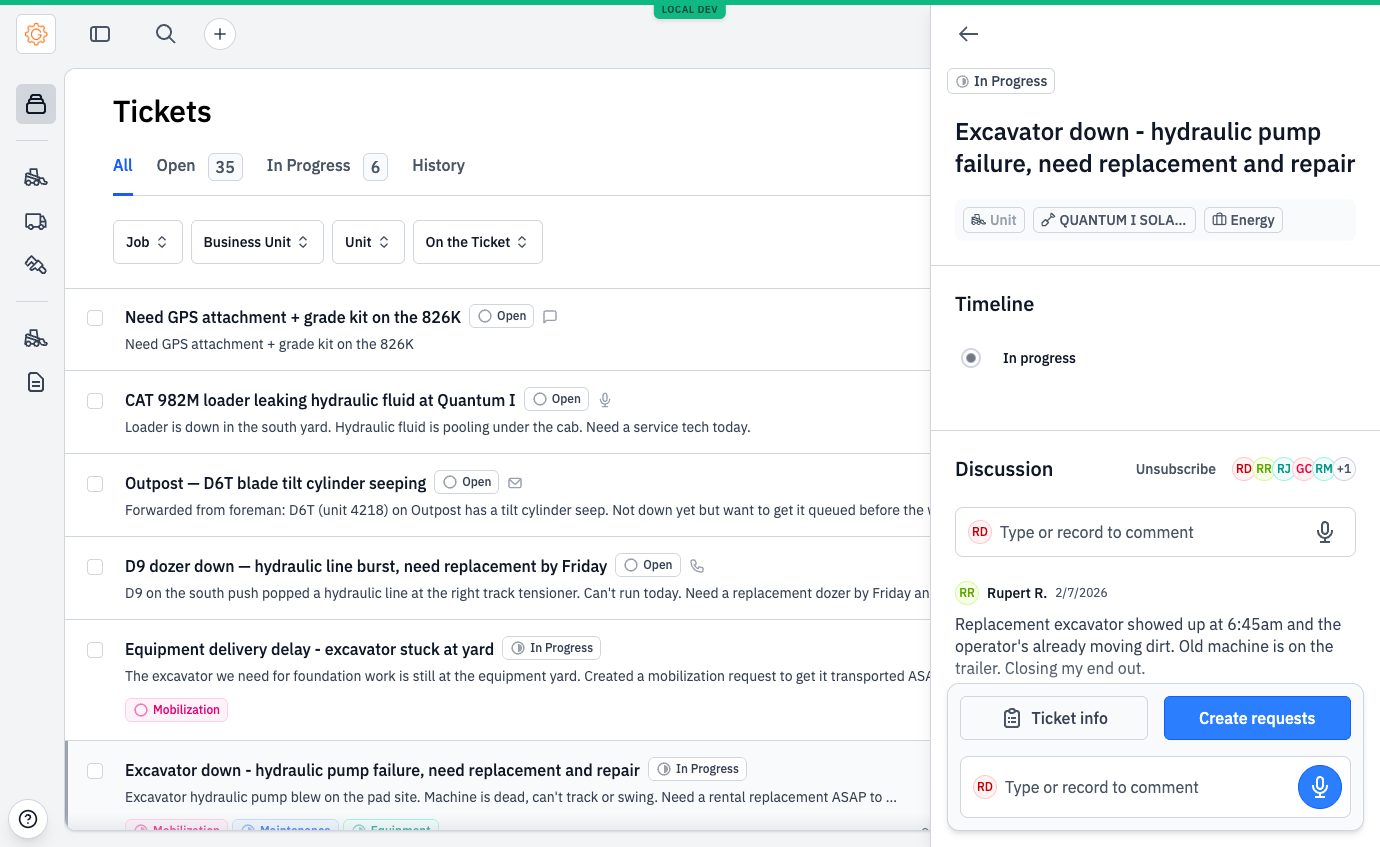
Open a ticket and the detail panel slides in from the right.
#Lifecycle
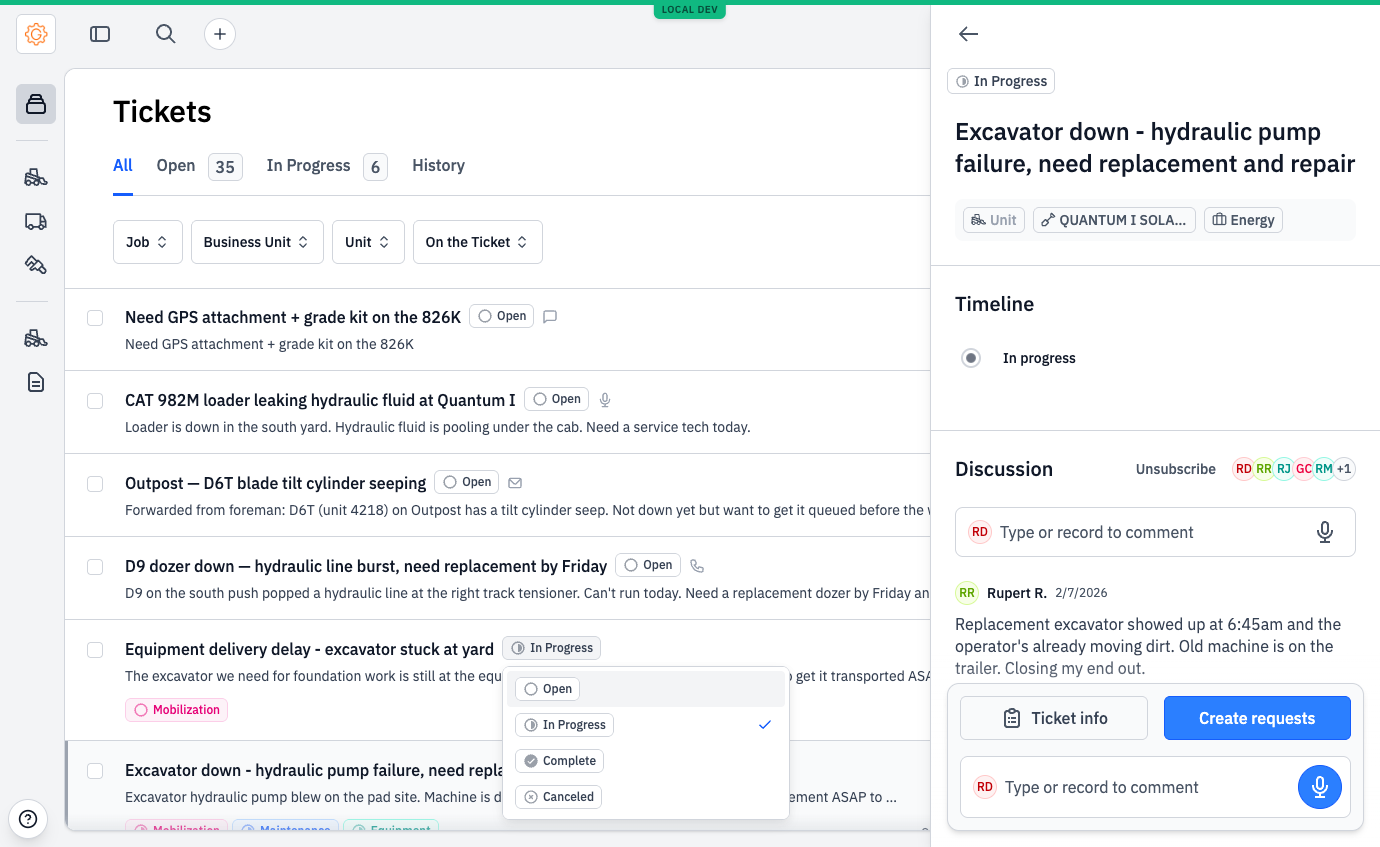
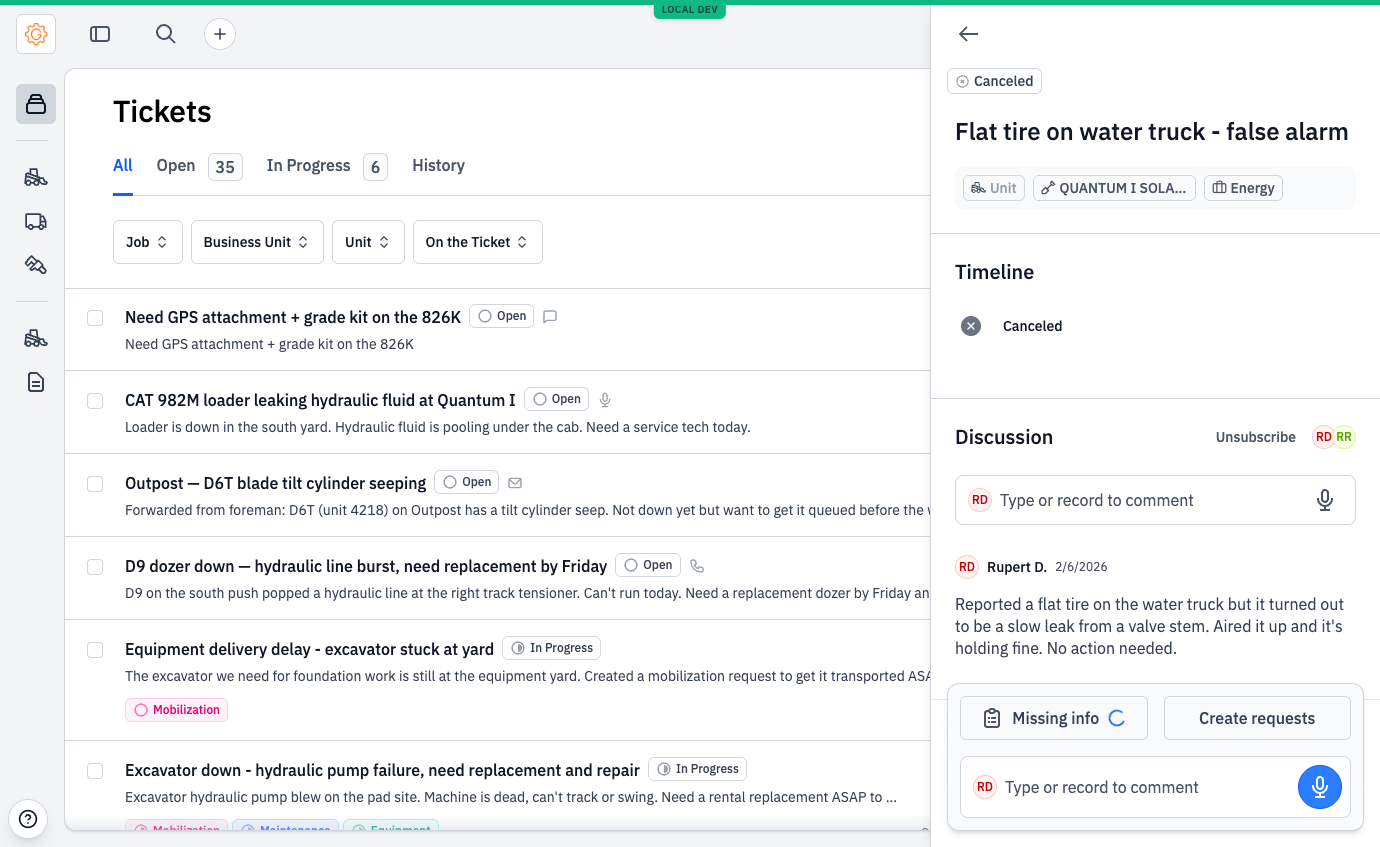
Open is the initial state — the ticket has been filed but no follow-up action has started. In Progress is the working state — usually entered automatically the moment the ticket spawns its first request (an equipment request, a maintenance, a mobilization, or a parts request), but a coordinator can also push it there manually from the status dropdown. The terminal states are Done (the work resolved successfully) and Canceled (the ticket was dropped — duplicate, false alarm, no longer relevant).
#Changing status
Status changes happen from the dropdown on the ticket detail. Click the current-status pill at the top of the panel and the four options appear.
Three rules of thumb for the manual status change:
- Open → In Progress happens automatically when the ticket spawns its first request. Use the dropdown if you're working a ticket that won't have any spawned requests (a documentation-only "drop this off at the yard" ticket, say) and you want it to show up under In Progress.
- In Progress → Done usually waits for the spawned requests to close out, but the dropdown lets a coordinator mark Done sooner if the resolution is already locked in.
- Anything → Canceled is for tickets that were duplicates, false alarms, or no longer relevant. The discussion thread is still preserved as a record.
#The discussion thread
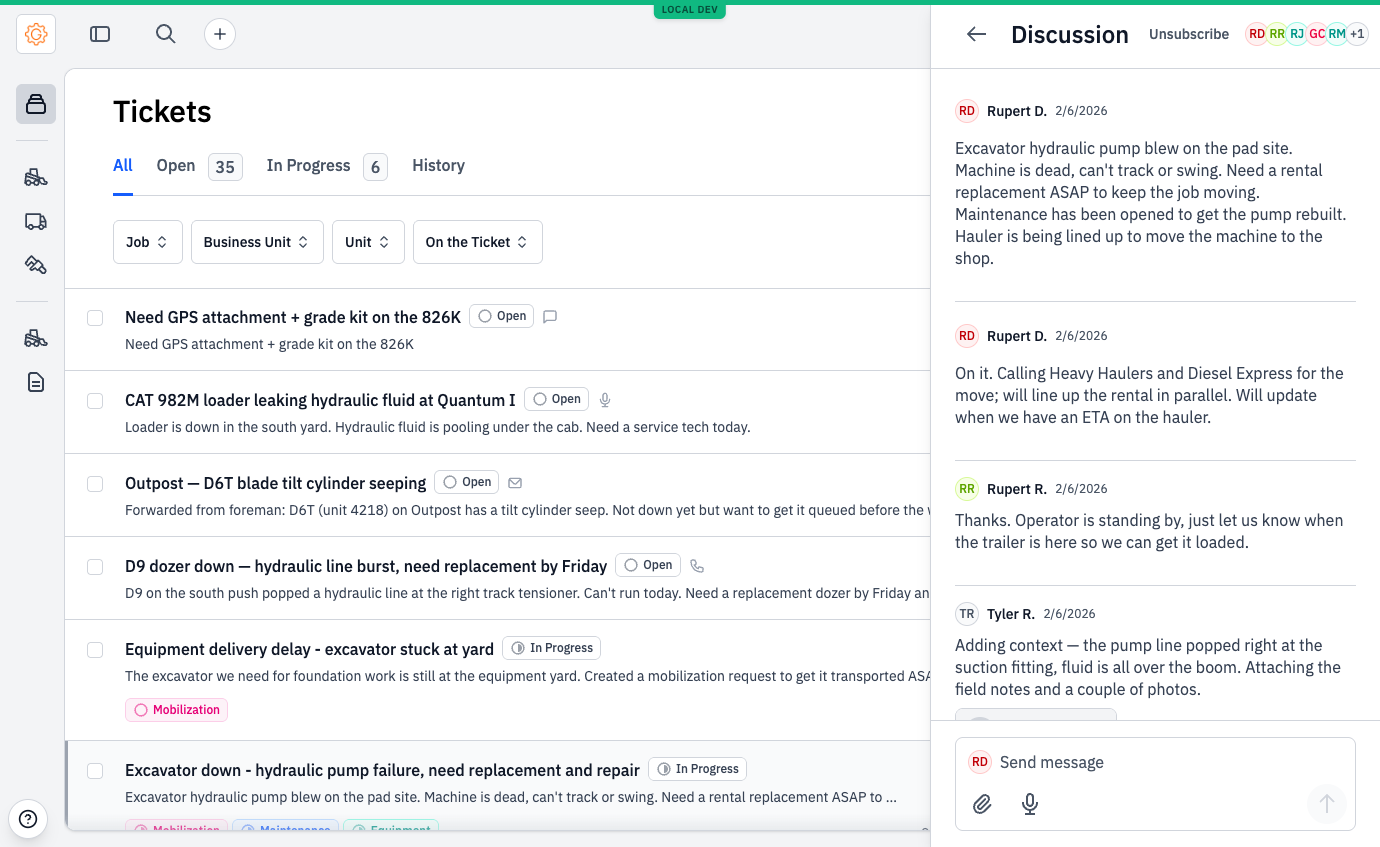
Every ticket has a Discussion section below the Timeline. This is where everyone working the problem talks to each other — back-and-forth between the coordinator and the field user who filed it, mentions of other team members, photos of what's actually going on in the field, decisions made and PO numbers committed. The first message in every thread is the ticket's original description.
Three mechanics worth knowing:
- Attachments on every message — PDFs, photos, videos, audio. Drag-and-drop into the composer, or use the paperclip. Photos render as inline thumbnails; documents show as a chip with the filename and an icon.
- @-mentions on team members. Type
@and the autocomplete shows everyone in the org. Mentioning someone adds them to the thread (if they weren't already) and triggers a notification. The mention shows up highlighted in blue. - Participant management. The avatar row at the top of the Discussion section is everyone listening to the thread. Any coordinator can add or remove participants. The Unsubscribe link in the header is the self-toggle.
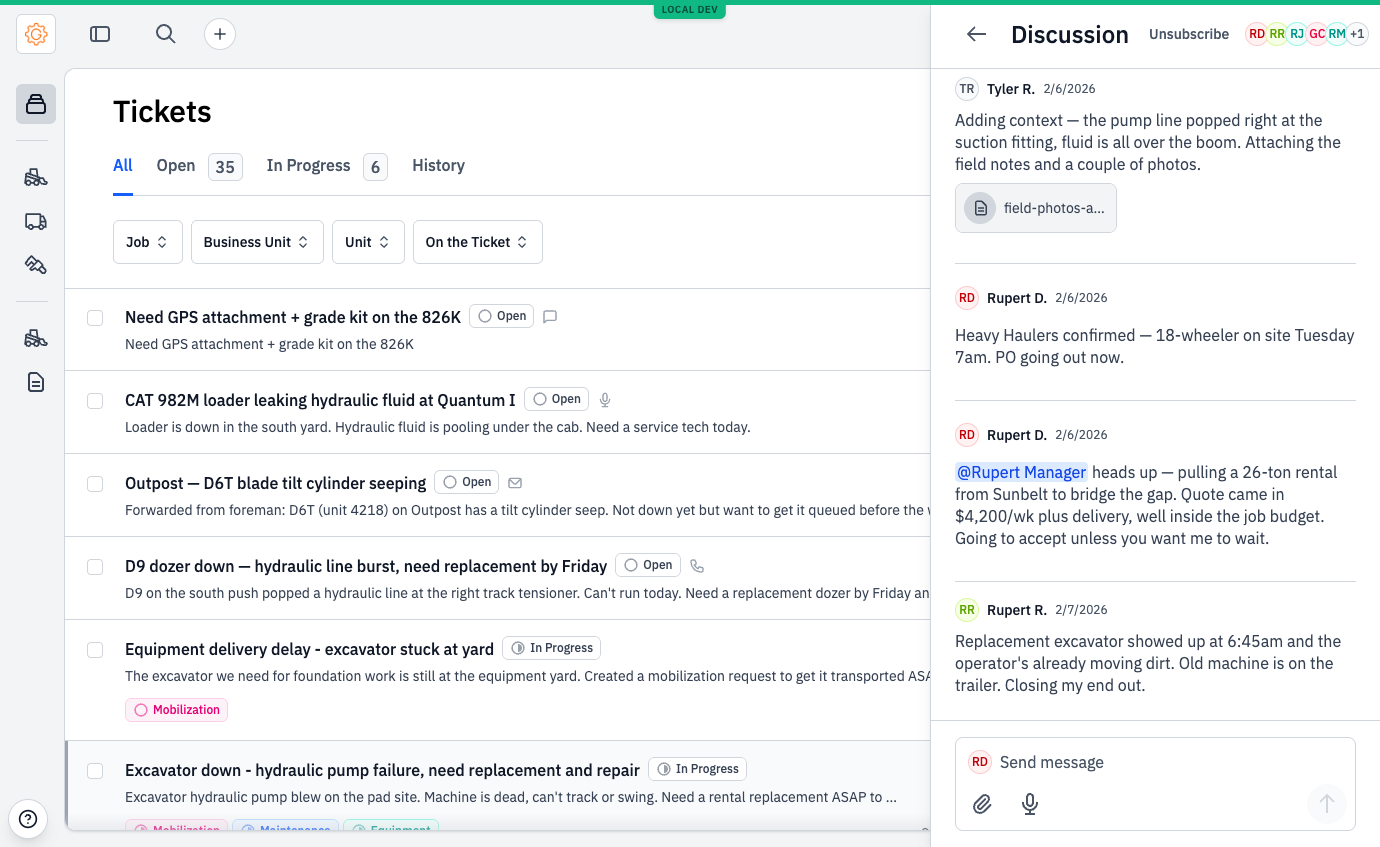
@-mention (the name highlights in blue and the manager is auto-added to participants); a field user attaches a PDF of notes; a follow-up message closes the loop ("Replacement excavator showed up at 6:45am...").#The timeline
Above the Discussion section sits the Timeline — a chronological list of everything that happened on the ticket. Different from the Discussion thread, which is what people said. The Timeline is what people did: status changes, requests submitted, assets updated, AI re-analysis, links added, links removed.
The system records nine distinct event types on a ticket:
| Created | The moment the ticket was filed. |
|---|---|
| Status changed | Open → In Progress, In Progress → Done, etc. Records both the from and to status. |
| Updated | Title, job, or other field edits. |
| AI description | The AI's structured read of the ticket finished or refreshed. |
| Assets updated | The unit list on the ticket changed. |
| Linked | An existing equipment request, mobilization, or maintenance was attached to the ticket. |
| Unlinked | A link was removed. |
| Request submitted | A new request (equipment / mobilization / maintenance / parts) was created from this ticket. |
| Message | Someone posted in the Discussion thread. Mirrors the discussion message but stays on the timeline for chronological reference. |
You won't see every event type on every ticket — a one-step ticket that goes Open → In Progress → Done shows three events plus messages. A complex ticket that spawns three requests, gets re-tagged with assets, and crosses two status transitions can show ten or twelve.
#Linking to existing work
The Create requests button on a ticket detail spawns new requests pre-filled by the AI. But ticket work often touches things that already exist — a unit that already has an open maintenance, a mobilization that's already on the schedule, an equipment request that was submitted before the field user even called in. The Associated section on a ticket lets a coordinator attach those existing records without re-creating them.
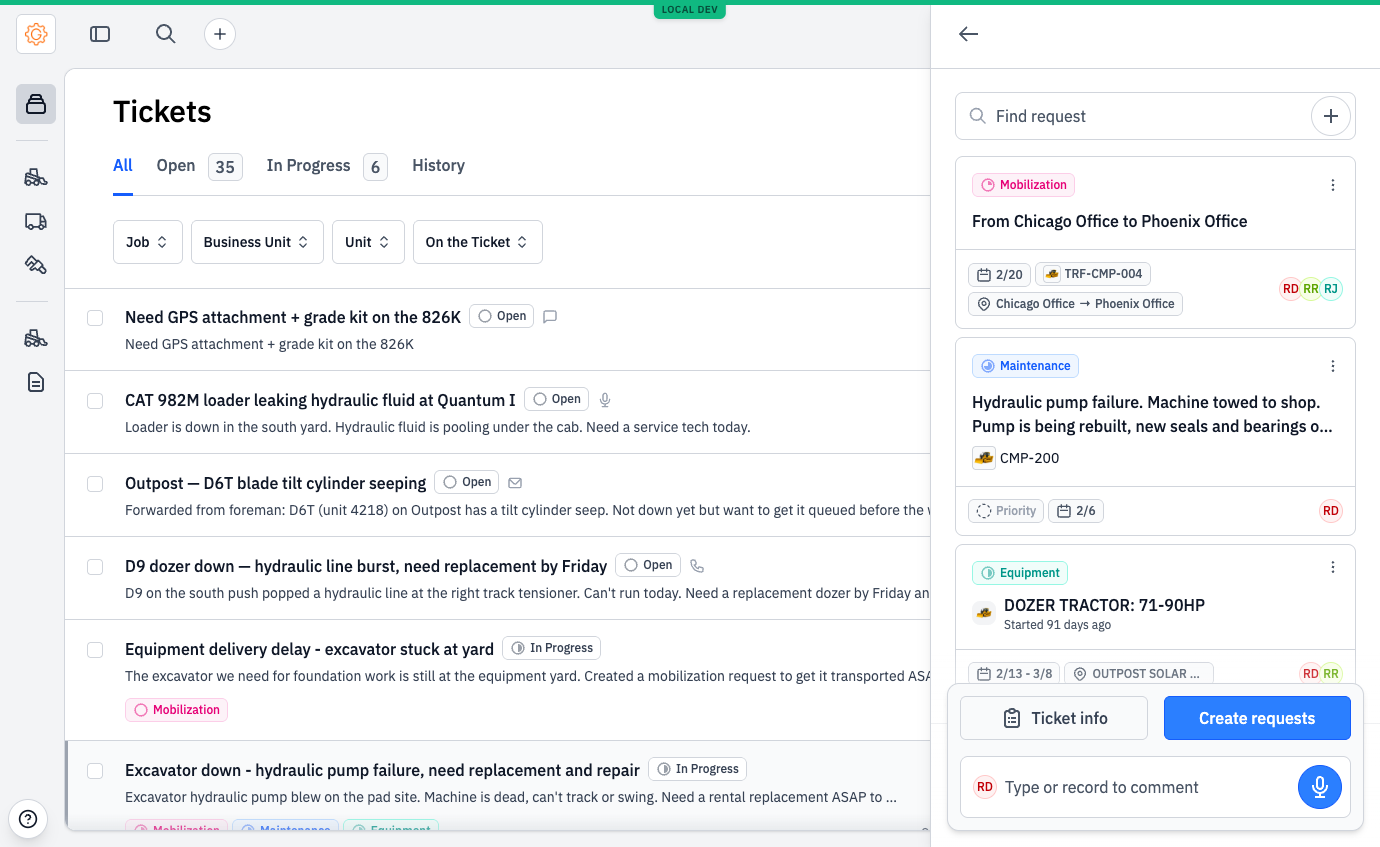
Click into the Find request field and the combobox opens, listing existing equipment requests, mobilizations, and maintenance records the coordinator can choose from.
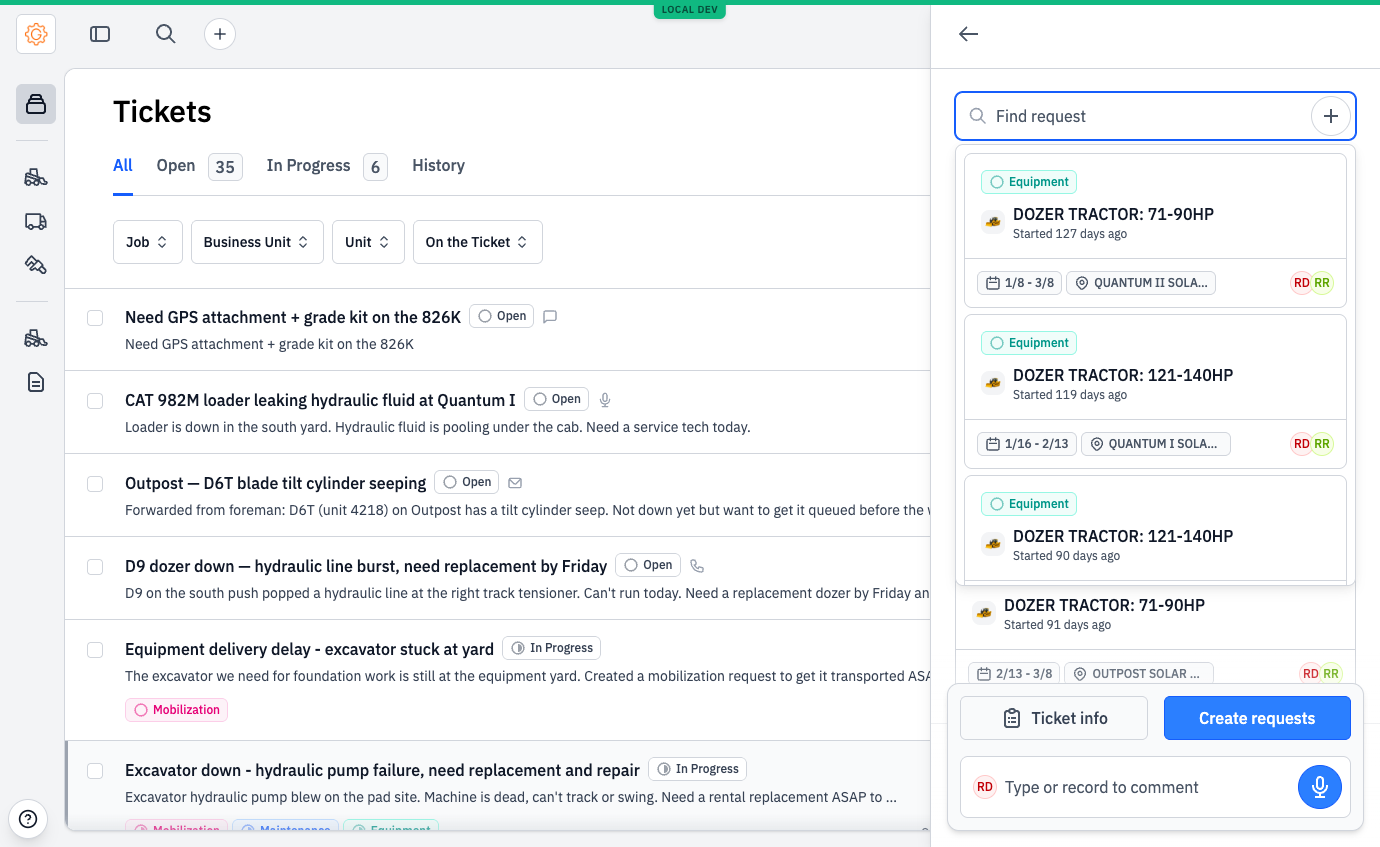
Two situations where linking matters most:
- Cross-domain visibility. A ticket about a broken unit spawns a Maintenance for the repair, a Mobilization to move the unit to the shop, and an Equipment request for the rental that bridges the gap. All three live on the ticket as Associated cards. Anyone opening the ticket sees the whole solution in one place.
- Already-existing work. Someone files a ticket about a unit that already has a scheduled maintenance. The coordinator links the existing maintenance to the ticket rather than creating a duplicate — the ticket is now the conversation hub, and the maintenance is the operational record. Same goes for mobilizations and equipment requests.