Ticket intake
A field super shouldn't have to log into anything to tell you the dozer is down. Gearflow opens five channels into the same Ticket inbox — voice, SMS, email, the in-app form, and a free user role for everyone who only ever needs to file the request.
#Why this exists
The supers and foremen who notice problems in the field aren't sitting at a laptop. They're in a truck, on a crane, on a haul road. Asking them to log in, find the right form, and fill it in is the fastest way to lose the data — they'll text the office instead, someone there will type it into a spreadsheet, and the structured record never exists.
Gearflow's answer: meet the field where it already is. A super can leave a voicemail, send an SMS, forward an email to a foreman, or — if they're at a screen — open the app and dictate. Each one becomes a structured Ticket, with the AI translating loose field language into the structured requests needed to solve it.
#The five channels
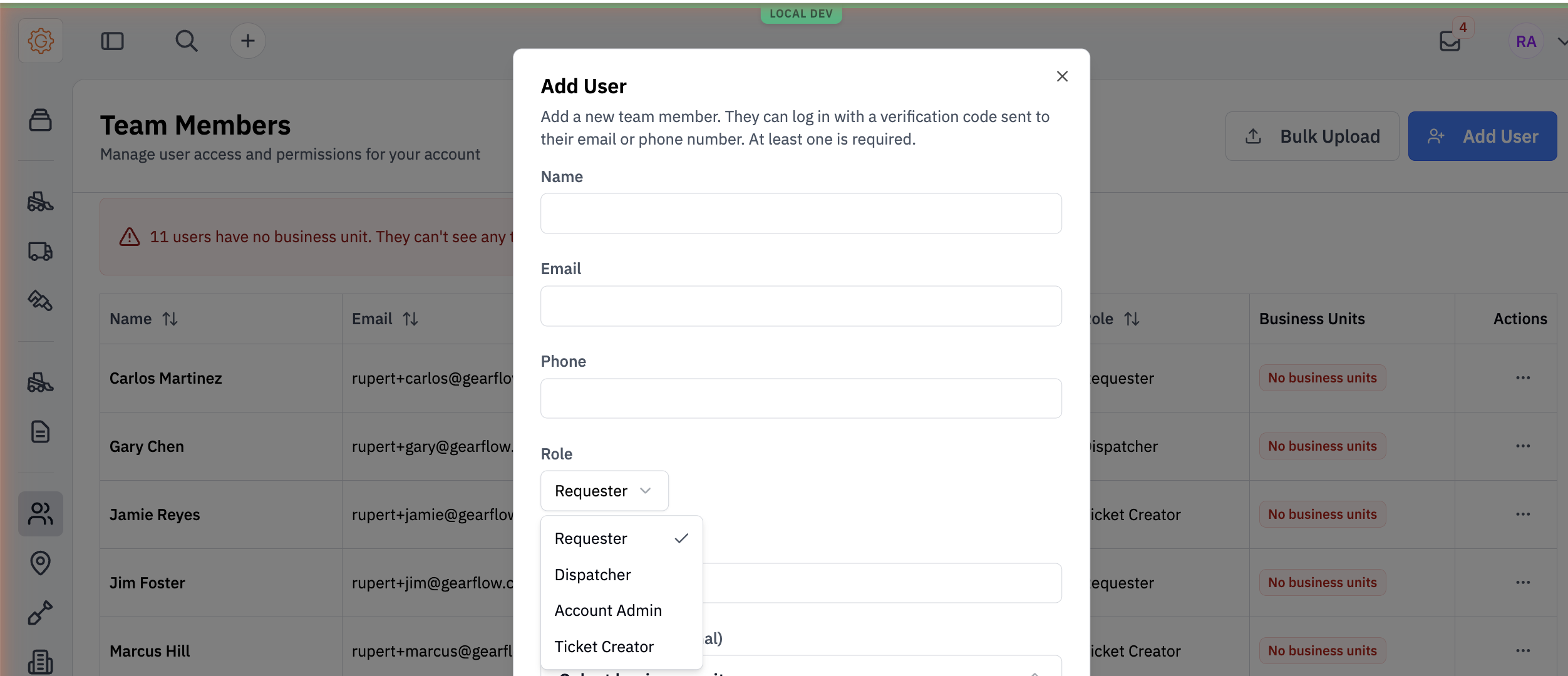
You can tell which channel a ticket came in by the small icon next to the title in the list view. The web (typed in-app) source has no badge — the others do.
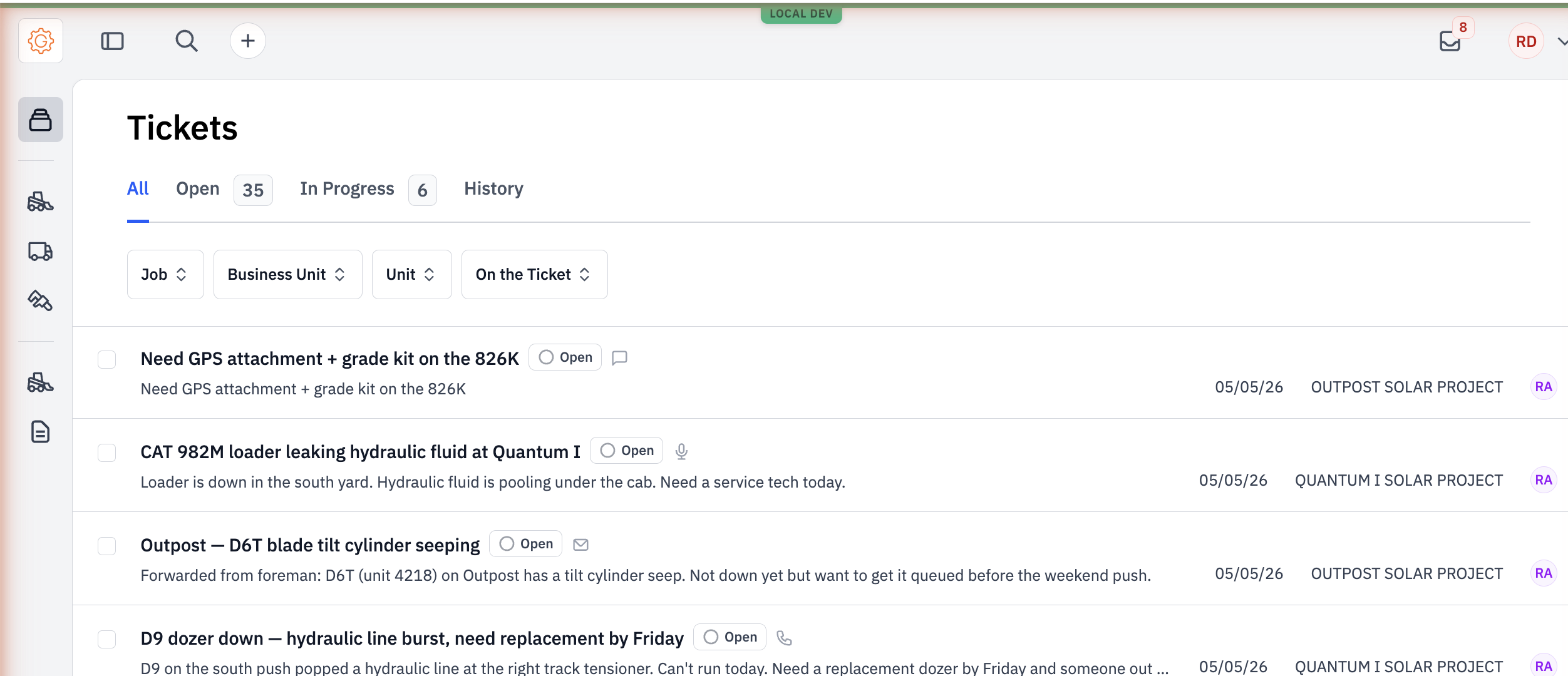
| Voice | Two paths: call-in (dial the intake number, leave a voicemail) and in-app record (open the Create ticket panel, hit Record). Both go through the same transcribe-and-extract pipeline. Different icons in the list — phone for call-in, microphone for in-app. |
|---|---|
| SMS | Text the same intake number. Messages within 15 minutes thread together; "new" starts a fresh ticket. Photos attach automatically. |
Forward or send to a per-user name.account@issues.gearflow.com address. The body becomes the ticket details; PDFs and images attach. Forwarded mail attributes back to the original sender when possible. | |
| In-app form | The default. Type the situation in plain language; AI handles the rest. Covered end-to-end in Tickets. |
| Ticket Creator role | A free user role with one permission: file tickets. No paid seat required. Bring foremen and superintendents in without escalating to admin. |
#The per-user intake addresses
Two channels — SMS / voice and email — route by who you are. Each user has a phone number and an email address that take messages directly into Gearflow on their behalf. Find both on the Profile screen.
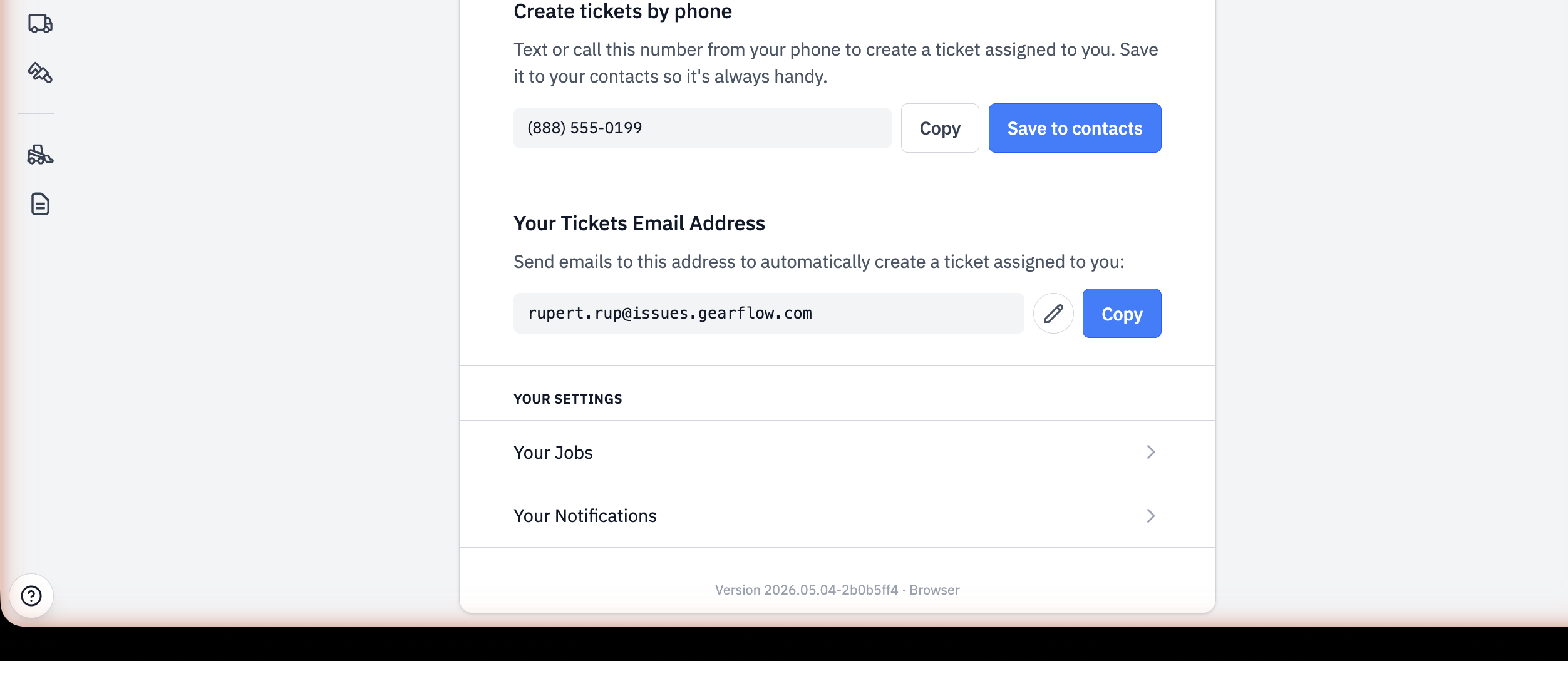
The matching logic is strict. Inbound SMS and voice look up the user by phone number; an unrecognized number gets a polite "we couldn't match your number to a Gearflow account" reply rather than a dropped ticket. Inbound email looks up the per-user address; if it matches but the original sender doesn't, the ticket goes to the email's owner with the forwarder noted.
#Voice / call-in
A super dials the account's intake number, gets a personalized greeting ("Hi Marcus, welcome to Gearflow's ticketing hotline. Leave a message after the tone…"), leaves a voicemail describing the problem, and hangs up. Within a few seconds:
- The recording is saved with the ticket.
- The audio is transcribed.
- The AI parses the transcript: title, details, the unit mentioned, the job mentioned, the people mentioned.
- A ticket is created, assigned to the caller who reported the problem.
- An SMS goes back to the caller's phone with a magic-link URL — tap it, see the ticket, no login required.
The greeting shortens after the user has filed a few tickets — they don't need the welcome line on call number twelve. Recordings under two seconds get discarded so a butt-dial doesn't create an empty ticket.
#SMS
Same intake number; the user texts instead of calling. Useful for short asks, situations where leaving a voicemail isn't practical (windy job site, equipment running), and follow-up photos.
Three behaviors worth knowing:
- Threading by time window. Messages from the same phone within 15 minutes append to the same ticket — so a super who texts "need GPS attachment + grade kit on the 826K" and 90 seconds later sends a photo of the machine doesn't end up with two separate tickets. After the window closes, the next text starts a new one.
- "new" starts fresh. If a user wants to file two unrelated things in quick succession, they text new (or new ticket) and the next message starts a clean ticket.
- MMS attachments. Photos and other attachments come through as part of the ticket — no separate upload flow.
The first reply confirms with a magic-link URL and explains the threading window so the user knows what to expect.
Each user has an inbound address of the form your-name.account-namespace@issues.gearflow.com. Forwarding or sending to it creates a ticket. The subject becomes the title; the body becomes the details; PDFs and images attach.
The forwarded-email path is what makes this useful in the field. A foreman emails their super about a problem; the super forwards it into Gearflow; the system tries to attribute the ticket back to the original foreman — not the super who hit Forward. If the original sender's email matches a user in the account, the ticket lands assigned to them, with the forwarder noted as a participant. If not, it falls back to the forwarder.
Senders get a confirmation email with the ticket URL, threaded back to the original message, so any reply on that thread becomes a comment on the same ticket.
#In-app: typed and recorded
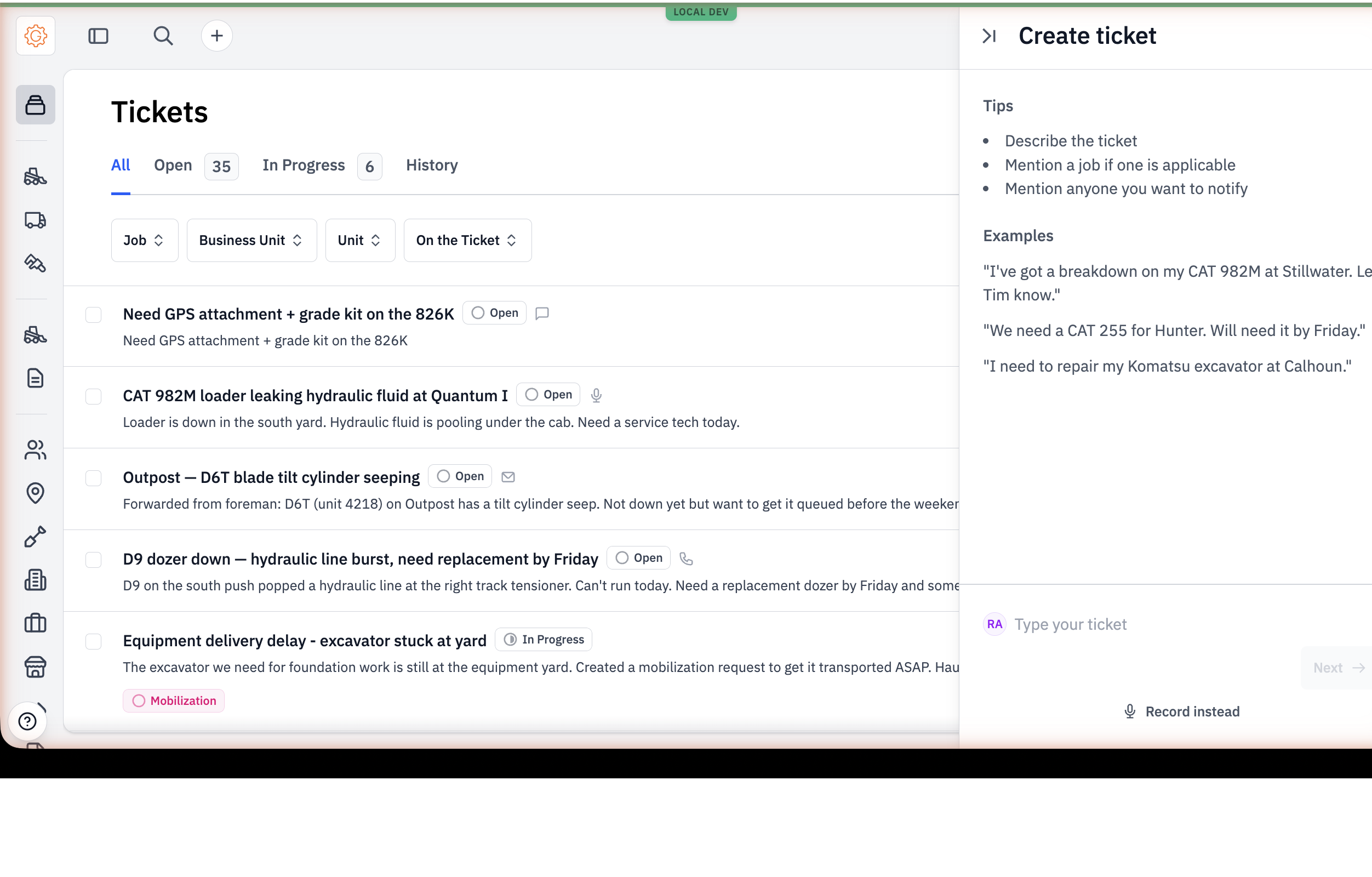
The fifth channel is the one most people expect to see — open the app, hit the + in the header, pick Create ticket, type the situation in plain language. The full walkthrough lives in Tickets; this article won't repeat it.
What's worth noting here: the same Create ticket panel has a Record instead button that swaps the typed input for a microphone. The recording goes through the same transcribe-and-extract pipeline as a phone voicemail — same AI read, same structured ticket — but with the in-app voice icon instead of the phone icon. Useful for someone at a desk who'd rather talk than type.
#The Ticket Creator role
The newest piece. Ticket Creator is a free user role whose only permission is filing tickets. No paid seat. No charge.
Paid seats are for the people running procurement — buyers, office managers, the office side that touches RFQs, POs, vendor selection, and reporting. Everyone else who only ever files work — superintendents, foremen, mechanics in the field — gets in for free. Unlimited Ticket Creators per account.
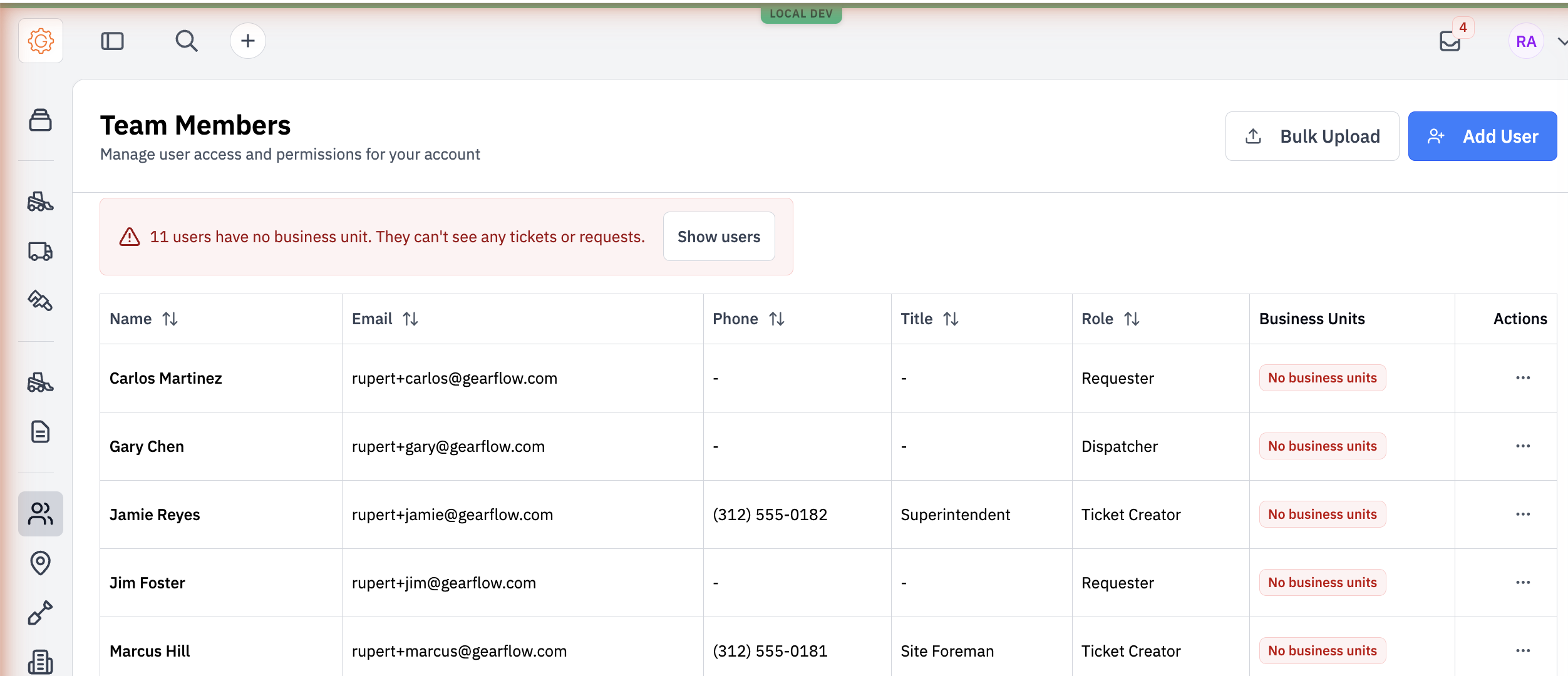
Adding a Ticket Creator is intentionally low-friction. Unlike the standard Add User mutation, which is admin-only, the Ticket Creator invitation can be sent by any authenticated user — a buyer can pull a foreman in directly without escalating to an admin. The dialog is the same Add User flow: