Notifications
How the platform notifies users of ticket, equipment, mobilization, and maintenance events. Three channels — the in-app inbox, email, and opt-in SMS (text). No mobile push. Parts notifications are separate; see the Parts Hub Pro article.
Notification behavior of the platform (app.gearflow.com) for Tickets, Equipment, Mobilizations, and Maintenance, as experienced by customers. Parts notifications are a separate channel set; see Parts Hub Pro — Notifications.
#Terms
- notification — one item informing one user of one event.
- event — a recorded change to a record that may generate a notification (§2).
- channel — a means of delivery. The platform has three: the in-app inbox, email, and SMS (text messages, opt-in, to a verified mobile number — §7). It has no mobile push.
- in-app inbox — the persistent in-product list of a user's notifications.
- recipient — a user to whom a notification is delivered.
- preference — a user's per-activity choice of channels (§4).
- scope — a user's setting that controls how widely ticket events reach that user (§4).
- thread — the discussion attached to a record.
- participant — a user on a thread. Participants receive the thread's message notifications (§3).
- mention — naming a user in a message with "@". A mention adds that user to the thread.
- business unit — an account subdivision. Most recipients are filtered to their business unit.
- job — a work site. Records and users belong to jobs.
- contact — a person named on a record, such as a mobilization's pickup contact or destination contact.
- owner — the user assigned to a record.
- subscriber — a user who has subscribed to a job.
- dispatcher, admin, requester — account roles.
#1. Channels
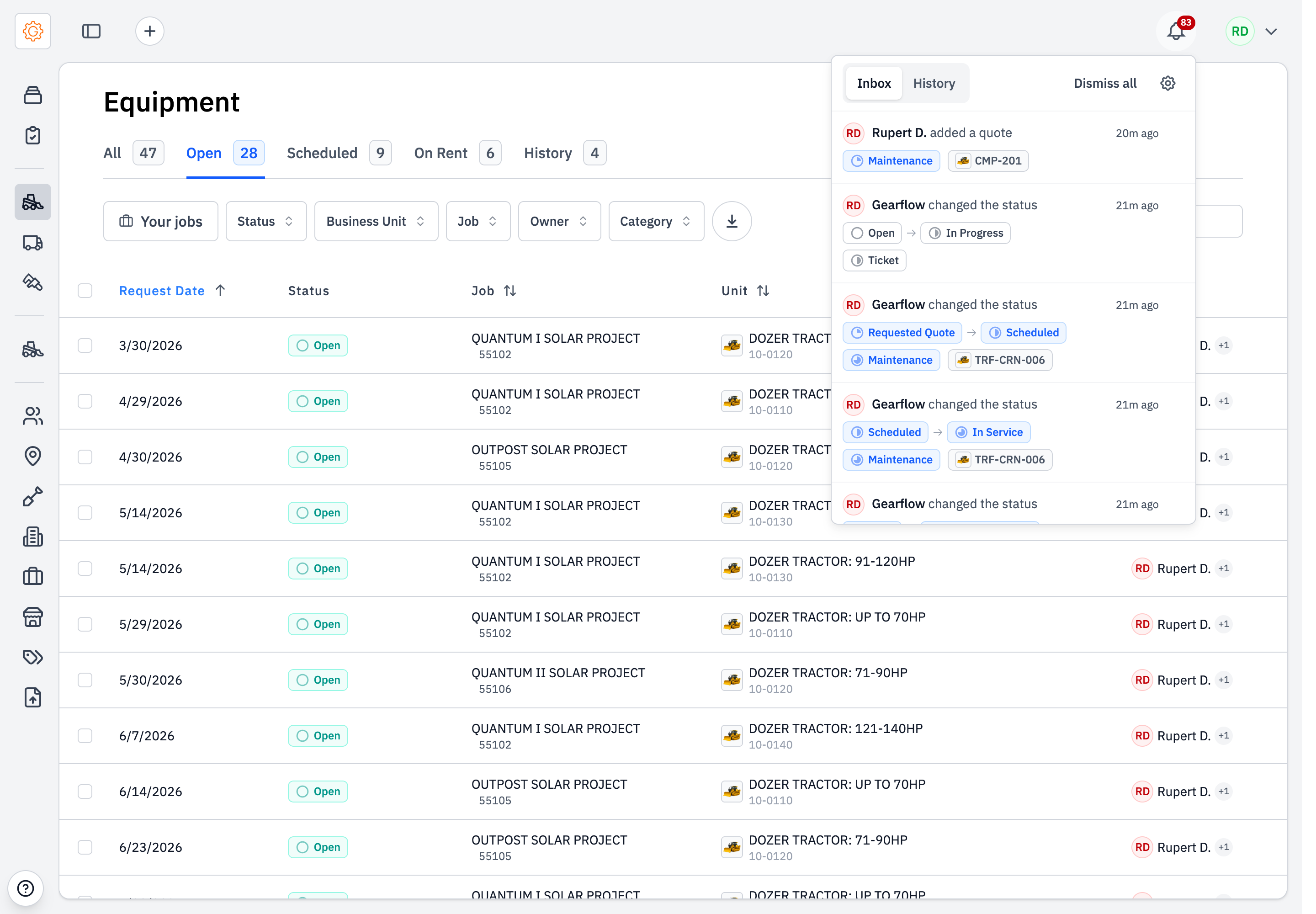
The platform delivers on three channels: the in-app inbox, email, and SMS (text).
Every notification creates an in-app inbox entry. An email is sent in addition when the recipient's preference for that activity includes email (§4). A text is sent in addition when the recipient has opted into SMS for that activity and has a verified mobile number (§4, §7). SMS is off by default on every activity.
The platform sends no mobile push. A recipient who does not open the in-app inbox, has no email address on file, and has not opted into SMS receives no notification.
#2. Events
Table 1 lists each event and whether it generates a notification.
Table 1. Events.
| Event | Notification | Recipients (§3) | Channels |
|---|---|---|---|
| Record created — request, ticket, mobilization, maintenance | Yes | by domain | in-app, email |
| Owner assigned | Yes | the owner | in-app, email |
| Status change (general) | Yes | by domain | in-app, email |
| Mobilization scheduled | Yes | pickup contact, destination contact | in-app, email |
| Message posted to a thread | Yes | thread participants | in-app, email |
| Mention in a message | Yes | the mentioned user | in-app, email |
| Driver assigned to a mobilization | No | — | — |
| Driver marks picked up | No | — | — |
| Driver marks dropped off | No | — | — |
| User added to a thread manually | No | — | — |
| Quote requested | No | — | — |
| Quote added | No | — | — |
| Order created | No | — | — |
The four No rows for driver events and for a manual thread add are current gaps, not design intent (§6). The No rows for quote and order events are intentional.
#3. Recipients
Recipients are resolved per event, by domain. Each set below is filtered to the recipient's business unit, except message recipients, which are not filtered.
- Equipment requests. The owner, the requester, and the job's subscribers.
- Mobilizations and maintenance. Every dispatcher and admin on the account.
- Tickets. The ticket's subscribers, the job's subscribers, the dispatchers, and the creator. Each is filtered additionally by that user's scope (§4).
- Messages. The thread's participants, except the message's author. A mention adds the named user to the thread; that user then receives message notifications as a participant.
The user who triggers an event is never a recipient of that event.
#4. Preferences
Each user sets, per activity, which channels deliver: the in-app inbox, email, and SMS. The in-app inbox and email default on; SMS defaults off and stays greyed out until the user verifies a mobile number (§7).
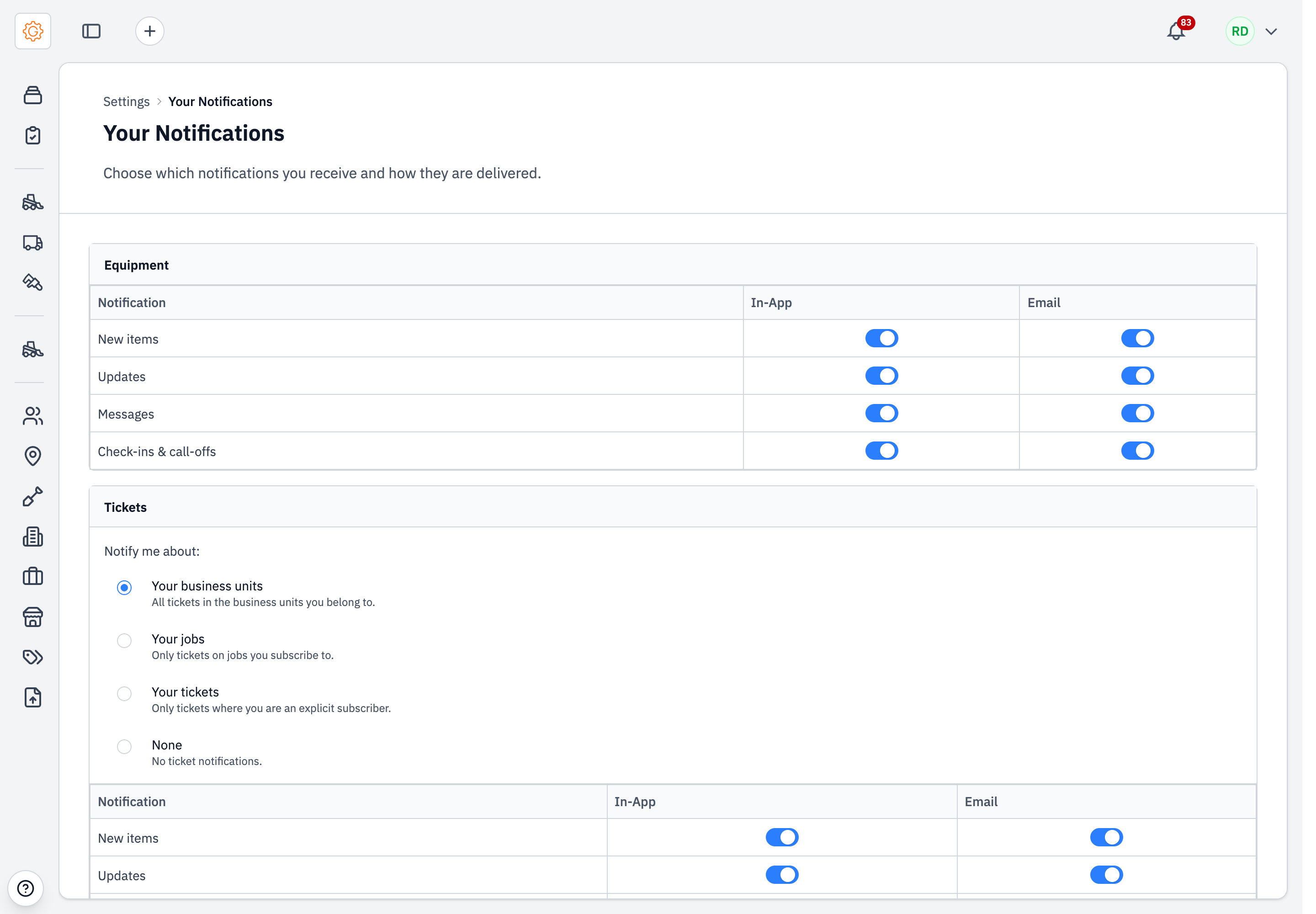
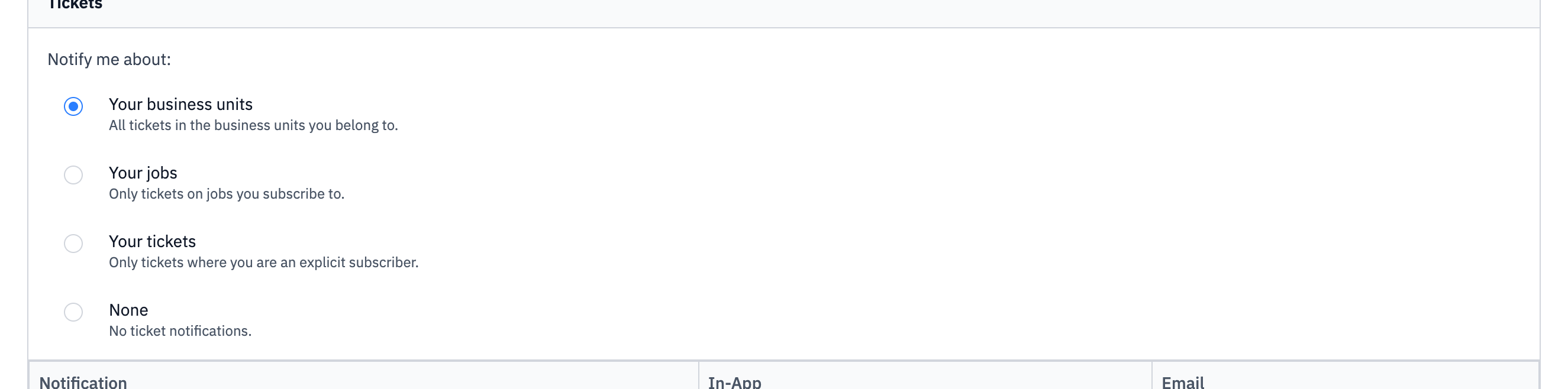
Each user sets one scope for ticket events: business units, your jobs, your tickets, or none. Scope determines how widely ticket events reach the user (§3).
#5. Forced delivery
The in-app inbox entry is delivered to a participant, owner, submitter, or subscribed dispatcher regardless of that user's preference. Email is never forced.
#6. Limitations
- The platform has no mobile push. A phone-only field user — a driver or site superintendent with no email address — is reachable only if they verify a mobile number and opt into SMS (§7).
- Driver assignment generates no notification.
- A driver's picked-up and dropped-off status changes generate no notification.
- Mobilization and maintenance events notify every dispatcher and admin on the account. No per-record subscription exists.
- Adding a user to a thread manually generates no notification.
#7. SMS (text messages)
SMS is a transactional, opt-in channel. Gearflow never sends marketing texts and never texts a number that has not opted in.
What texts exist. Two kinds, from separate numbers:
- Sign-in codes. A one-time code, sent only when you request one at login.
- Account notifications. The events in Table 1 (§2) — ticket, equipment, mobilization, and maintenance activity — but only for the activities you have switched on and only to a verified number. Message frequency varies with your activity.
How to verify a number. In Profile, add your mobile number and enter the one-time code we text you. Verifying proves the number can receive texts; until you do, every SMS toggle in Notification Settings stays greyed out.
How to turn texts on. In Notification Settings, switch on SMS for each activity you want. Every toggle is off by default. The opt-in disclosure — message frequency, that message and data rates may apply, and the STOP/HELP instructions — shows at the point of opt-in. A one-time confirmation text follows.
How to stop them. Reply STOP to any Gearflow text to opt out of all texts; reply HELP for help. You can also turn SMS off per activity in Notification Settings, or email support@gearflow.com. See the public SMS opt-in disclosure for the full terms.