Who gets notified when a Request is submitted
Whether a new part Request reaches a purchaser depends on setup — location attachments, preferences, and Location Groups — not the Purchaser role.
#Why this exists
A mechanic in the field submits a Request for a part — and then waits for someone with a company card to act on it. If the purchaser who covers that job never hears about the Request, it sits. The whole point of Parts Hub Pro over a group text is that the right buyer gets pinged the moment a Request lands.
The catch we see most often in onboarding: an account creates its purchasers, gives them the Purchaser role, and assumes that's enough. It isn't. The role decides what a person is allowed to do (approve orders, pay invoices); it does not decide what they get told about. Notifications are wired separately. A brand-new Purchaser with a clean profile is subscribed to nothing and will hear about no Requests until someone sets that up.
This article is the setup: the ways a Request reaches a purchaser, and how to configure each.
#How a Request reaches a purchaser
Who gets the email depends on whether the Request needs approval — but attaching purchasers to shipping locations is the foundation in both cases.
1. By shipping location — the foundation
Every Request is placed against a shipping location. Whoever is attached to that location is in line to be notified, and this works for both everyday Requests and Requests that need approval. A yard's purchaser hears about that yard's Requests.
2. "All requests" — the everyday net
A purchaser can set their Request Created preference to All requests and hear about every everyday Request in the org, no matter the location — the catch-all backstop. It does not cover approval Requests; those route to your approvers (Path 3).
3. Location Groups — for approval
When a Request needs approval, it goes to your approvers — Admins and Purchasers — who are attached to its location or on a Location Group that covers it. Groups let a team of Parts Coordinators cover approvals without attaching each person to every location.
The practical read: attach purchasers to the locations they cover — it's the one setting that serves every kind of Request. Add "All requests" as a backstop for everyday Requests, and use Location Groups when an approval account wants team-based coverage. If none of these is set for anyone, a submitted Request reaches no one.
#Setting it up
#Path 1 — attach purchasers to a shipping location
This is the durable setup: tie each purchaser to the locations they're responsible for.
Go to Locations in the left sidebar and open the shipping location. In its right-hand sidebar there's a Notifications section with a pencil to edit.
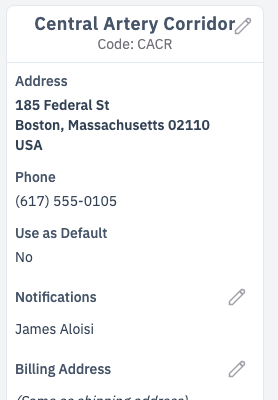
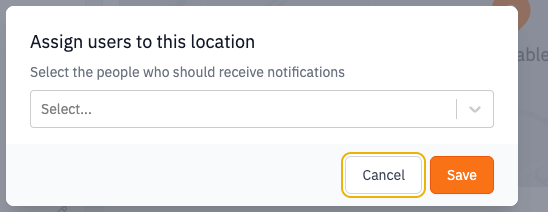
Click the pencil. A dialog titled Assign users to this location opens — "Select the people who should receive notifications." Pick the purchasers who cover this location and save. From then on, every Request placed against this location notifies them.
If a location shows No users assigned, that's the red flag — Requests placed there will reach no one through the location path. Walk every shipping location an account uses and confirm someone is attached.
The user-creation gap. Inviting a user and giving them the Purchaser role does not attach them to any location — there's no location step in the invite flow. Attaching them is this separate action. This is the single most common reason a newly onboarded account's purchasers hear nothing.
#Path 2 — turn on "All requests" for a purchaser
The fastest way to guarantee a purchaser hears about everything, and a sensible default for a small account's main buyer.
Each user sets this for themselves under Settings → Notifications. In the Notification Activities table, find the Request Created row and set its Preference dropdown:
- All requests — notified about every everyday Request in the organization (this preference doesn't apply to approval Requests).
- My requests — notified only about Requests at the locations they're attached to (the Path 1 set).
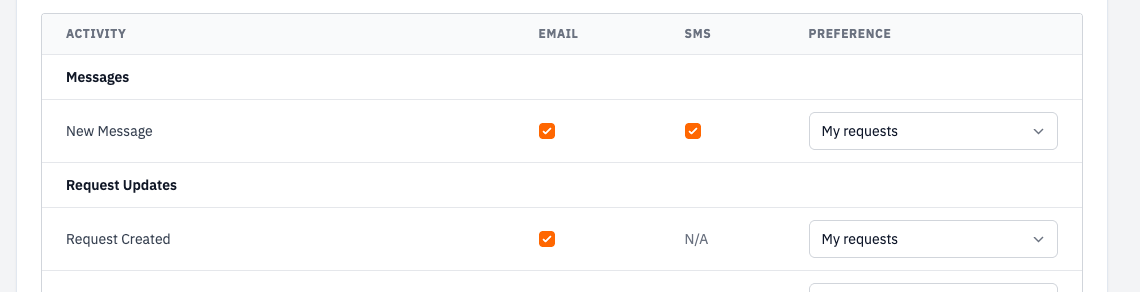
Same screen, the My Locations section lets a user opt themselves into specific locations — "Select the locations you want to be notified for." It's the self-service version of Path 1: a purchaser can add the locations they cover instead of waiting for an admin to attach them.

#Path 3 — Location Groups (for Requests that need approval)
When an account uses approval — a Request over the org's threshold needs a Purchaser's sign-off (see Roles and permissions) — that Request notifies your approvers (Admins and Purchasers) two ways: anyone attached to its shipping location (Path 1, same control as everyday Requests), or anyone on a Location Group that covers the location. So Path 1 already covers approval if you've attached the right people; Location Groups are the way to cover a team of Parts Coordinators without attaching each of them to every location.
A Location Group is a named set of locations with a team behind it. Set it up under Settings → Location Groups: create a group and assign the purchasers who cover it.
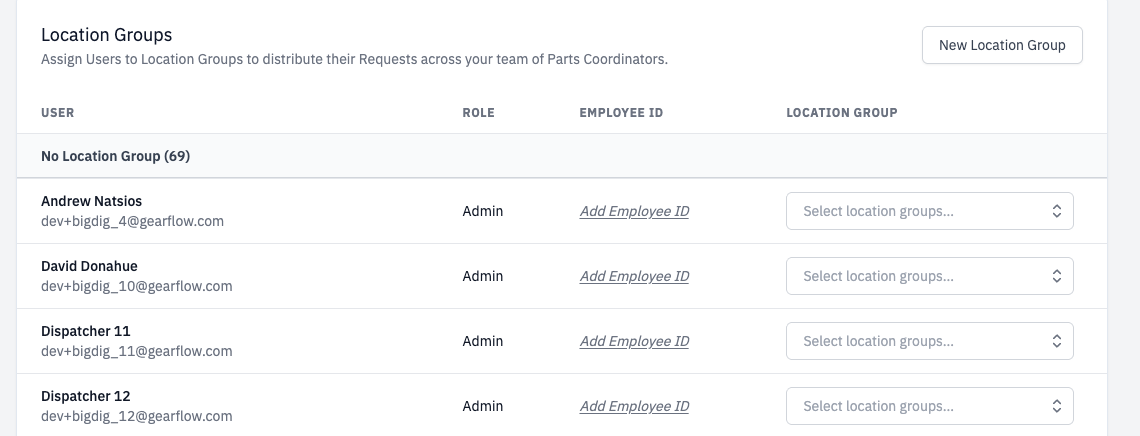
Two things have to line up for a group to actually notify, and both are easy to miss:
- The group must include the Request's location. A Location Group only matters for a Request whose shipping location belongs to that group. A group with no locations — or one that doesn't cover the location a mechanic picked — notifies no one.
- Assigning a purchaser to a group is not the same as subscribing them to it. The screen above organizes purchasers into groups; to actually receive a group's approval notifications a purchaser also turns the group on under their own Settings → Notifications → My Location Groups. Assigned-but-not-subscribed is the silent gap.
As with every path, the recipient still has to be an Admin or Purchaser (someone who can approve) with the Request Created email channel on — a Requester is never notified.
#Quick troubleshooting
When an account reports that purchasers aren't getting notified about new Requests, check in this order:
- Is anyone set to "All requests"? If yes, they get every everyday Request — start there. If no purchaser has it on, there's no org-wide net for everyday Requests, and you're relying entirely on location attachments. (Remember "All requests" does not cover approval Requests.)
- Is the purchaser attached to the locations they cover? Open each shipping location → Notifications. "No users assigned" means Requests there reach no one via the location path.
- Does the purchaser have the Email channel on for Request Created (the checkbox next to the preference)? Notifications can be on for in-app but off for email.
- Right person, right role? Confirm they're actually a Purchaser (or Admin) and an active user.
- Is it an approval Request? If the account uses the approval threshold and the missing notification is for a Request that needed sign-off, only your approvers (Admins/Purchasers) get it — either by being attached to the Request's location (step 2) or via a Location Group that covers it. For the group route, confirm the group includes that location and the purchaser has it turned on under My Location Groups — not just assigned to it.
Nine times out of ten the fix is step 1 or step 2 — turn on "All requests" for the main buyer, and attach purchasers to their locations.
#Tips
- Location Groups are an approval-account feature. They only route Requests that need approval. If an account doesn't use the approval threshold they change nothing, and "assigned to a group" still isn't "subscribed to it."
- "All requests" is the one-minute fix. If an account is live and purchasers are missing Requests, flipping the main buyer to "All requests" stops the bleeding immediately while you set up proper location attachments.
- Make location attachment part of go-live. Treat "every shipping location has at least one purchaser attached" as a checklist item before an account starts submitting Requests. It's the step the invite flow doesn't force, so it's the one that gets skipped.
- Bigger accounts want the location path. A single contractor with ten yards doesn't want every purchaser drowning in every yard's Requests — attach each purchaser to their locations and leave "All requests" for a central coordinator.